

Overview
Adding videos to a storefront naturally introduces additional resources for the browser to load and process. ReelPik is designed to keep this impact as low as possible by using Shopify’s own video hosting and delivery infrastructure.
When you import a video from TikTok, Instagram, or your device, ReelPik does not require shoppers to continuously fetch that video from TikTok or Instagram.
Instead, imported videos are stored in Shopify Files and served to shoppers through Shopify’s CDN.
For supported Shopify-hosted videos, Shopify may also provide optimized video sources, including multiple resolutions and HLS playback.
How ReelPik Loads Videos
The video delivery process can be summarized as:
TikTok / Instagram / Device
↓
ReelPik imports the video
↓
Shopify Files
↓
Shopify CDN
↓
ReelPik widget on your storefront
Step 1: Import the video
When you add a video from TikTok, Instagram, or your device, ReelPik imports the selected video into the app.
Step 2: Store the video in Shopify
The imported video is stored in Shopify Files.
Shopify then processes the video and makes it available through its CDN. Depending on the video, Shopify may generate different video resolutions and an HLS source to optimize playback across devices and network conditions.
Step 3: Display the video on your storefront
When shoppers visit your store, videos displayed by ReelPik are delivered from Shopify’s CDN.
This means shoppers generally do not need to retrieve the original video directly from TikTok or Instagram every time the ReelPik widget appears.
Performance Test on a Live Store
We tested ReelPik across multiple stores to evaluate its impact on storefront performance. One example is the Rosslyn Deals collection, a live storefront page where we compared performance with and without ReelPik videos.
We used two widely used website performance testing tools:
-
GTmetrix
-
Google PageSpeed Insights / Lighthouse
GTmetrix Results
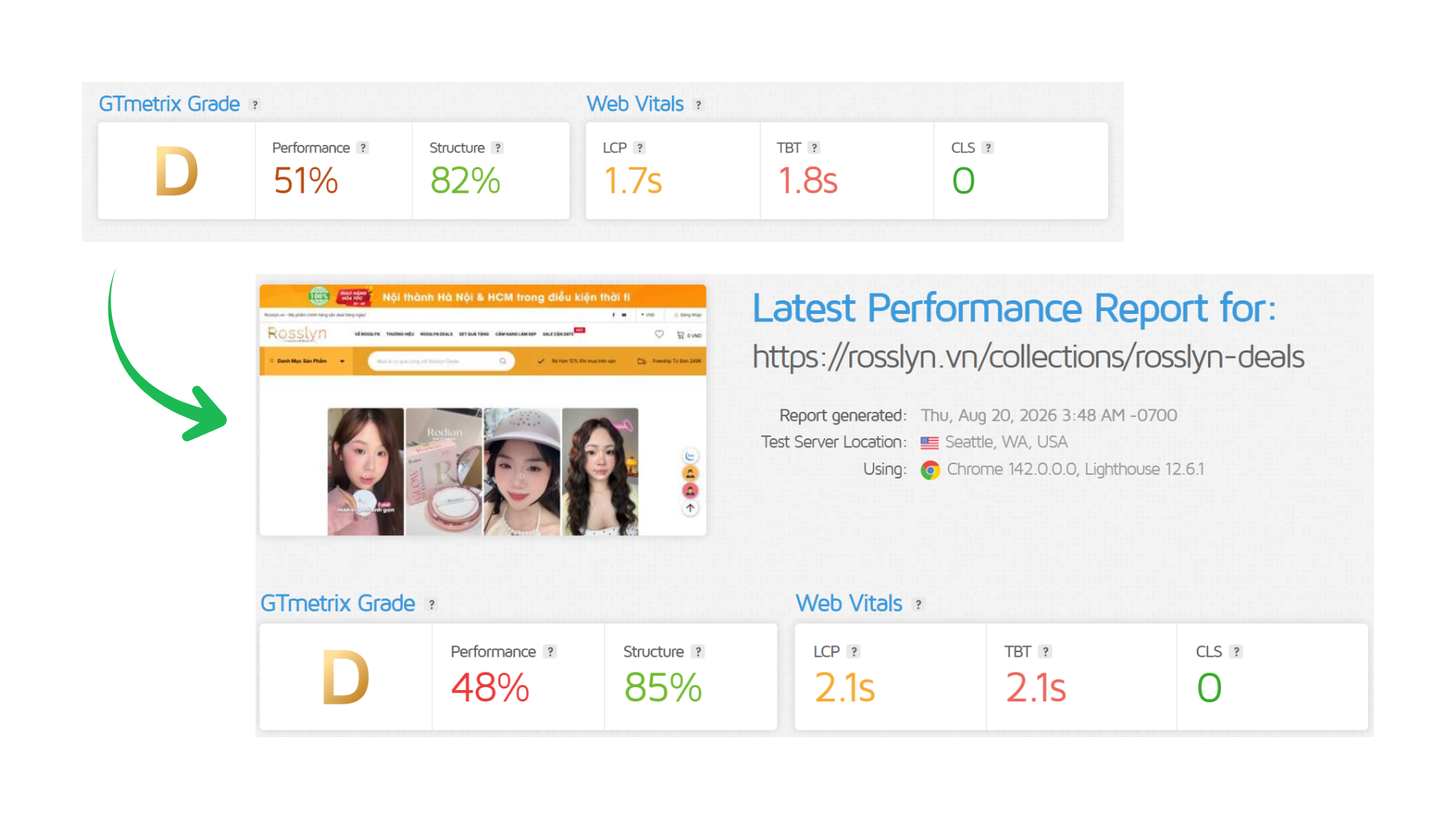
In this particular GTmetrix test, enabling ReelPik did not result in a meaningful overall performance decline. Some metrics were slightly better and others slightly lower.
This does not mean ReelPik will improve performance or have the same result on every store. Performance testing naturally varies between individual test runs, and results are influenced by many resources beyond ReelPik.
Google PageSpeed Insights / Lighthouse Results
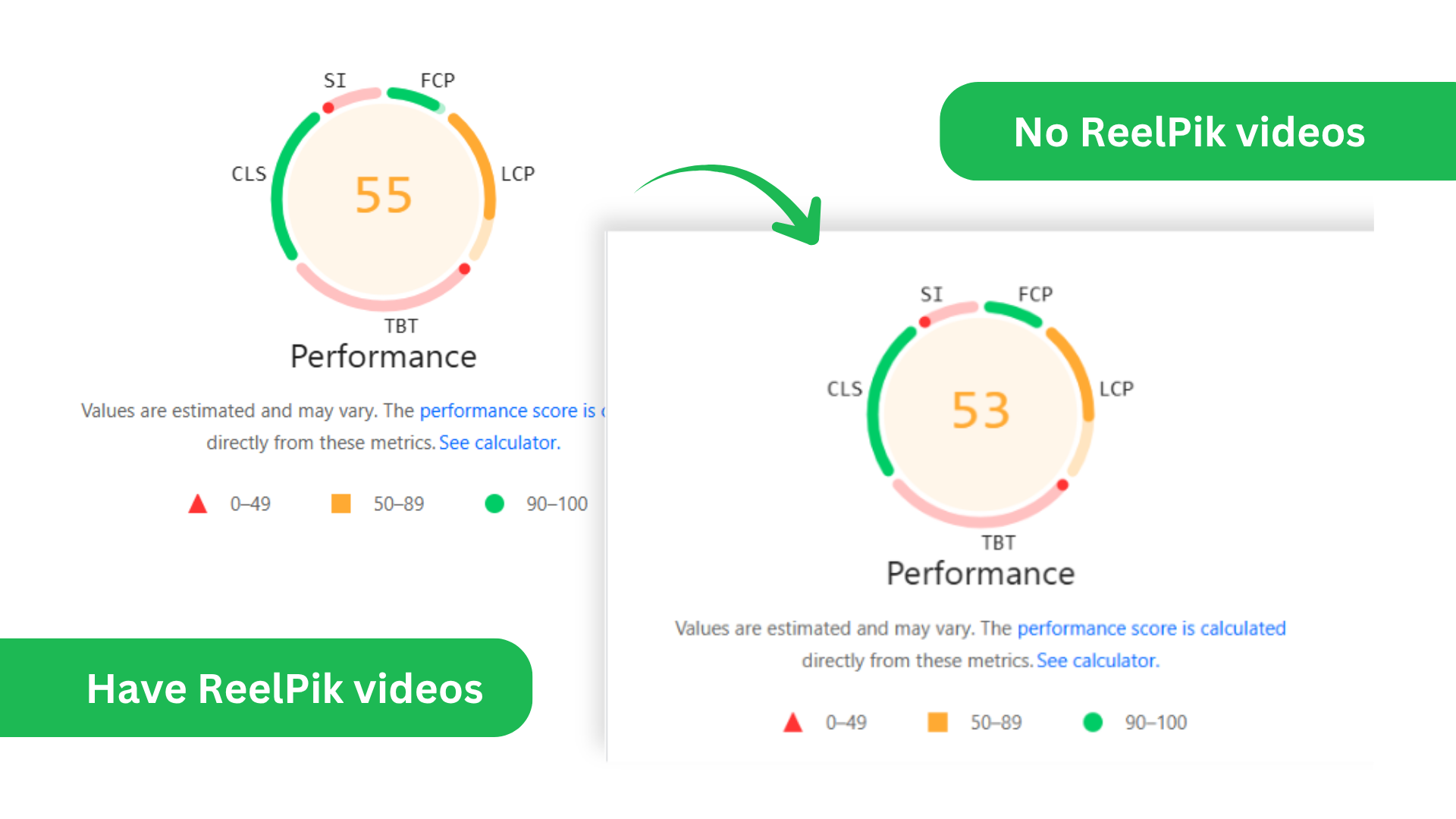
We also compared the page using Lighthouse performance testing.
The recorded Performance scores were:
-
With ReelPik videos: 55
-
Without ReelPik videos: 53
Again, the difference between the two tests was small.
The purpose of this comparison is not to claim that ReelPik has zero performance cost. Instead, it shows that on this particular live storefront and under these test conditions, adding ReelPik did not cause a significant decrease in the overall performance score.
Understanding the Performance Trade-Off
Adding functionality to a storefront always comes with some cost.
A video widget requires additional JavaScript, video-related resources, thumbnails, and browser processing. Similarly, adding reviews, recommendations, analytics, live chat, upsells, animations, or other storefront features can introduce additional resources.
For merchants, the more useful question is therefore not simply:
“Does this widget affect page speed?”
Instead, consider:
“Is the performance impact significant, and does the value added to the storefront justify it?”
For example, product videos can help shoppers:
-
See products more clearly in real-world use
-
Better understand product details, appearance, or functionality
-
Discover products through more engaging visual content
-
Spend more time exploring products
-
Make purchasing decisions with more confidence
-
Potentially contribute to higher engagement and more orders
A small change in a synthetic performance score may therefore be an acceptable trade-off if the added content meaningfully improves the shopping experience or conversion performance.
The right balance depends on each store.
Why Performance Results May Be Different
The results above represent one real storefront under specific test conditions. They should not be interpreted as a guarantee that every Shopify store will receive the same scores.
Store performance can be affected by many factors, including:
-
Shopify theme
-
Number of ReelPik videos displayed
-
Video file sizes and resolutions
-
Images and fonts
-
Other Shopify apps
-
Third-party JavaScript
-
Tracking and analytics scripts
-
Custom theme code
-
Device performance
-
Browser
-
Network speed
-
Geographic location
-
Testing environment
Performance scores can also fluctuate between test runs even when no changes have been made to the page.
Best Practices for Better Video Loading
1. Use Optimized Video Files
Avoid unnecessarily large video files or resolutions much higher than required for storefront display.
Larger videos require more data to transfer and may require more resources for the shopper's device to process.
2. Be Selective About the Number of Videos
More content naturally means more resources for the browser to manage.
Instead of focusing only on maximizing the number of videos displayed, consider which videos provide the most value to shoppers and where they are most useful in the buying journey.
3. Test Your Own Store
For the most meaningful comparison, test the same page:
Without ReelPik → With ReelPik
Try to keep the testing conditions as similar as possible and perform several runs rather than relying on a single score.
You can use:
-
Google PageSpeed Insights
-
GTmetrix
-
Chrome DevTools
Compare not only the overall score but also individual metrics such as LCP, TBT, CLS, and loading behavior.
4. Test Across Different Devices and Networks
If you notice gray placeholders or slower video playback, compare the storefront using:
-
Desktop and mobile devices
-
Wi-Fi and mobile networks
-
Different browsers
-
Different network conditions
A delay that appears only under certain conditions may be related to the device or network rather than the storefront configuration alone.
5. Check Chrome DevTools
For more detailed investigation, open:
Chrome DevTools → Network
Reload the page and inspect the relevant video and widget requests.
Useful information includes:
-
Request duration
-
File size
-
Response status
-
Shopify CDN URL
-
Request timing
-
When each request begins
You can also check Chrome DevTools → Console for JavaScript errors that may affect ReelPik or other parts of the storefront.
We value your feedback — it helps us continuously improve ReelPik and provide you with a better experience.
🖥️ Demo store: Check out here with password: 1
👉 Chat with us: Share your feedback directly with our team.
👉 Email us: hi@reelpik.com
👉 Explore more apps: Discover more Fordeer apps.
👉 Join our community: Join ForDeer Community to get the latest updates, tips, and special deals.
🕐 Working hours: 8:30 AM – 5:00 PM (UTC+7), Monday–Friday.
We typically reply to live chats within minutes and emails within a few hours.
Need help? Feel free to reach out anytime via live chat or email!