

Overview
To help us check your video campaigns without affecting your live store, follow the steps below to duplicate your current theme and enable ReelPik campaigns on the duplicate.
Once completed, please send us the theme preview link and your store password (if applicable) so our team can check the issue.
Step 1: Disable ReelPik on Your Current Theme
Before testing on a duplicated theme, make sure the ReelPik widget you want us to check is not active on your live theme.
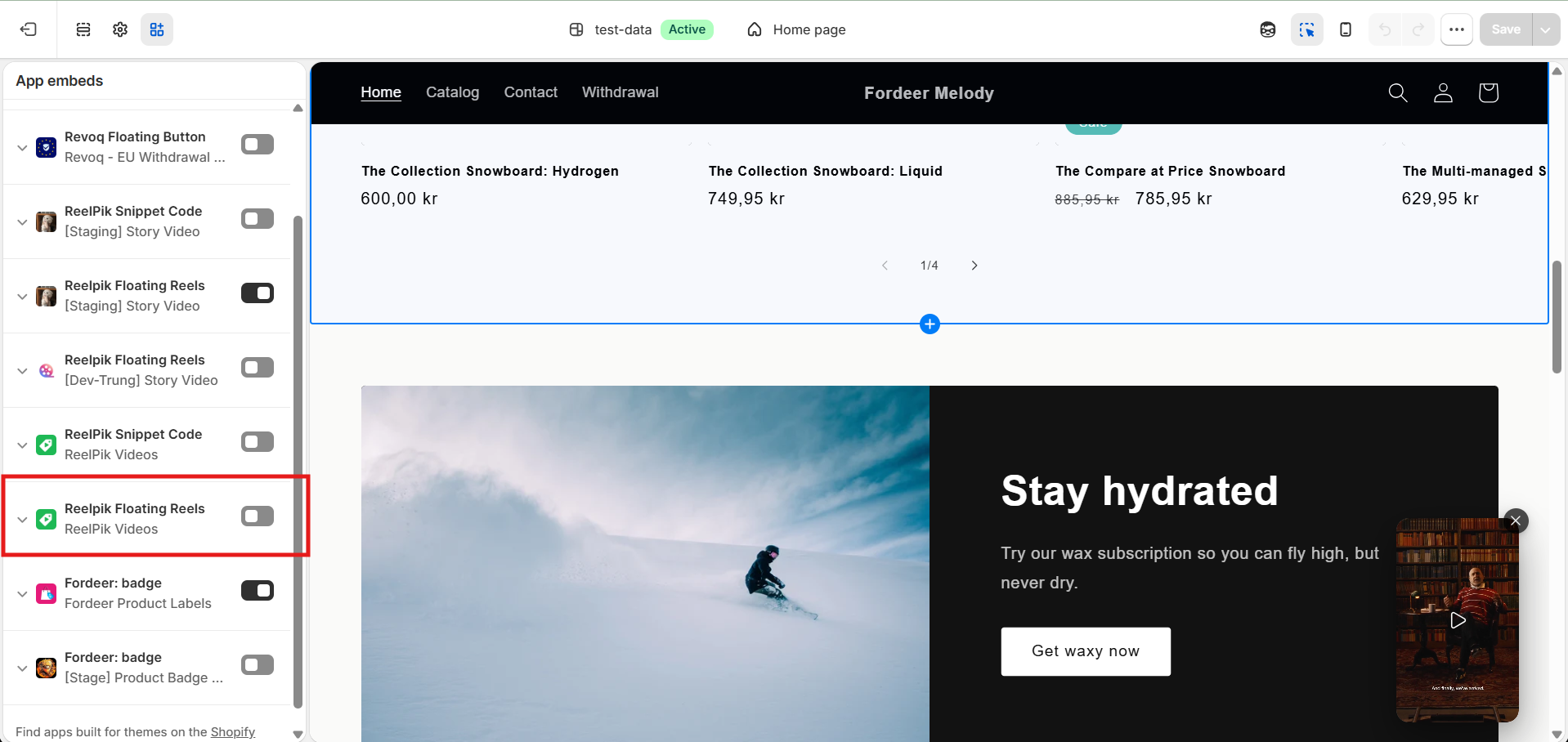
For Floating Reel
-
Open your current theme in the Theme Editor.
-
Go to App embeds.
-
Find ReelPik and turn it off.
-
Click Save.
For Carousel, Grid, and Other Widget Types
If you have added a ReelPik app block to your live theme, you can hide or remove the block while testing if needed.
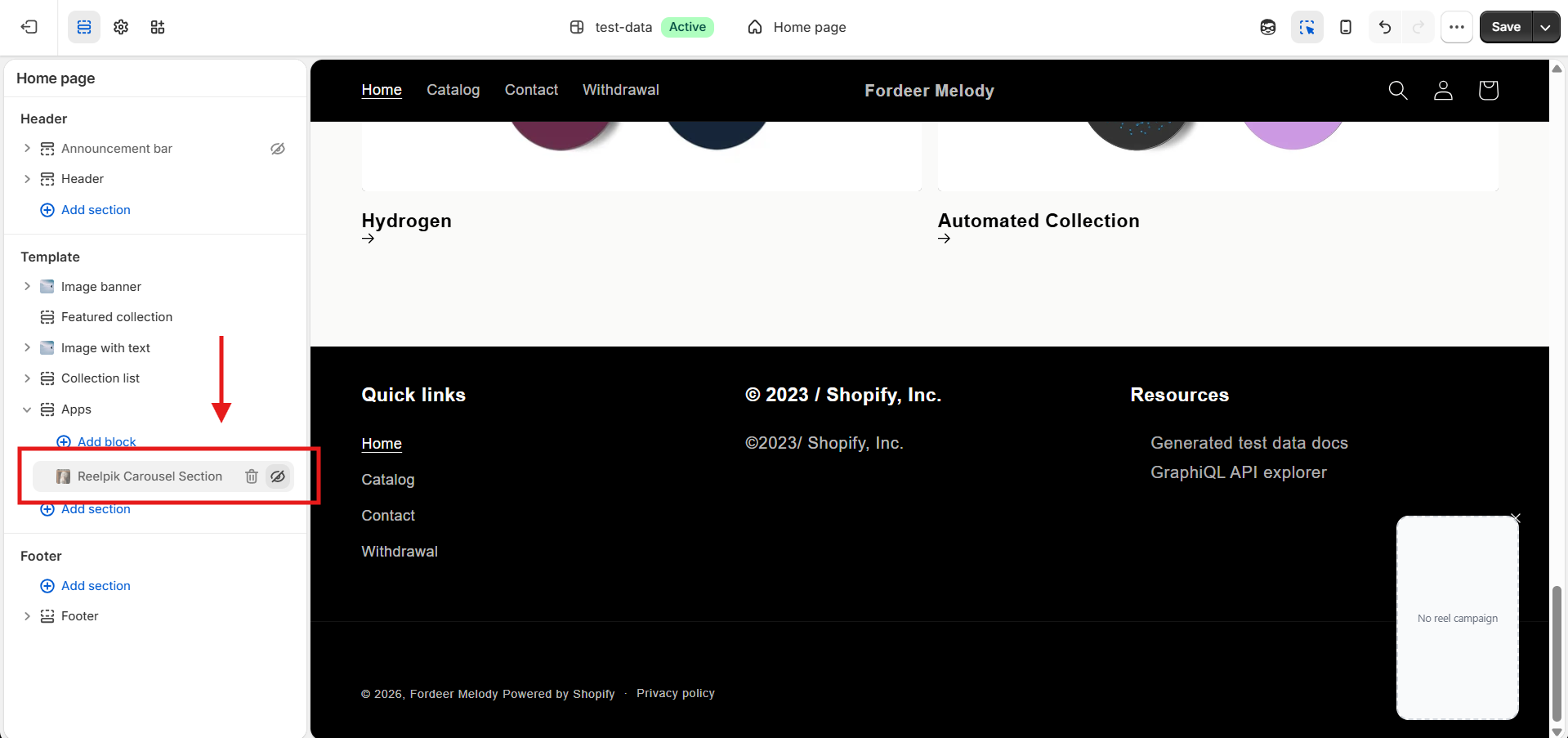
Important: Remember to click Save after making any changes.
Step 2: Duplicate Your Current Theme
-
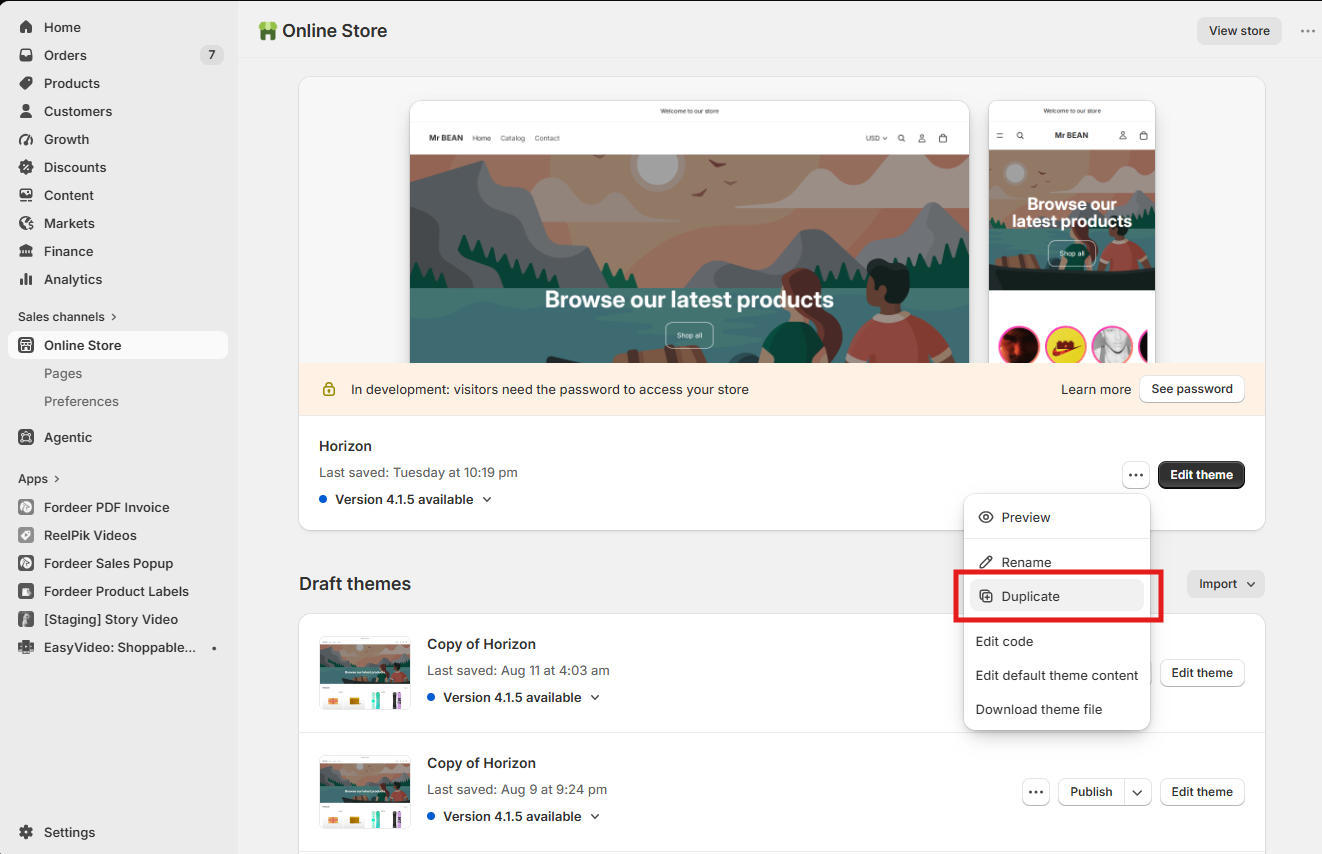
Go to Shopify Admin → Online Store → Themes.
-
Find your current theme, open the theme actions menu, and select Duplicate.
-
Wait for Shopify to finish creating the duplicated theme before continuing.
Step 3: Enable ReelPik on the Duplicated Theme
How you enable ReelPik depends on the widget type you want us to check.
Case 1: Floating Reel
For a Floating Reel, enable the ReelPik app embed:
-
Open the duplicated theme in the Theme Editor.
-
Go to App embeds.
-
Find ReelPik.
-
Turn the app embed on.
-
Click Save.
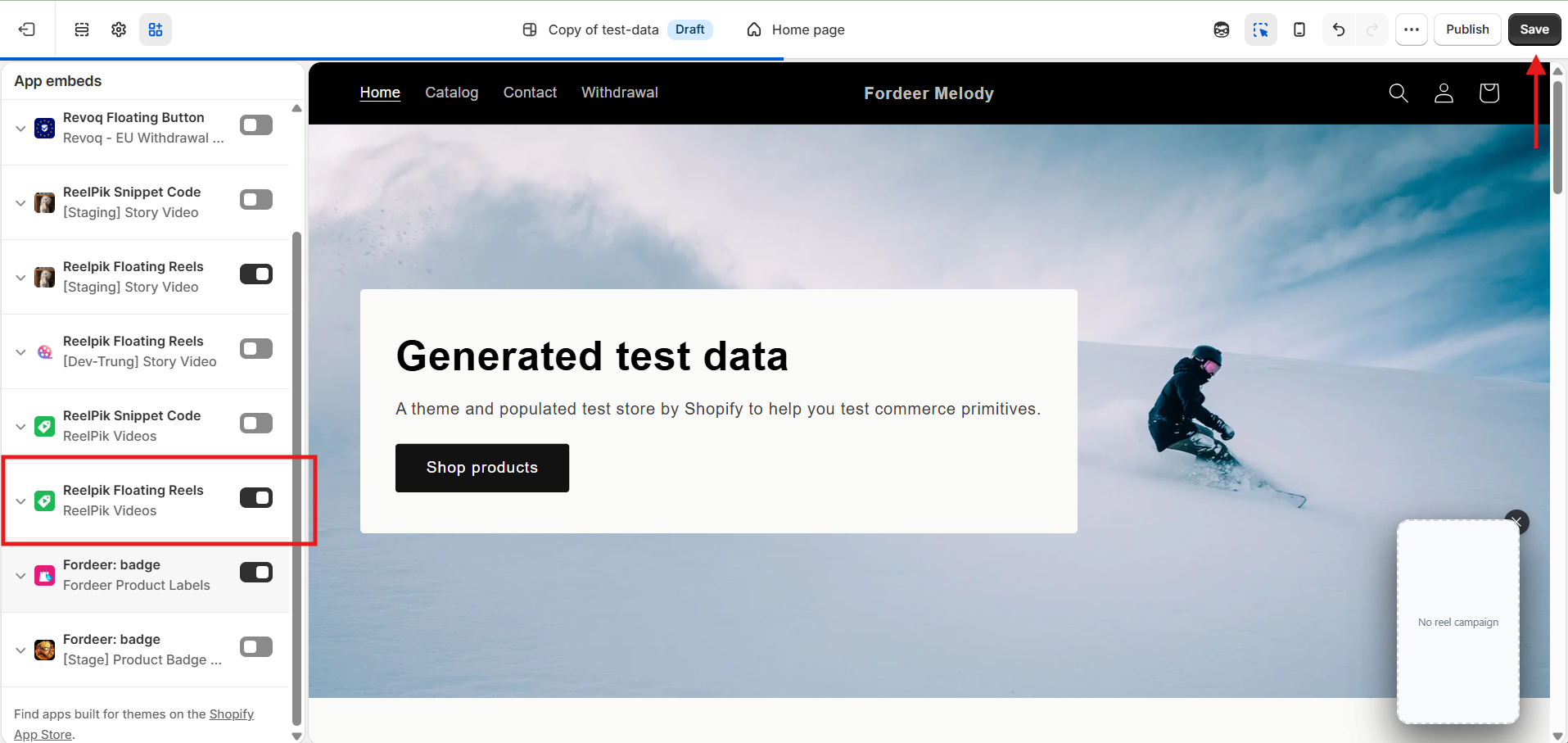
Your Floating Reel can now appear on the duplicated theme according to your campaign settings.
Case 2: Carousel, Grid, and Other Widget Types
For Carousel, Grid, or other embedded widget types, add a ReelPik app block:
-
Open the duplicated theme in the Theme Editor.
-
Navigate to the page where you want the ReelPik widget to appear.
-
Click Add section or Add block, depending on your theme.
-
Select the appropriate ReelPik app block.
-
Position the block where you want the widget to appear.
-
Click Save.
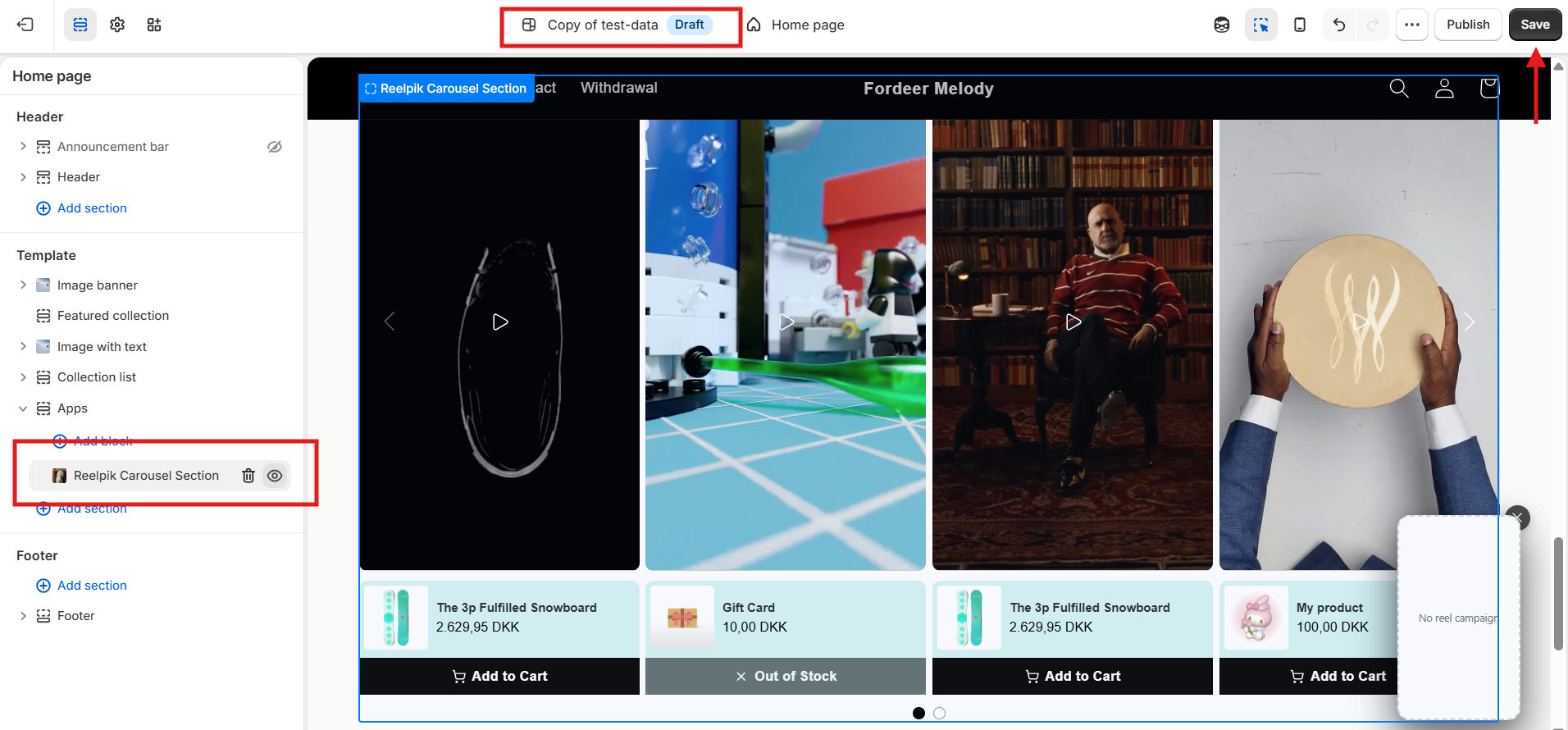
Important:
Make sure the ReelPik campaign you want us to check is activated.
Use the setup method that matches your widget type.
Remember to click Save after making changes.
Step 4: Send Us the Theme Preview Link
-
Go back to Online Store → Themes and find the duplicated theme.
-
Click Preview to open the duplicated theme.
-
Copy the preview link from your browser and send it to us.
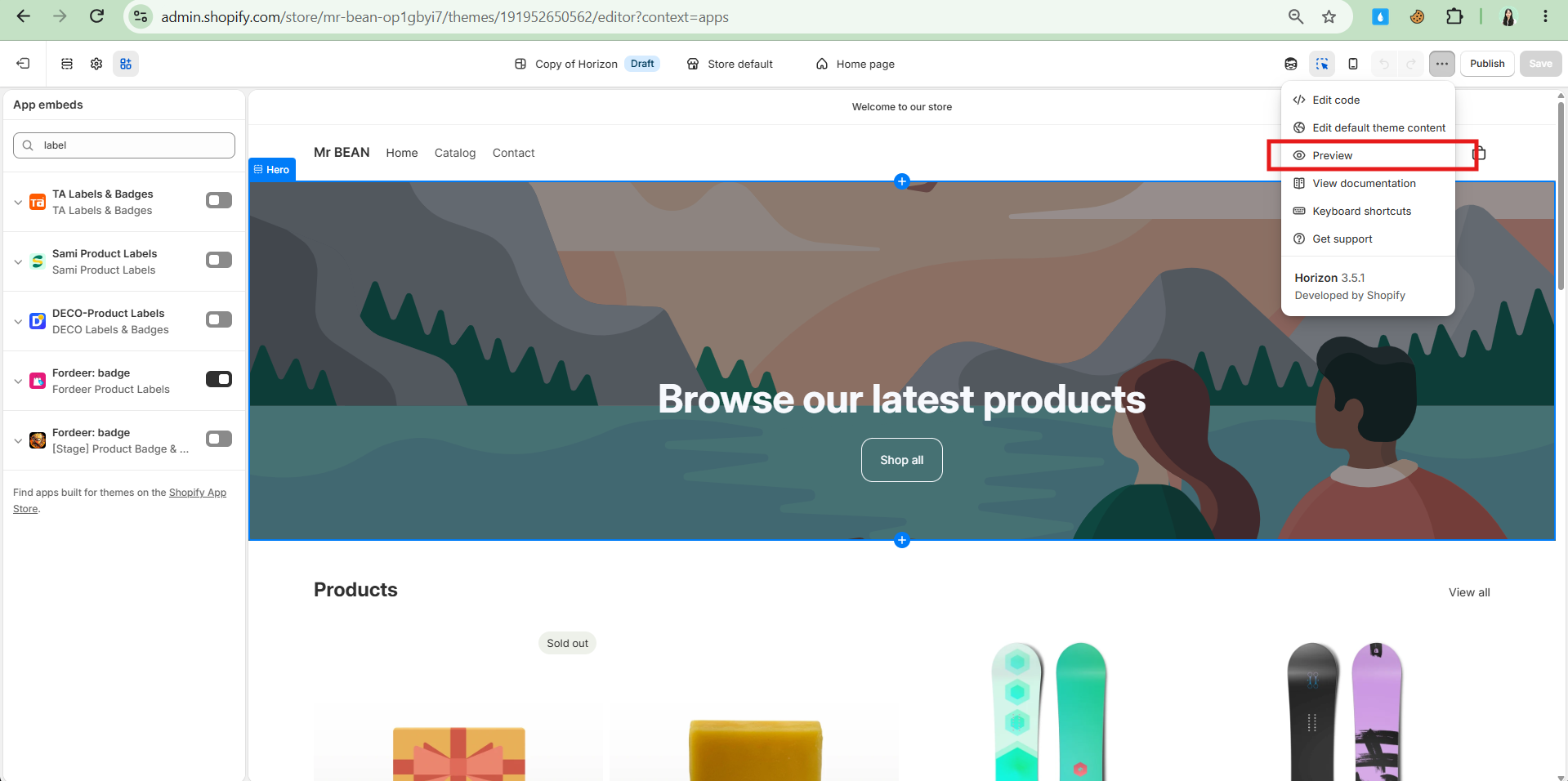
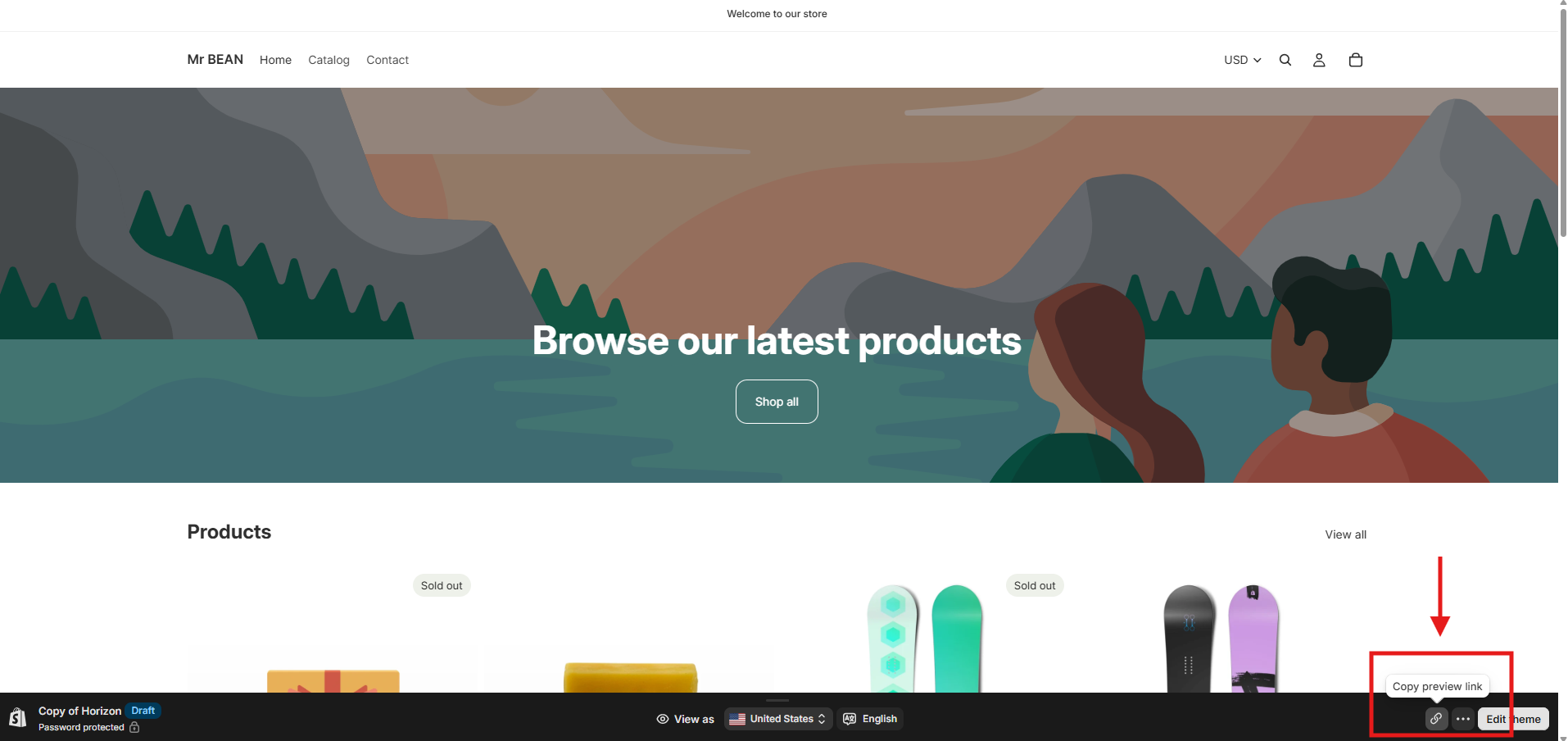
Please send us: Your duplicated theme preview link.
Step 5: Send Us Your Store Password
If your storefront is password-protected, we will also need the password to access the preview.
-
Go to your store's password settings.
-
Find your store password.
-
Copy the password and send it to us together with your preview link.
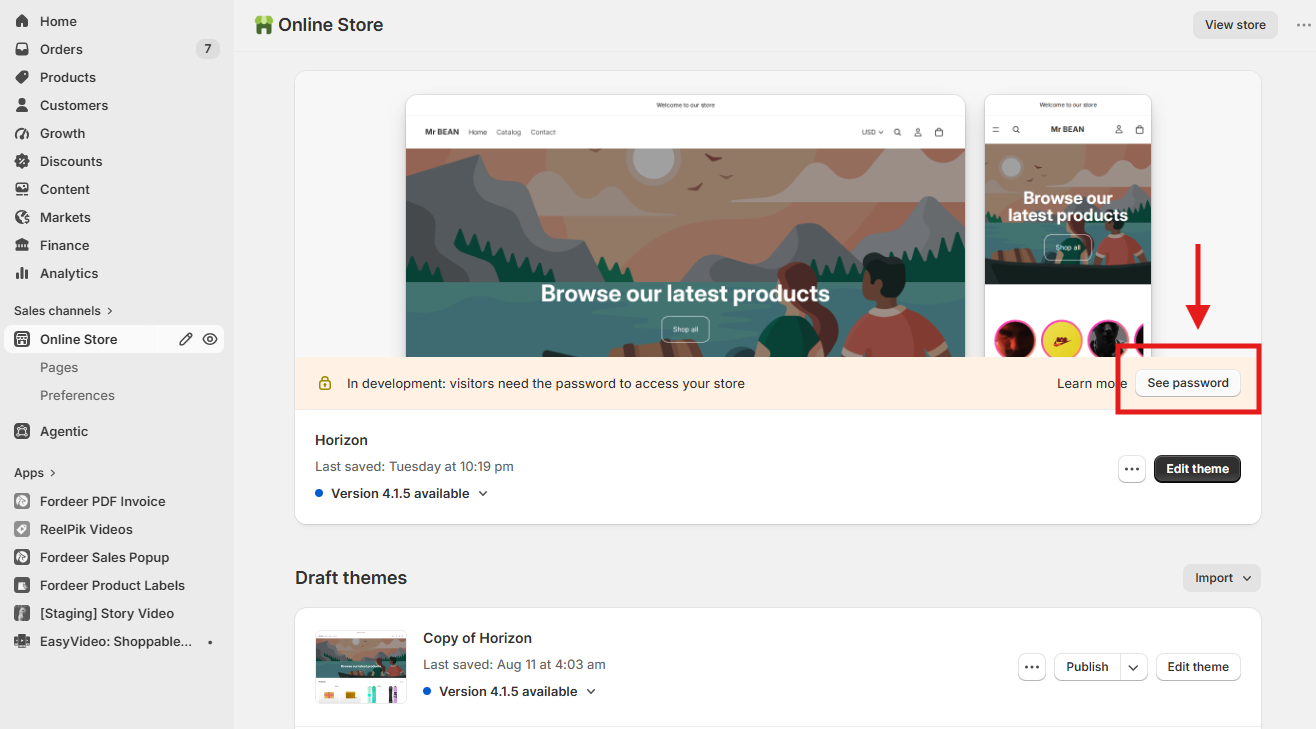
Please send us:
Duplicated theme preview link
Store password (if your store is password-protected)
We value your feedback — it helps us continuously improve our apps and provide you with a better experience.
🖥️ Demo store: Check out here with password: 1
👉 Chat with us: Share your feedback directly with our team.
👉 Email us: hi@reelpik.com
👉 Explore more apps: Discover more Fordeer apps.
👉 Join our community: Join ForDeer Community to get the latest updates, tips, and special deals.
🕐 Working hours: 8:30 AM – 5:00 PM (UTC+7), Monday–Friday.
We typically reply to live chats within minutes and emails within a few hours.
Need help? Feel free to reach out anytime via live chat or email!