

Overview
ReelPik app blocks allow you to display your video campaigns directly on different pages of your Shopify store.
There are two ways to add a ReelPik app block to your theme: directly from the ReelPik app or manually through the Shopify Theme Editor.
Important: Before adding an app block, make sure you have created a campaign with at least one video.
Method 1: Add the app block from ReelPik
This is the recommended and easiest way to add your campaign to your storefront.
Step 1: Start from your campaign
After creating your campaign, ReelPik will show 3 guided steps to help you display it on your store. You can also scroll down and add a block there.
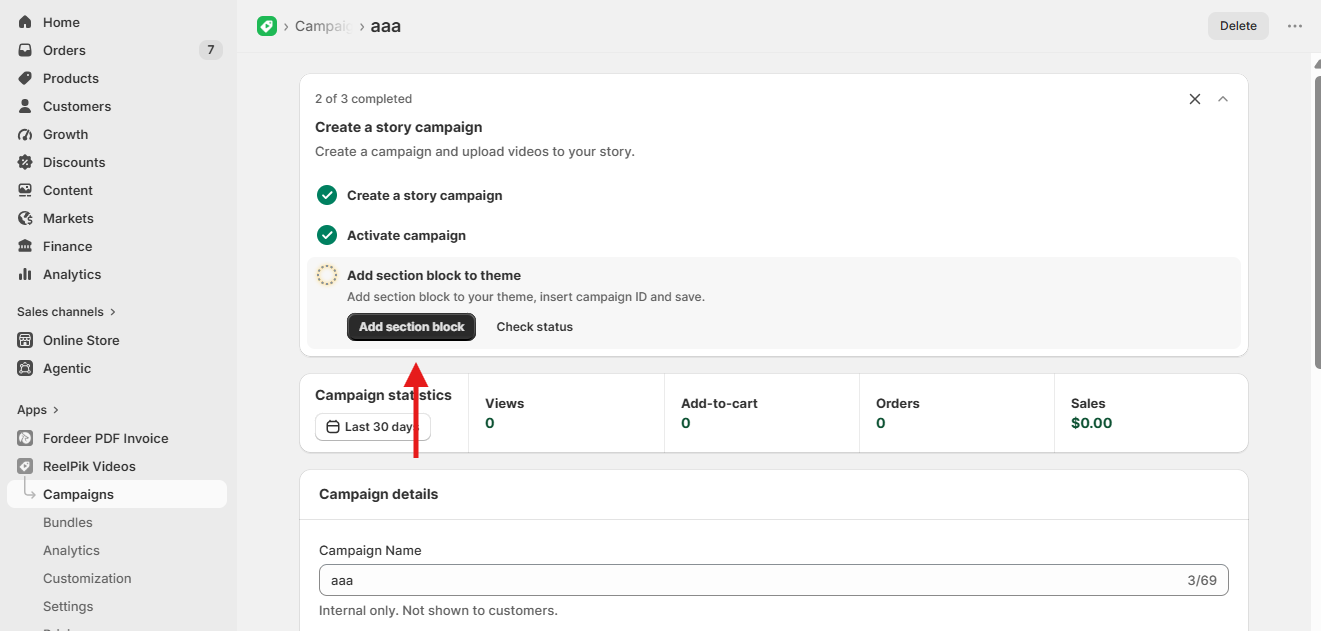
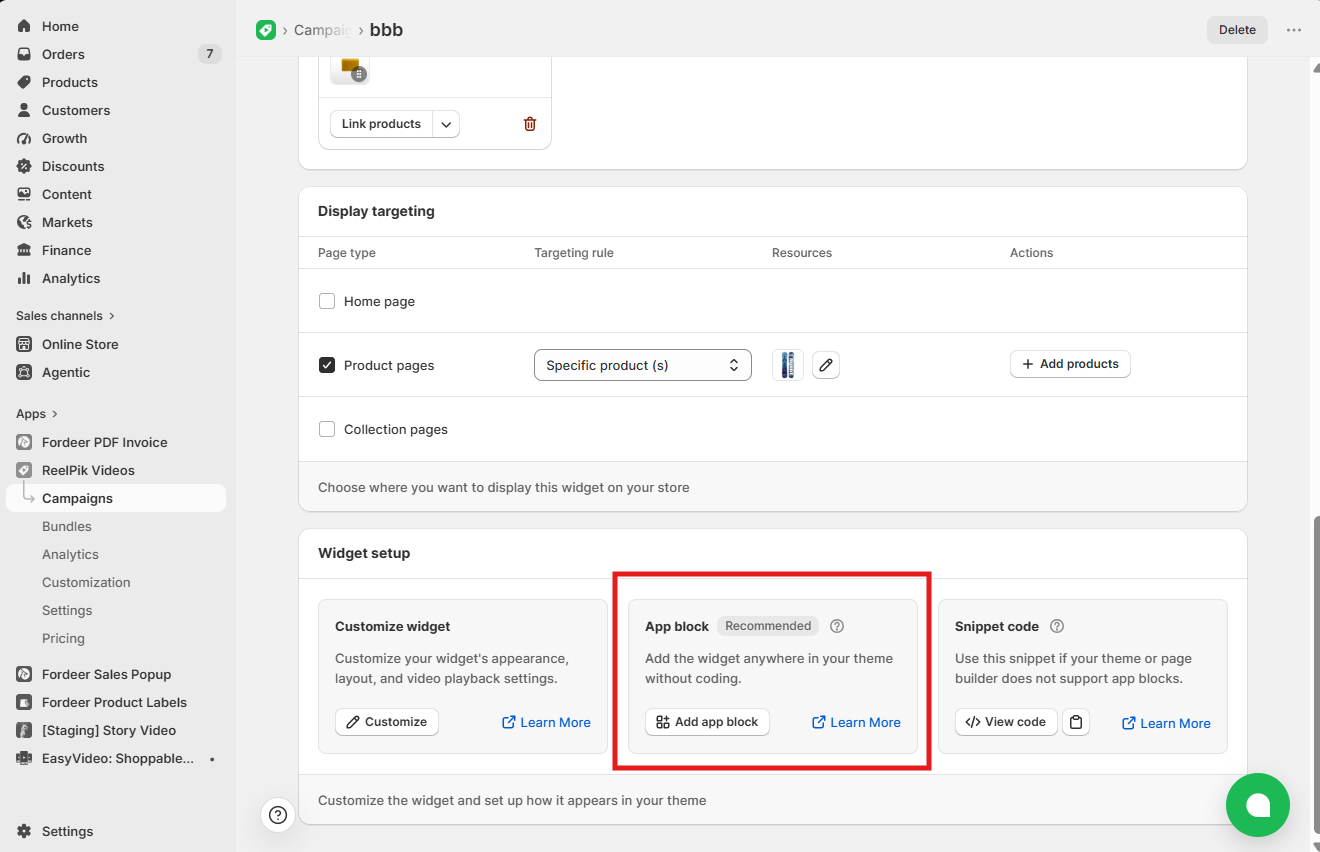
Click Add block and select the page where you want the campaign to appear.
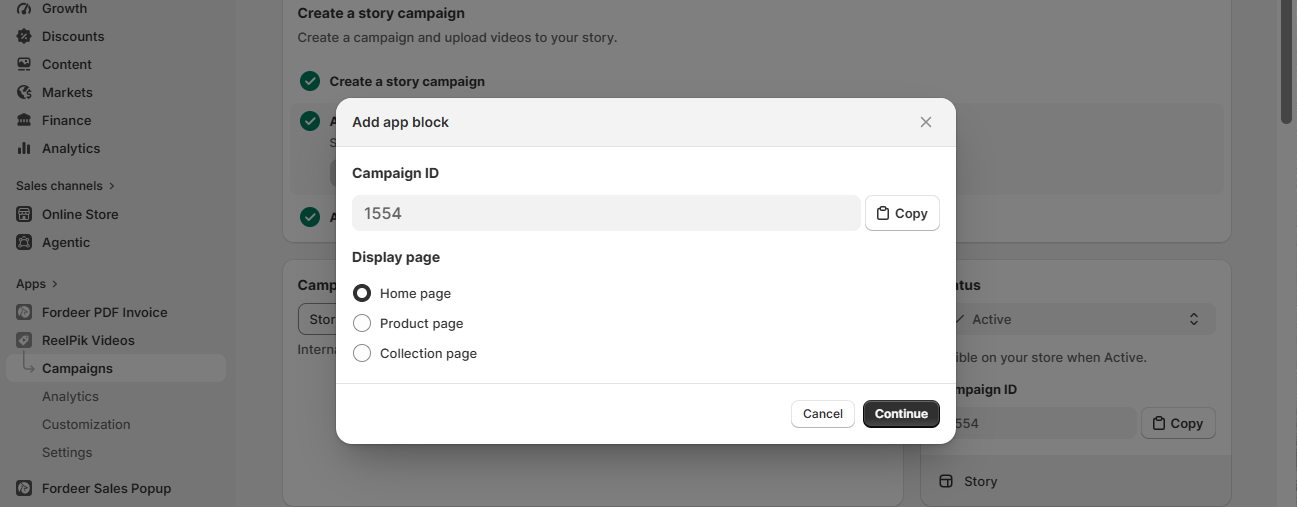
Step 2: Copy your Campaign ID
Copy the Campaign ID, then click Continue.
Step 3: Configure the block in Theme Editor
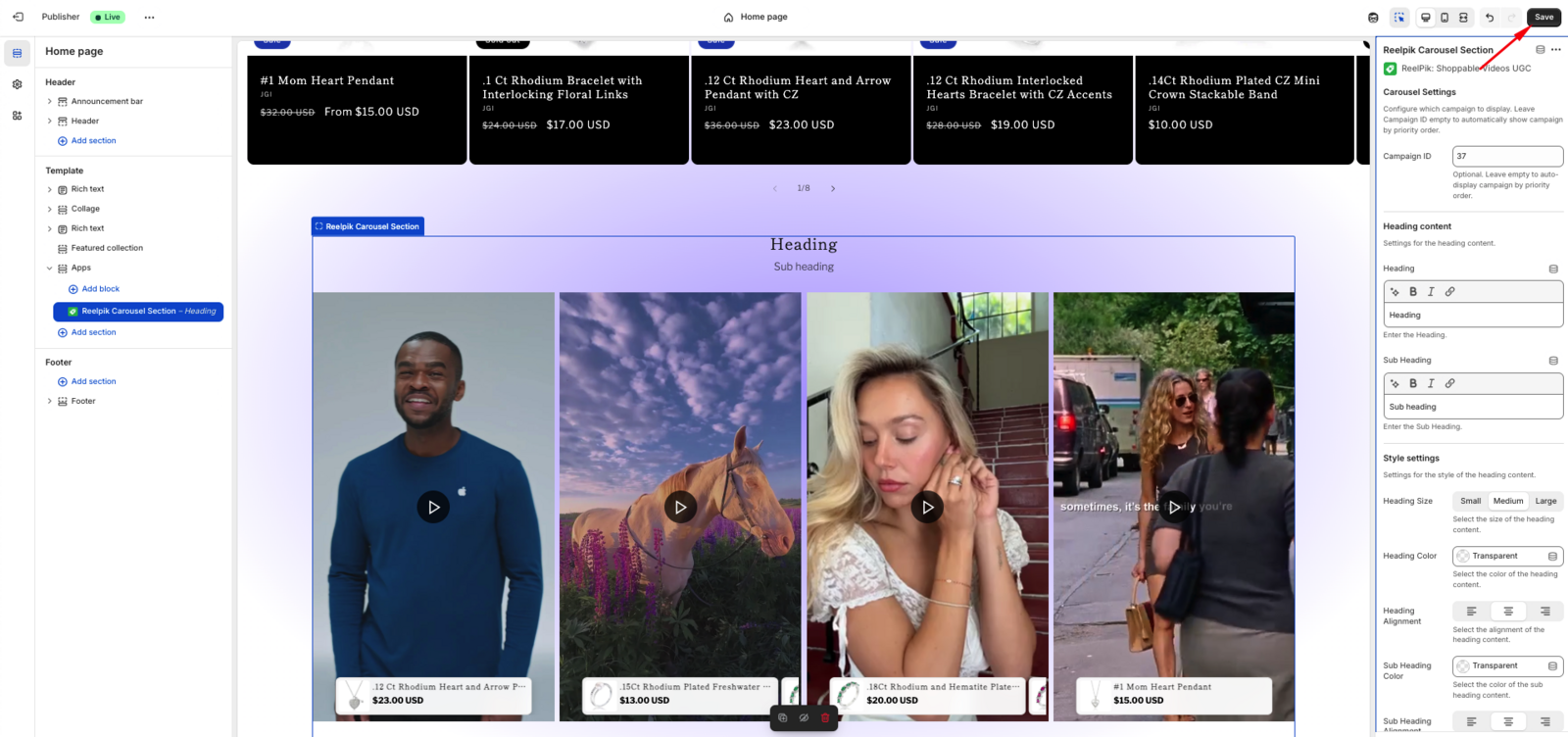
You’ll be redirected to the Shopify Theme Editor, where the ReelPik app block will be automatically added to the page you selected.
Paste the Campaign ID into the provided field to display that specific campaign. Alternatively, leave the Campaign ID field blank to display a campaign based on its priority.
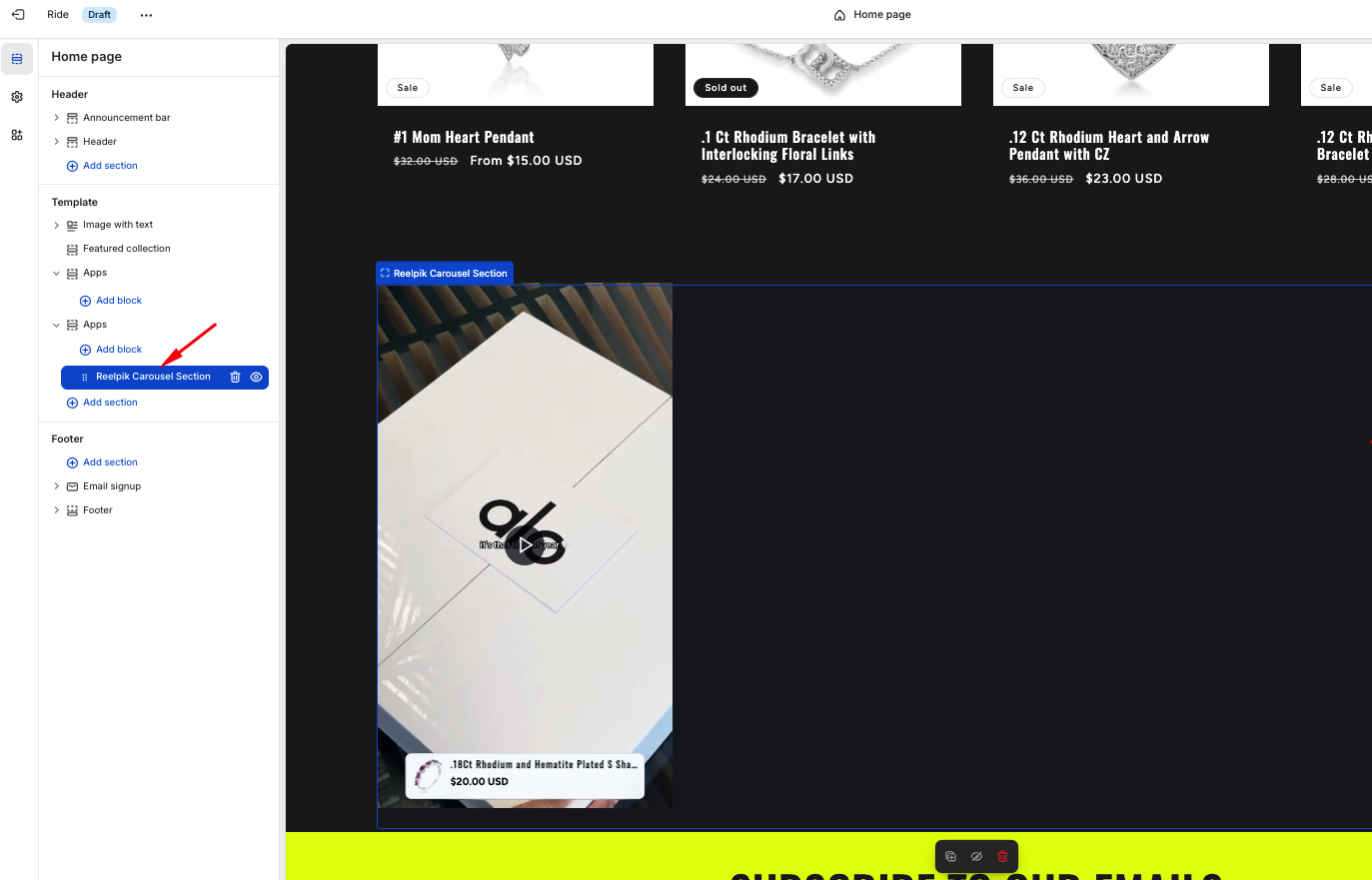
Note: When the Campaign ID field is left blank, the campaign with Priority 1 will be displayed first. Campaigns with a higher priority number will remain hidden.
Step 4: Save your changes
Click Save in the Shopify Theme Editor to publish your changes.
You can also customize the heading and subheading directly from the Theme Editor if needed.
Tip: You can also access the App block option from the Placement section on the campaign customization page and follow the same steps.
Method 2: Add the app block manually from Theme Editor
You can also add a ReelPik app block directly from Shopify without using the Add block button in the ReelPik app.
Step 1: Open the Theme Editor
-
From your Shopify Admin, go to Online Store > Themes.
-
Find the theme you want to edit and click Customize.
Step 2: Choose a page
Navigate to the page template where you want your ReelPik campaign to appear, such as:
-
Homepage
-
Product page
-
Collection page
Step 3: Add the ReelPik block
-
Click Add section or Add block, depending on your theme.
-
Head to Apps, select ReelPik, and choose the appropriate app block.
Step 4: Configure your campaign
Paste your Campaign ID into the provided field to display a specific campaign.
You can also leave the field blank to display the campaign based on campaign priority.
Tip: Use a Campaign ID when you want to control exactly which campaign appears in a specific location.
Step 5: Save your changes
Click Save to apply the changes to your storefront.
We value your feedback — it helps us continuously improve our apps and provide you with a better experience.
🖥️ Demo store: Check out here with password: 1
👉 Chat with us: Share your feedback directly with our team.
👉 Email us: hi@reelpik.com
👉 Explore more apps: Discover more Fordeer apps.
👉 Join our community: Join ForDeer Community to get the latest updates, tips, and special deals.
🕐 Working hours: 8:30 AM – 5:00 PM (UTC+7), Monday–Friday.
We typically reply to live chats within minutes and emails within a few hours.
Need help? Feel free to reach out anytime via live chat or email!