

Overview
Turn your homepage into an engaging shopping experience with ReelPik Shoppable Videos.
With ReelPik, you can showcase your shoppable videos directly on your homepage using three popular formats:
-
Carousel – Display multiple videos in a horizontal carousel.
-
Highlight – Highlight your videos in an eye-catching section.
-
Grid – Display multiple videos in a clean grid layout.
The setup process is the same for all three campaign types. In this guide, we'll use a Grid campaign as an example.
If you prefer watching instead of reading, 👉 check out our video tutorial to learn how to set up a shoppable video campaign.
How to create a campaign?
Step 1: Create a campaign
-
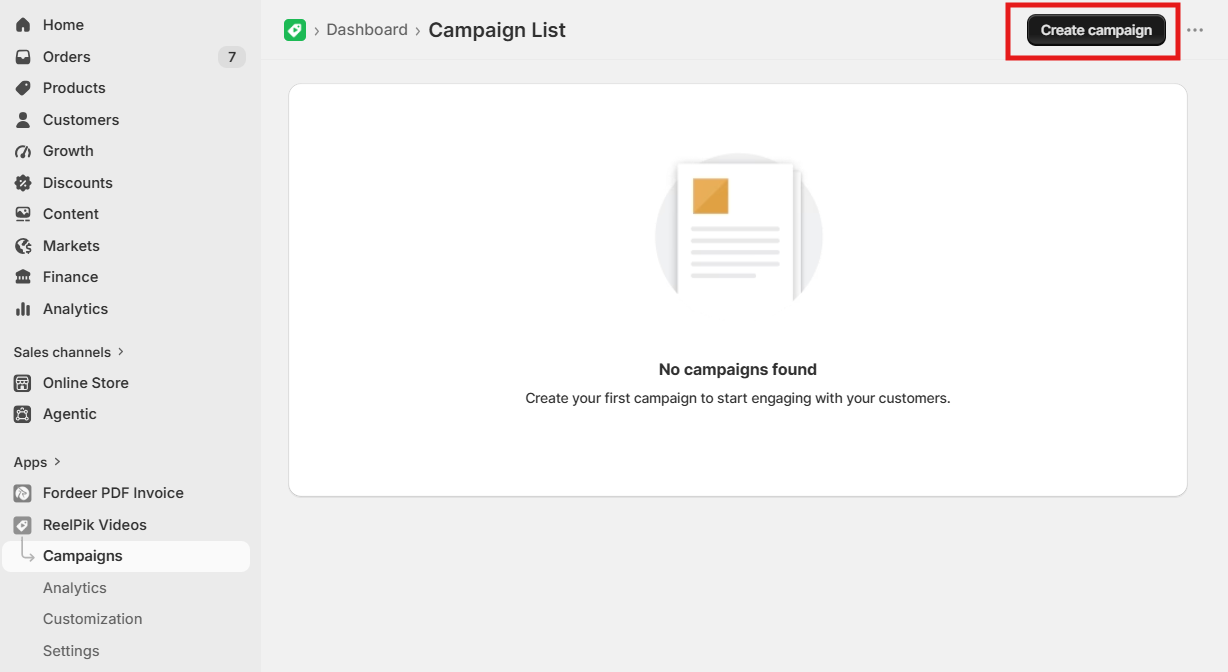
Go to ReelPik Videos → Campaigns.
-
Click Create Campaign.
-
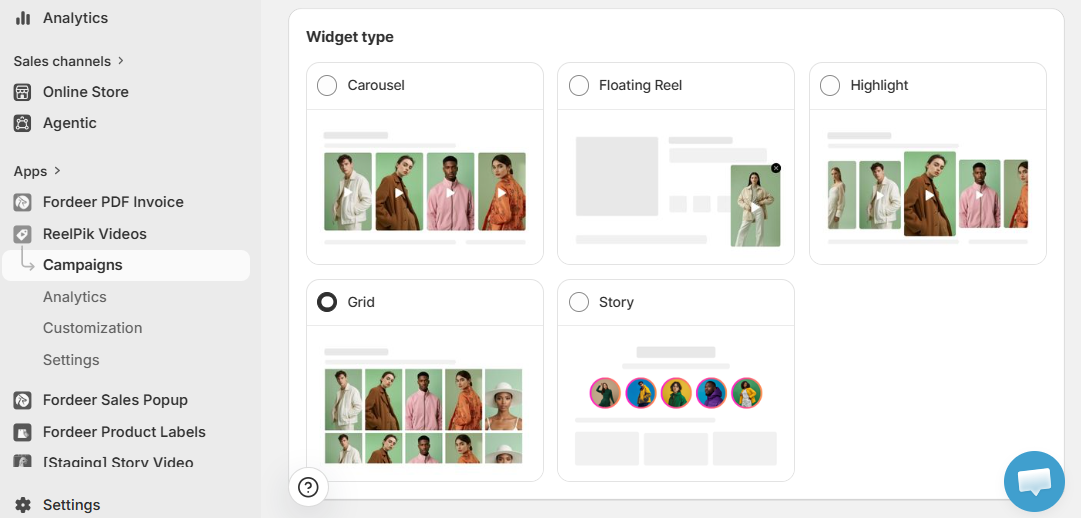
Select Grid as the campaign type.
Note:
You can follow the same setup process for Carousel and Highlight campaigns.
Remember to add your campaign title.
Step 2: Upload your shoppable videos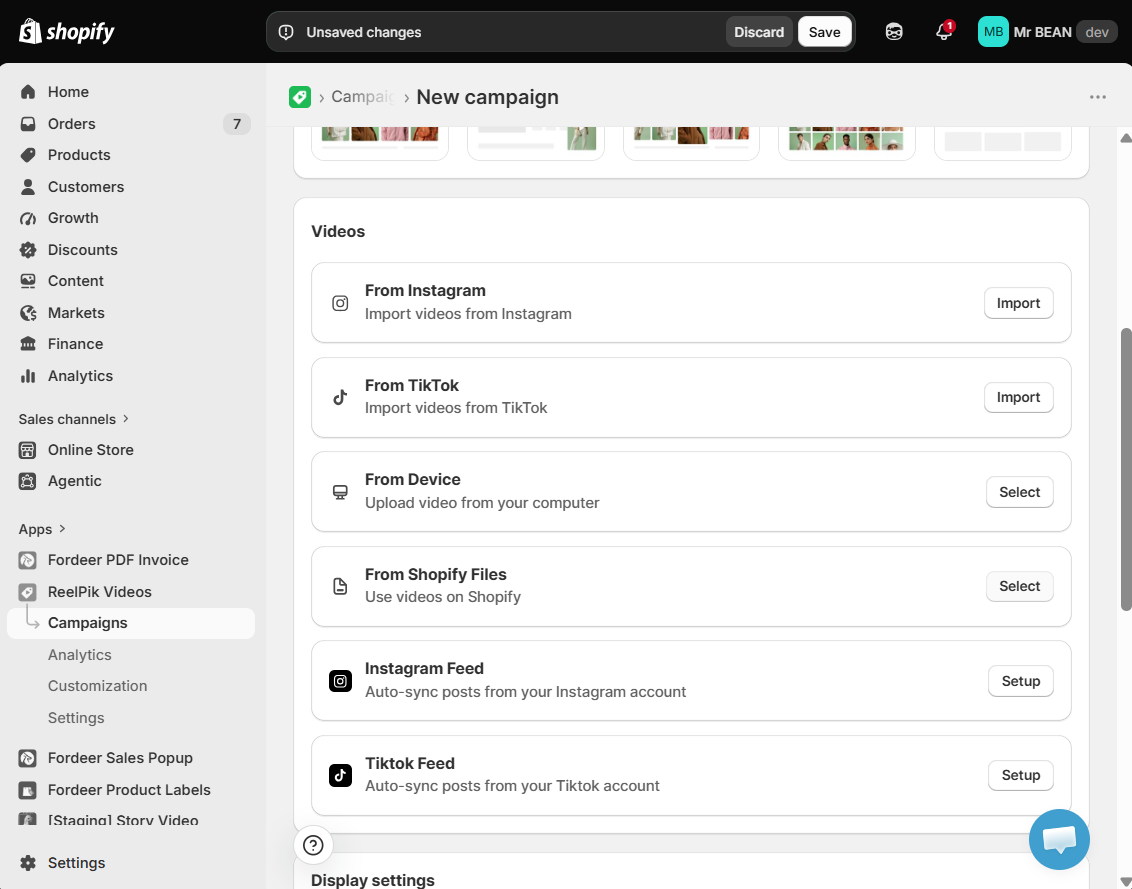
In the Videos section, you can choose from four different video sources:
-
Device – Upload videos directly from your device.
-
TikTok – Import videos from TikTok.
-
Instagram – Import videos from Instagram.
-
Shopify Files – Use videos that you have previously uploaded to Shopify.
Note: Video uploads may take a few minutes. Please wait until your videos are successfully uploaded before continuing.
Step 3: Tag products (Optional)
Make your videos shoppable by connecting the relevant products to each video.
Customers can then view the products featured in your video and purchase them directly from the shopping experience.
To tag products:
-
Click the Product selector (below each video) to choose the products you want to link to your video.
-
Select the products you want to connect.
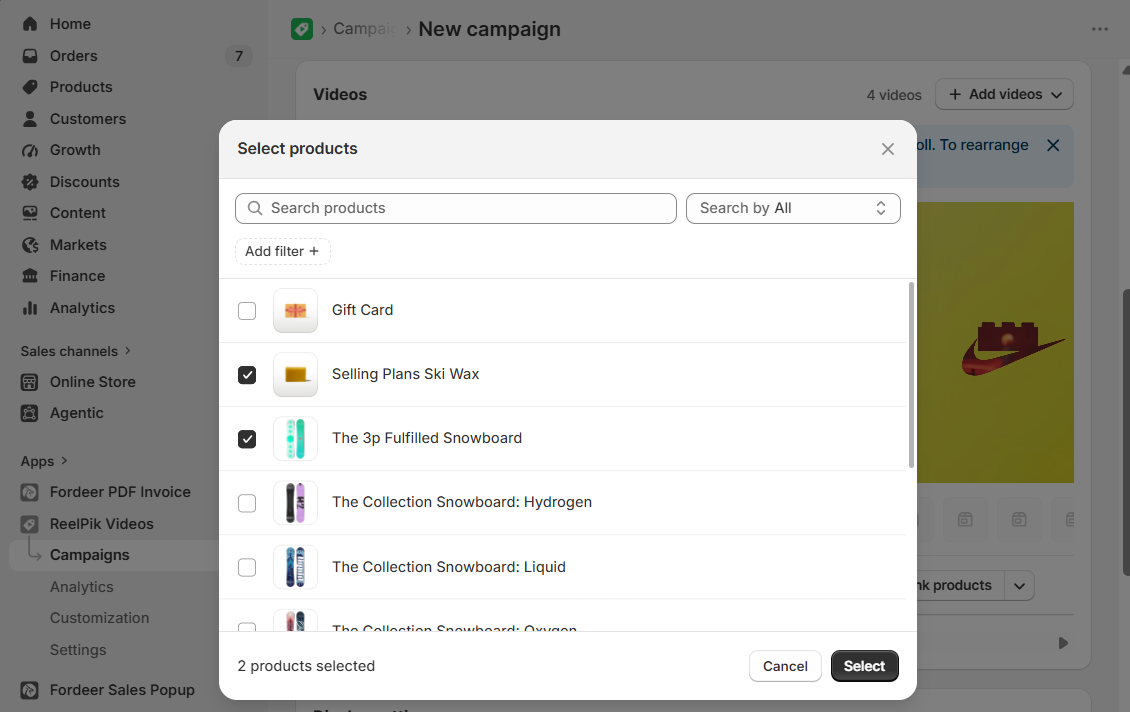
You can tag multiple products in a single video. We recommend selecting only products that are actually featured or relevant to the video.
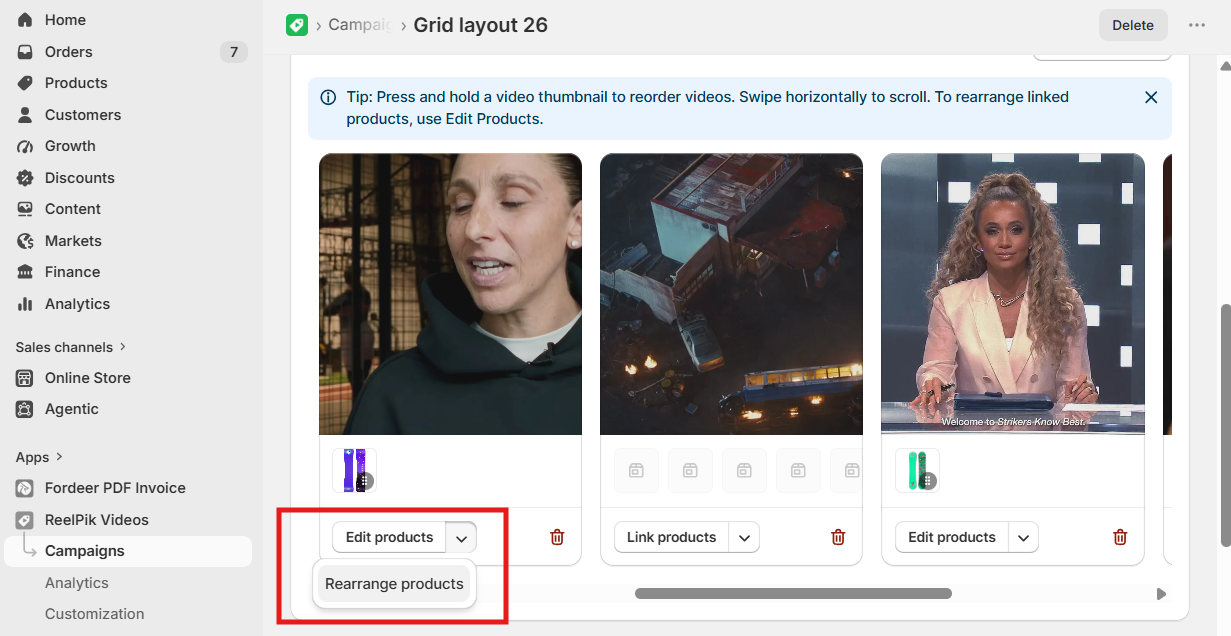
To manage or rearrange your tagged products:
-
Manage: click the Edit products button. You can then view, remove, or update the product selection.
-
Rearrange: click the ▼ dropdown next to Edit Products, then select Rearrange products.
Step 4: Set the display placement
By default, the campaign may be configured to display across supported pages.
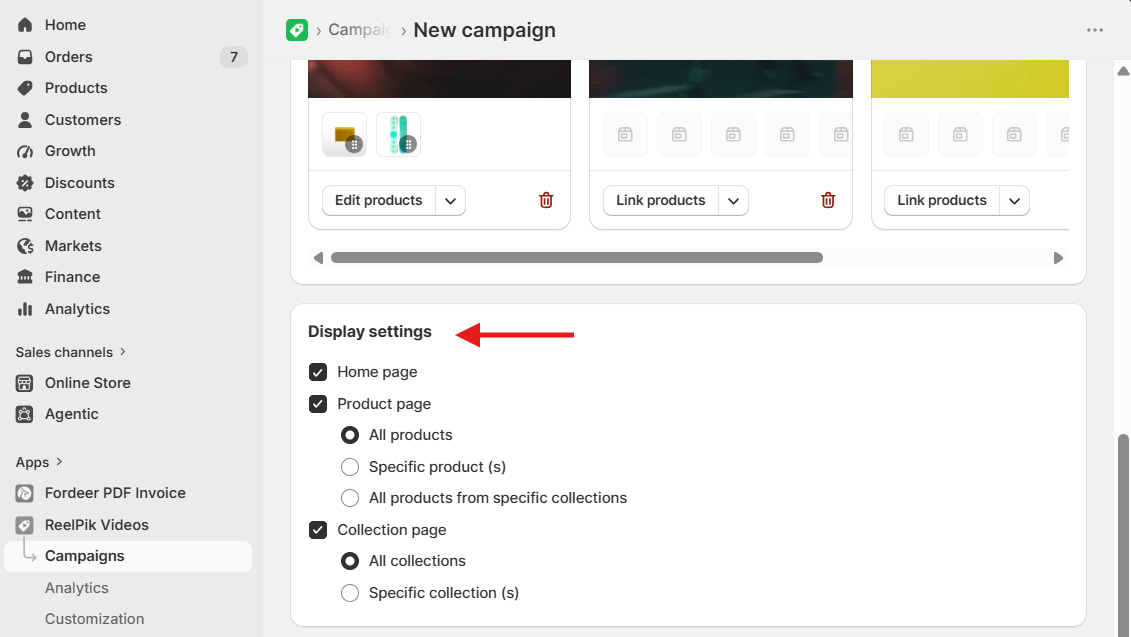
You can also customize your campaign to appear on specific product or collection pages when needed.
For example, you can choose:
-
Specific products
-
Specific collections
-
All products from specific collections
-
Homepage
Tip: If you want to showcase your videos specifically on your homepage, make sure Homepage is selected as the display location.
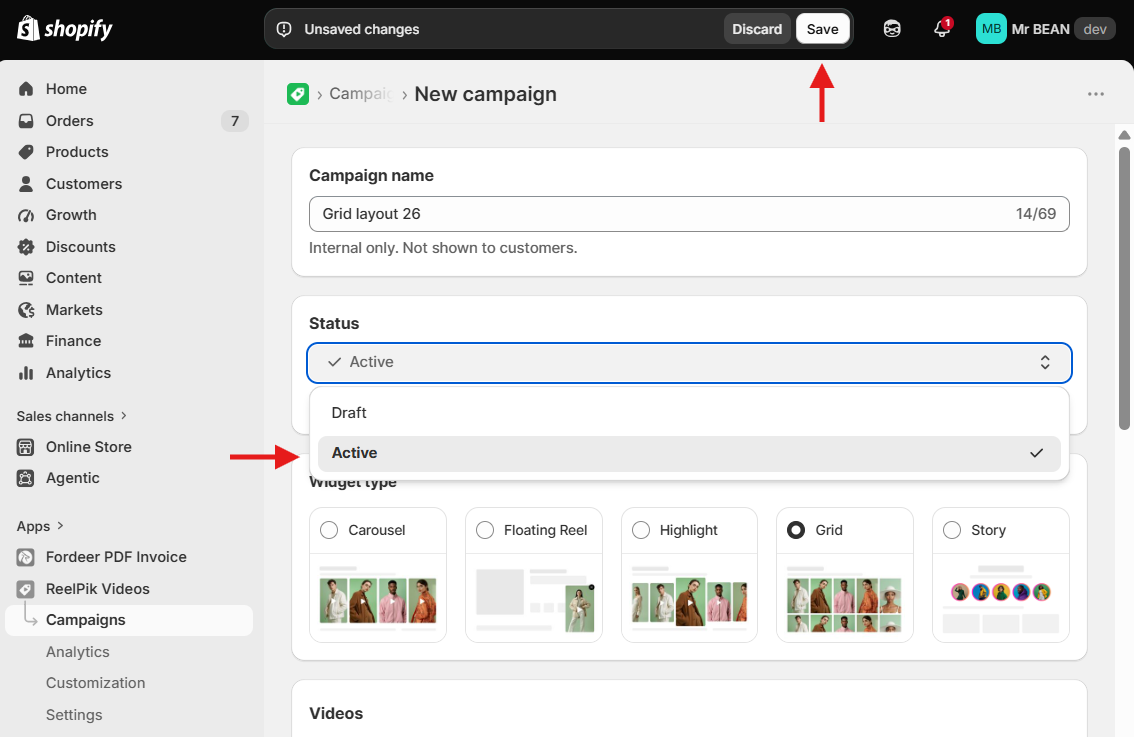
Step 5: Save and activate your campaign
After finishing your Story setup:
-
Review your Stories and videos.
-
Make sure the correct products are linked.
-
Click Save.
-
Activate your campaign.
Step 6: Add the ReelPik app block to your homepage (required step)
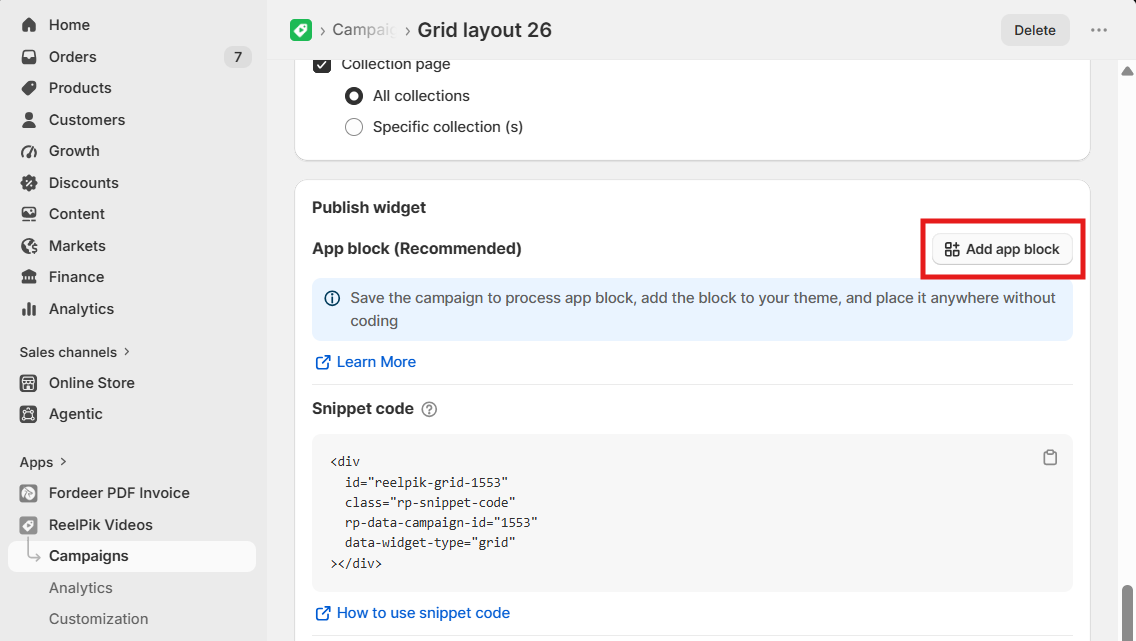
Creating and saving a campaign does not automatically make the video appear on your storefront. You also need to add the ReelPik app block to your homepage.
To add the app block:
-
Go to the Publish Widget section.
-
Click Add app block.
-
Select Homepage from the supported page options.
-
Click Continue.
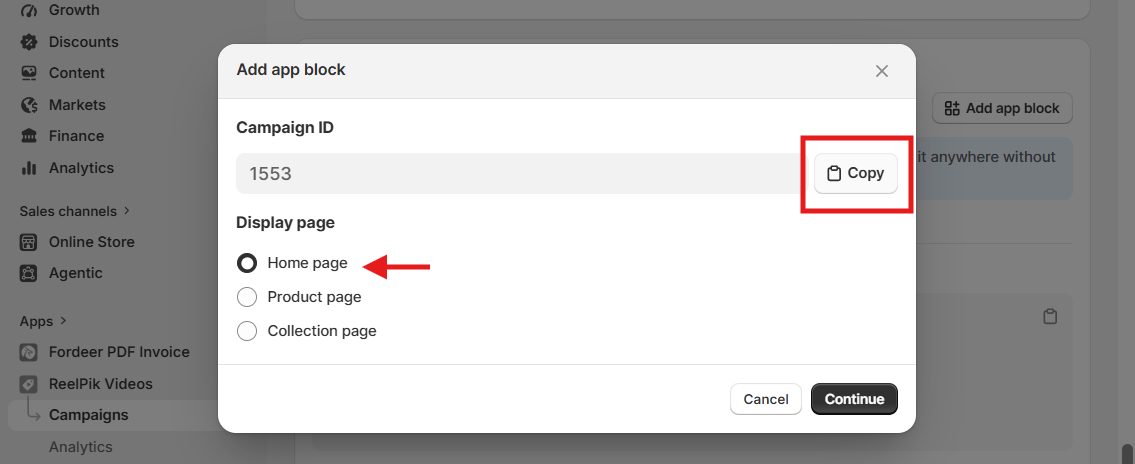
You will then be redirected to the Shopify Theme Editor.
In the Theme Editor:
-
Customize the position and appearance of the ReelPik app block.
-
Make sure the block is enabled.
-
Click Save.
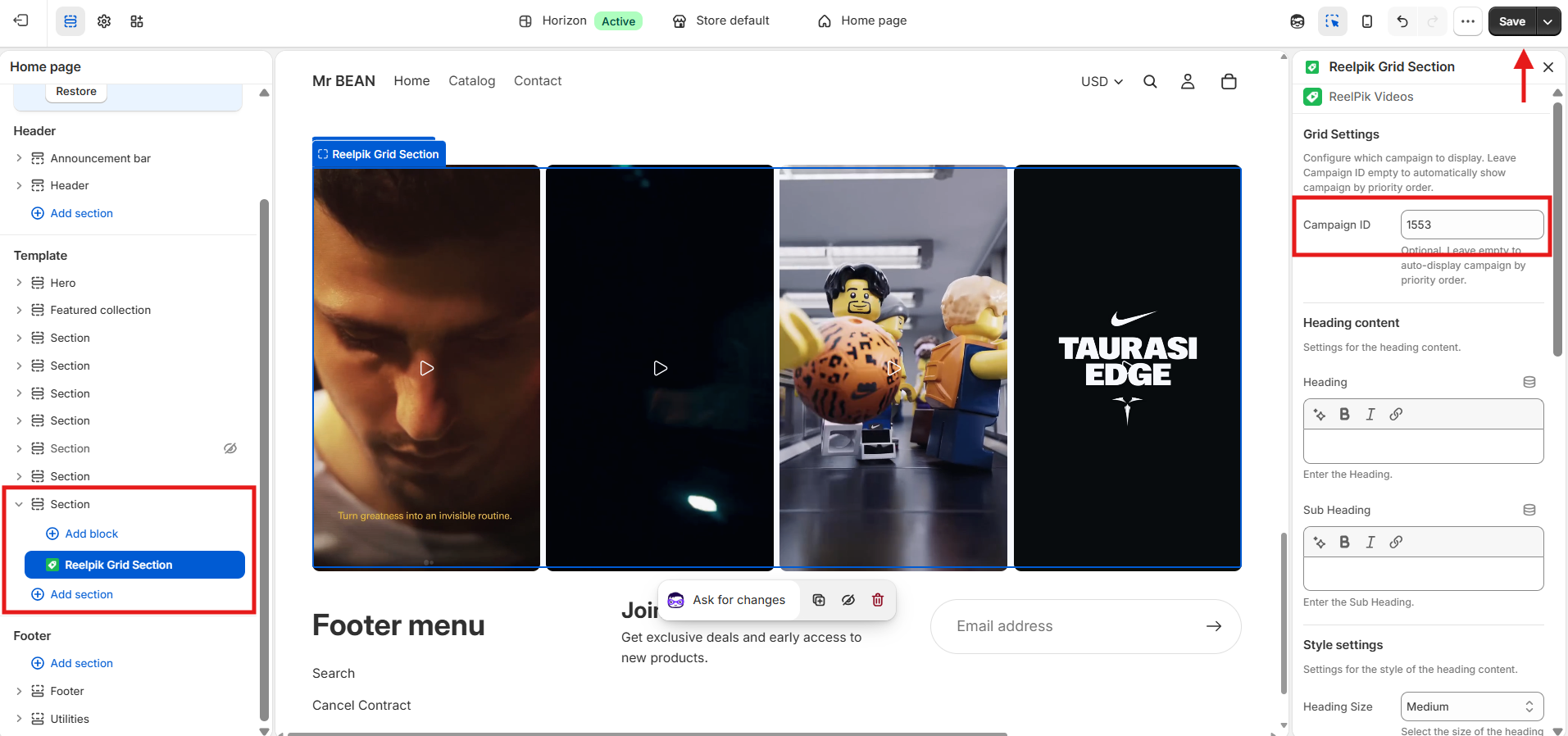
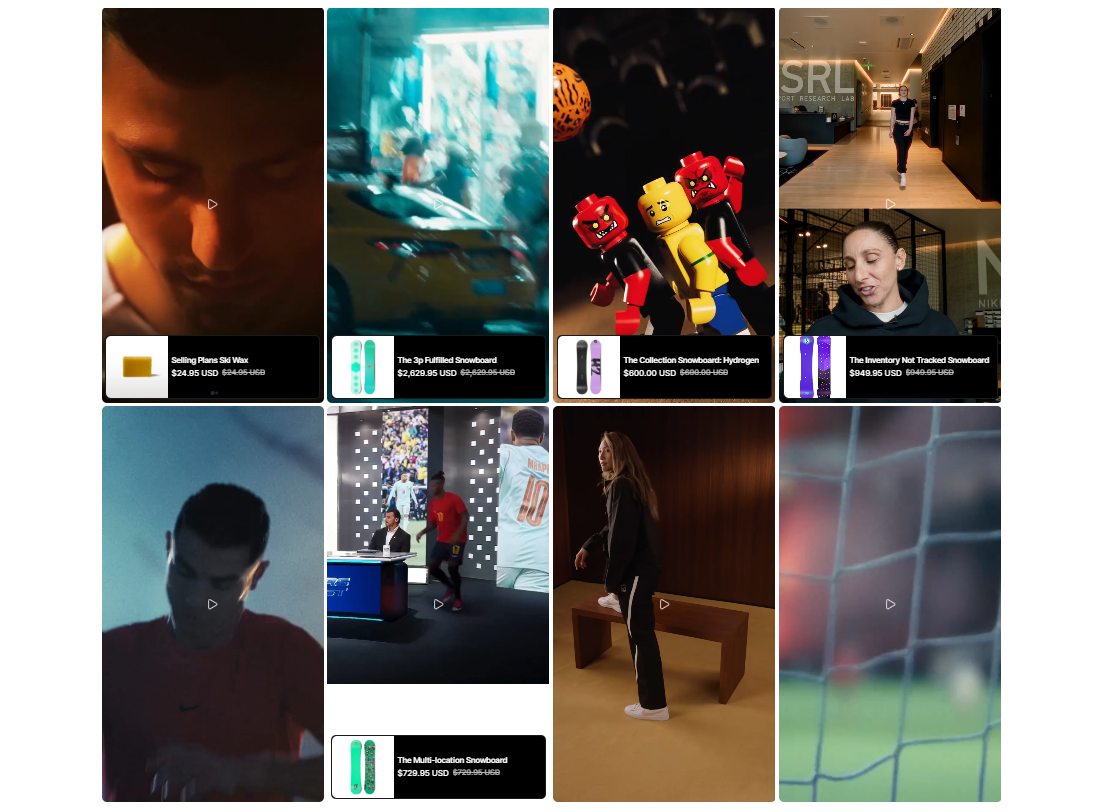
You can then preview your storefront to check how your Grid campaign appears on the homepage.
Best Practices for Homepage Video Campaigns
1. Choose the right video format
Choose a format that matches your storefront design and content:
-
Grid – Ideal for displaying multiple videos at once.
-
Carousel – Great for letting shoppers browse several videos horizontally.
-
Highlight – Suitable for drawing attention to selected video content.
2. Tag relevant products
Only connect products that are featured or relevant to your video.
Accurate product tagging helps shoppers quickly understand what they can purchase from your content.
3. Use high-quality videos
Use clear, engaging videos that showcase your products effectively.
Short and visually engaging videos can help capture shoppers' attention and encourage them to explore your products.
4. Preview before publishing
After adding the ReelPik app block, preview your homepage to make sure:
-
The video campaign appears in the correct location.
-
Videos are displayed correctly.
-
Product tags are connected to the right products.
-
The layout works well on your storefront.
Important Notes
-
Carousel, Highlight, and Grid campaigns use the same setup process.
-
You must add the ReelPik app block to your Shopify Theme Editor for the campaign to appear on your storefront.
-
Always click Save after making changes.
-
Product tagging is required to make your videos shoppable.
-
Video uploads may take a few minutes to complete.
-
Display location settings determine where your campaign appears on your storefront.
-
If you experience display issues, testing the campaign on a duplicated theme helps our team troubleshoot without affecting your live store. Check our article here.
We value your feedback — it helps us continuously improve ReelPik and provide you with a better experience.
🖥️ Demo store: Check out here with password: 1
👉 Chat with us: Share your feedback directly with our team.
👉 Email us: hi@reelpik.com
👉 Explore more apps: Discover more Fordeer apps.
👉 Join our community: Join ForDeer Community to get the latest updates, tips, and special deals.
🕐 Working hours: 8:30 AM – 5:00 PM (UTC+7), Monday–Friday.
We typically reply to live chats within minutes and emails within a few hours.
Need help? Feel free to reach out anytime via live chat or email!