

Overview
Sometimes you may want different product pages to have their own videos. For example, you may want Product A to display videos featuring Product A, while Product B shows a completely different set of videos.
Currently, there are two ways to control which videos appear on specific product pages in ReelPik:
-
Add the ReelPik Product Videos app block to your product page.
-
Create multiple campaigns and target each campaign to specific products.
Each method works differently and has its own advantages and limitations.
Method 1: Add the ReelPik Product Videos app block
The ReelPik Product Videos block automatically displays videos associated with the product being viewed.
This is the easiest option if your goal is simply to show product-specific videos without creating a separate campaign for every product.
Step 1: Create a video campaign (Required)
You can find how to create a campaign by referring to this article.
Note: Link each video to its products so the right videos appear on the right product pages.
Step 2: Open the Shopify Theme Editor
From your Shopify Admin:
-
Go to Online Store > Themes.
-
Find the theme you want to edit.
-
Click Customize.
Step 3: Open your product template
From the page selector at the top of the Theme Editor, open your Product template.
You can select a product to preview how the videos will look on its product page.
Step 4: Add the ReelPik Product Videos block
Click Add section and open the Apps tab.
Select ReelPik Product Videos.
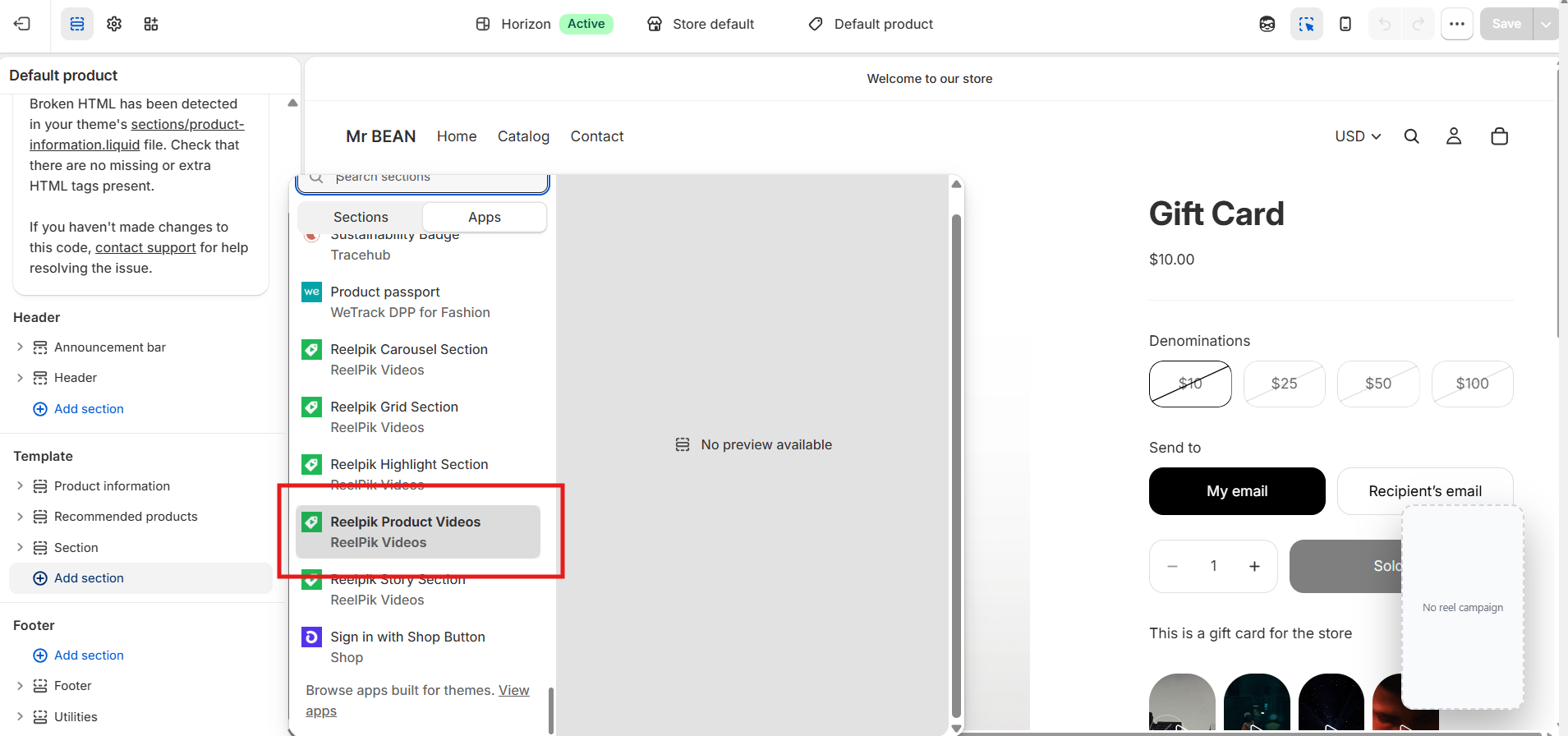
Step 5: Position the block
Drag the block to where you want the videos to appear on your product page.
Example: You can place the block below the product information or above the recommended products section.
Step 6: Save your changes
Click Save in the Shopify Theme Editor.
The block will automatically show videos associated with the product being viewed.
Advantages:
Quick and easy to set up.
No need to create a separate campaign for every product.
Videos automatically change based on the product being viewed.
Easier to manage when your store has many products.
Limitations:
Offers less control than a regular ReelPik campaign.
Customization and campaign-level settings are more limited.
Less suitable if you want to manually curate a specific group of videos for each product or run different video campaigns.
Method 2: Create multiple campaigns and target specific products
If you need more control over the videos, layout, or campaign settings for particular products, you can create separate campaigns and assign each campaign to specific product pages.
Step 1: Create a campaign
Go to ReelPik > Campaigns and create a campaign.
Add the videos you want to display for a particular product or group of products.
Example: Create a campaign called Running Shoes Videos, then add only the videos you want customers to see when browsing your Running Shoes products.
Step 2: Open Display targeting
Scroll down to the Display targeting section and enable Product pages.
Step 3: Select specific products
Under Targeting rule, select Specific product(s).
Then click Add products and select the products where you want this campaign to appear.
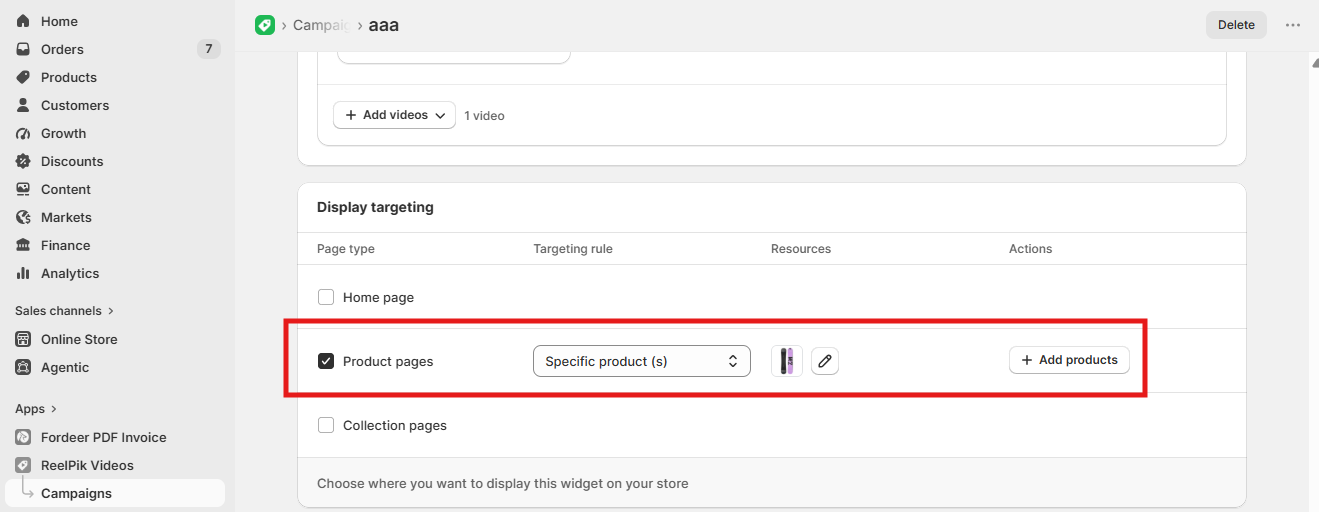
Step 4: Save the campaign
Once you've selected your products, click Save.
The campaign will now appear only on the selected product pages.
Step 5: Create additional campaigns
Repeat the process if other products need different videos.
Example:
Running Shoes campaign → Running Shoes products + videos related
T-Shirt campaign → T-Shirt products + videos related
Accessories campaign → Accessories products + videos related
This allows each product or group of products to have its own video campaign.
Advantages:
Full control over which videos appear on which products.
Access to ReelPik's regular campaign customization options.
Different products can have different campaign designs, videos, and settings.
Useful for promotions or carefully curated product-specific video experiences.
Limitations:
You may need to create and manage many campaigns.
Setting up videos product by product can become time-consuming for stores with a large catalog.
When products or videos change, you may need to update multiple campaigns manually.
Which method should you use?
Choose ReelPik Product Videos if you have many products and want an easier way to automatically show videos related to each product.
Choose multiple campaigns with Specific product(s) targeting if you need more control over the videos, design, and settings shown on particular product pages.
Example: A store with hundreds of products may find Method 1 much easier to maintain. However, if you're running a special campaign for five selected products and want complete control over their videos and appearance, Method 2 may be a better fit.
Coming soon: Product Page Videos
We know that both methods have trade-offs. Product Videos is easier to manage but offers less control, while creating multiple campaigns gives you more flexibility but can become difficult to manage at scale.
That's why we're working on a new Product Page Videos feature that brings the advantages of both approaches together.
It will make it easier to manage videos for individual products without having to create and maintain multiple campaigns, while giving you more control over how those videos appear on your product pages.
Coming soon: Product Page Videos is on the way. Stay tuned!
We value your feedback — it helps us continuously improve our apps and provide you with a better experience.
🖥️ Demo store: Check out here with password: 1
👉 Chat with us: Share your feedback directly with our team.
👉 Email us: hi@reelpik.com
👉 Explore more apps: Discover more Fordeer apps.
👉 Join our community: Join ForDeer Community to get the latest updates, tips, and special deals.
🕐 Working hours: 8:30 AM – 5:00 PM (UTC+7), Monday–Friday.
We typically reply to live chats within minutes and emails within a few hours.
Need help? Feel free to reach out anytime via live chat or email!