

Overview
ReelPik lets you turn your shoppable videos into a fully branded shopping experience — and every part of that experience is customizable.
From the Customization page in your ReelPik dashboard, you can fine-tune how each widget type looks and behaves on your storefront (Carousel, Floating Reels, Player, Highlight, Grid, Story), as well as how the video player itself displays products, reviews, and the add-to-cart flow.
This guide walks you through both:
-
Customizing widget types — the different ways your videos can be displayed on your store.
-
Customizing the video player — the pop-up player that opens when a customer taps a video, where the actual shopping happens.
Part 1: How to Customize Your Widgets
Step 1: Open the Customization page
-
Go to ReelPik Videos in your Shopify Admin.
-
Click Customization.
-
You'll see a card for each widget type. Click Customize on the widget you want to edit.
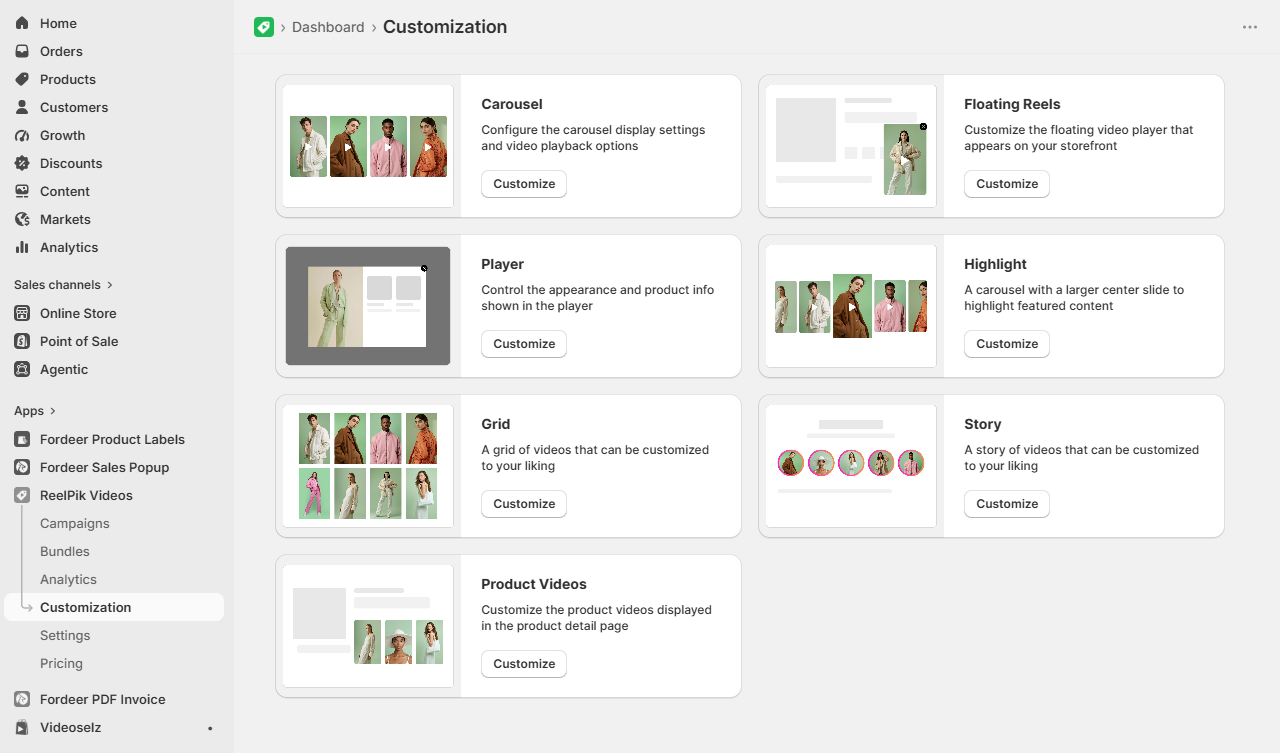
Each widget opens its own Settings / Preview editor, where changes update live in the preview panel on the right.
Step 2: Choose and configure your widget type
ReelPik currently offers the following widget types:
1. Carousel/Highlight
A horizontally swipeable row of shoppable videos.
-
Radius – Set the corner radius of each video card.
-
Spacing – Control the gap between videos.
-
Product card – Choose a card style (Minimal, Simple, Overlay, Frame, Card, or Add to Cart), and optionally enable Show first product only to display a single product without a slider.
-
Discount label – Show a discount percentage badge on linked products.
2. Floating Reels
A floating video player that stays anchored to a corner of the screen as customers browse.
-
Position settings – Pick a corner (e.g., bottom-right) and set Top/Bottom/Left/Right spacing in pixels.
-
Enable drag widget – Let customers drag and reposition the floating bubble.
-
Size – Set separate sizes for Desktop, Tablet, and Mobile.
-
Shape – Rectangle or Circle.
-
Close button – Show or hide the close button, and choose its behavior: No appear again or Reappear after close (set a custom hours/minutes delay).
Reminder: Floating Reels uses a theme app embed, so it must also be enabled under Online Store → Themes → App embeds to appear on your storefront.
3. Grid
A grid layout showing multiple videos at once, ideal for browsing.
-
Radius, Spacing, and Product card — same options as above.
-
Videos per row – Set how many videos appear per row on Desktop, Tablet, and Mobile.
-
Load more button – Customize the button's background and text color.
-
Discount label and Video play (Disabled, Play on hover, Autoplay) are also available.
4. Story
Instagram-style circular video bubbles, great for storytelling formats.
-
Alignment – Left or Center.
-
Border – Set a gradient border with a start color and end color.
-
Widget width – Set bubble size for Desktop, Tablet, and Mobile.
-
Spacing – Gap between bubbles.
-
Title – Optionally show a title label below each bubble.
-
Play settings – Auto play, Play on hover, or No play.
Part 2: How to Customize the Video Player
The video player is what opens when a customer taps a video from any widget — this is where the actual browsing and purchasing happens, so it deserves its own set of settings.
Step 1: Open Player customization
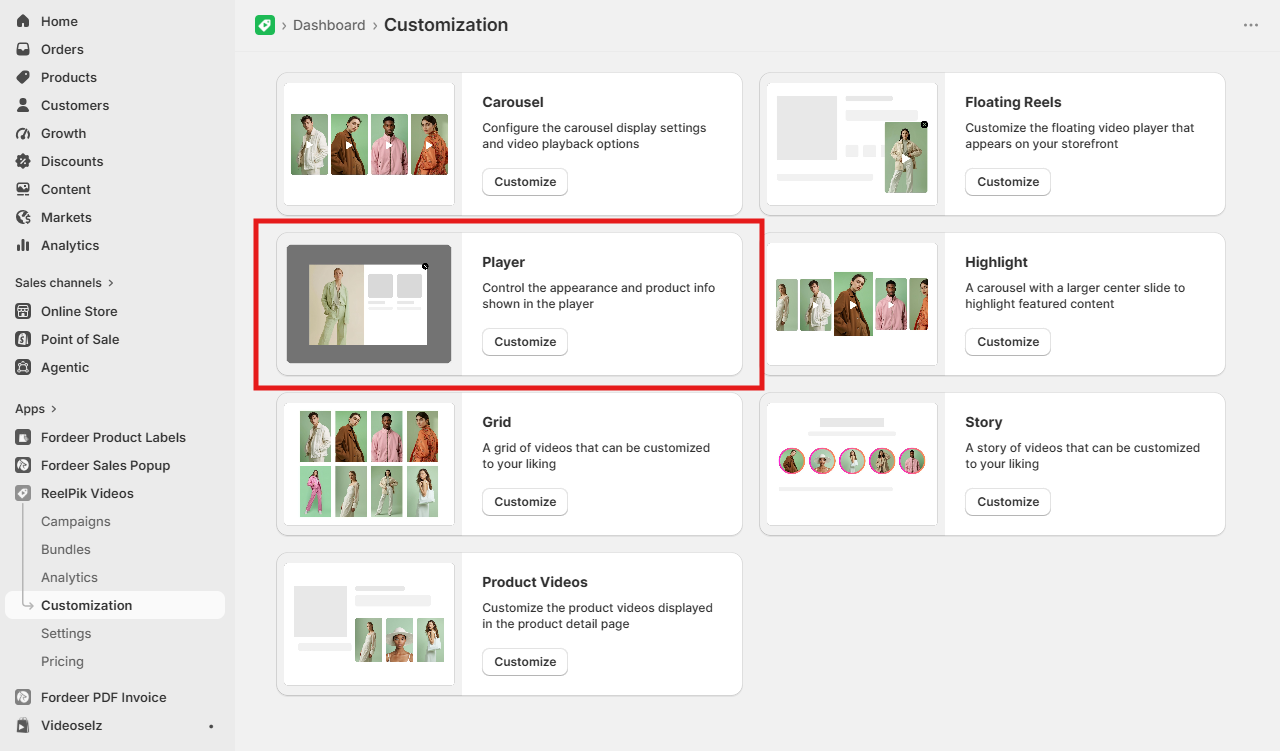
From the Customization page, click Customize on the Player card.
Step 2: Customize the Player
1. Set your color scheme
Under Color scheme, choose Light or Dark, then fine-tune:
-
Primary color
-
Background color
-
Second color
-
Accent color
-
Text color
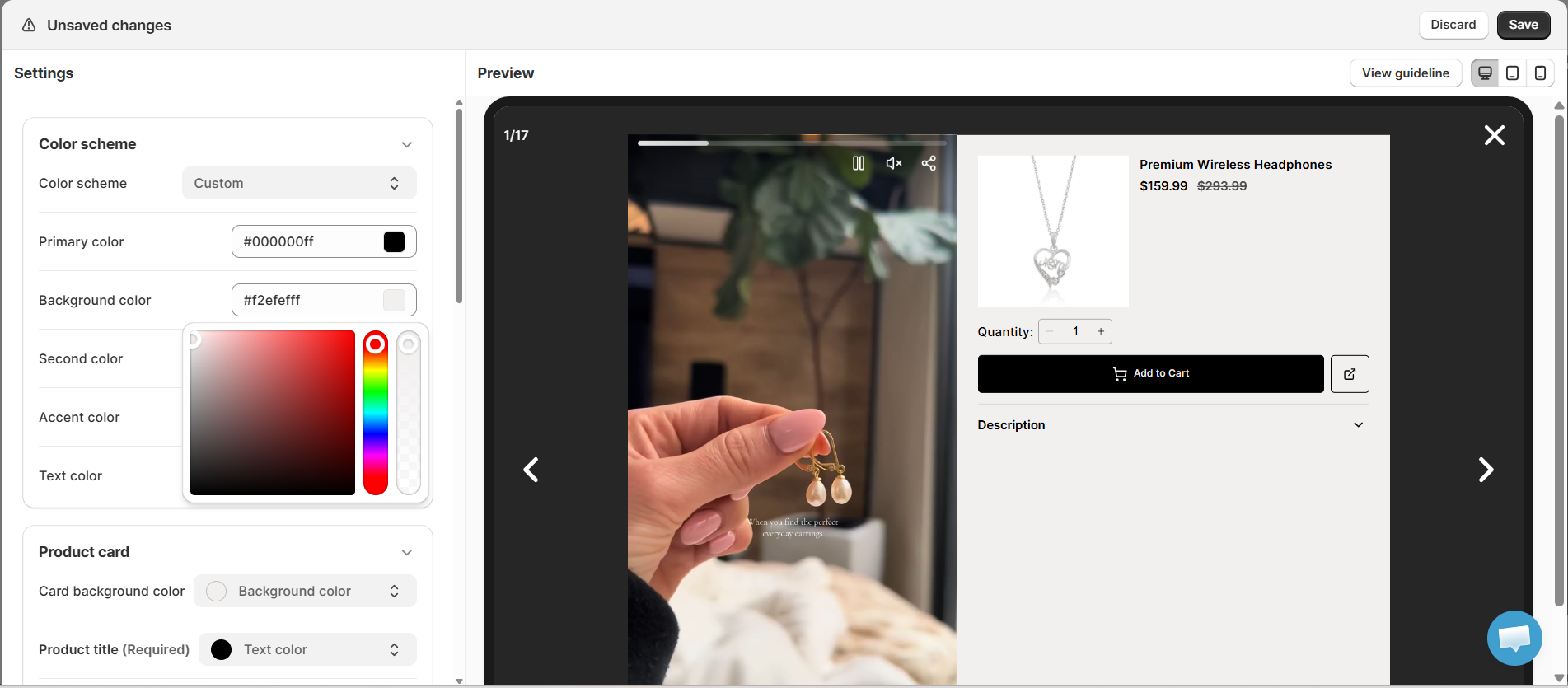
These colors apply across buttons, badges, and text throughout the player.
2. Configure the product card
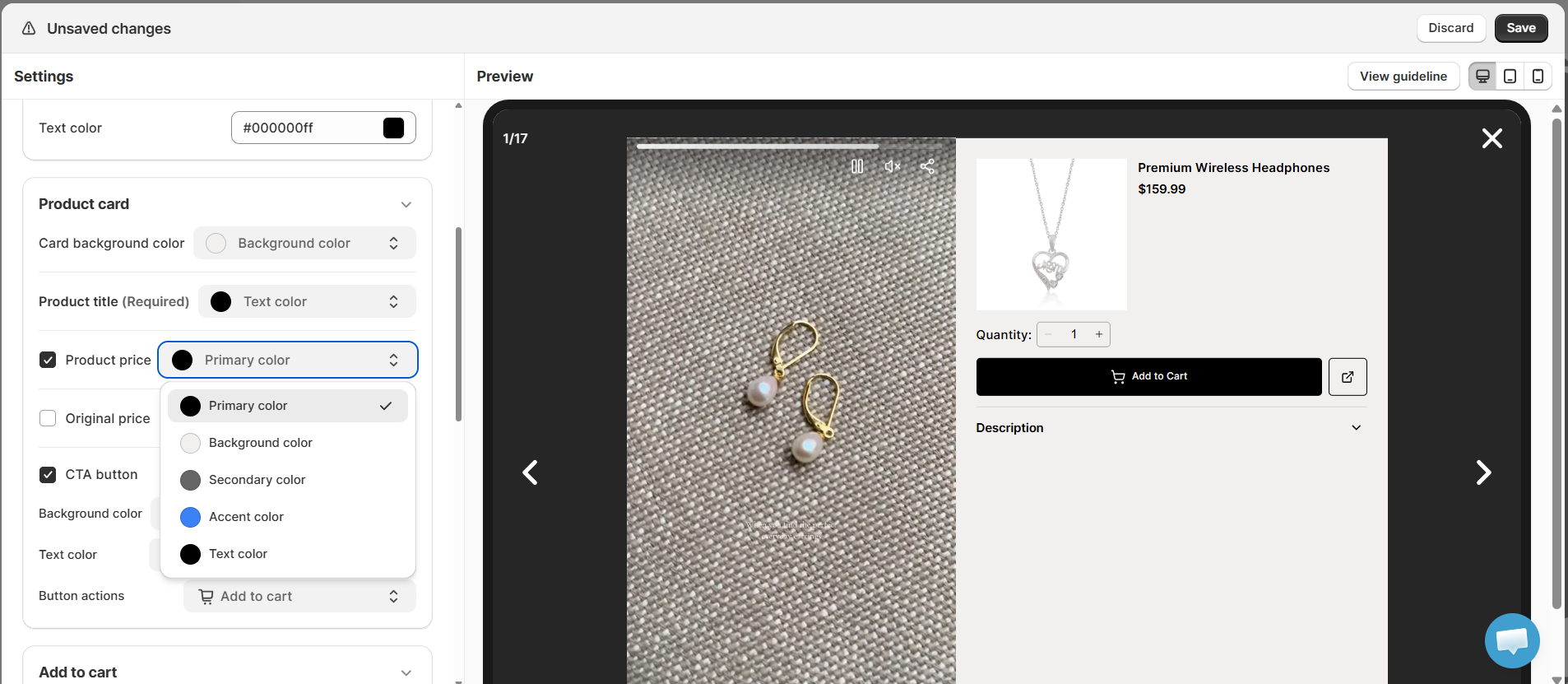
In the Product card section, control how linked products are displayed inside the player:
-
Card background color
-
Product title, Product price, and optional Original price (for showing strike-through pricing)
-
CTA button – Customize the background color, text color, and button action (e.g., Add to cart)
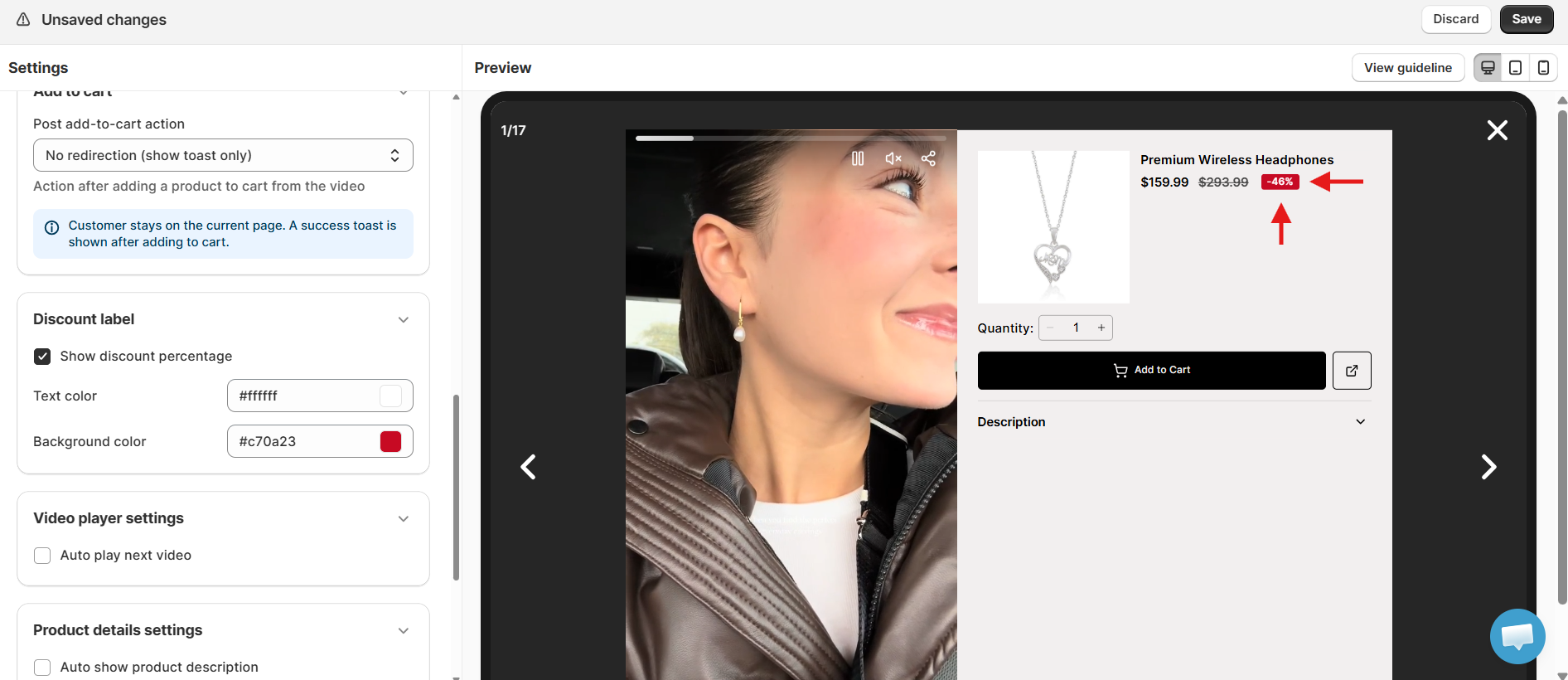
3. Set up the discount label
Enable Show discount percentage and customize its text color and background color to highlight savings on linked products.
4. Adjust video player behavior
Under Video player settings, enable Auto play next video if you want the player to automatically advance through your video playlist.
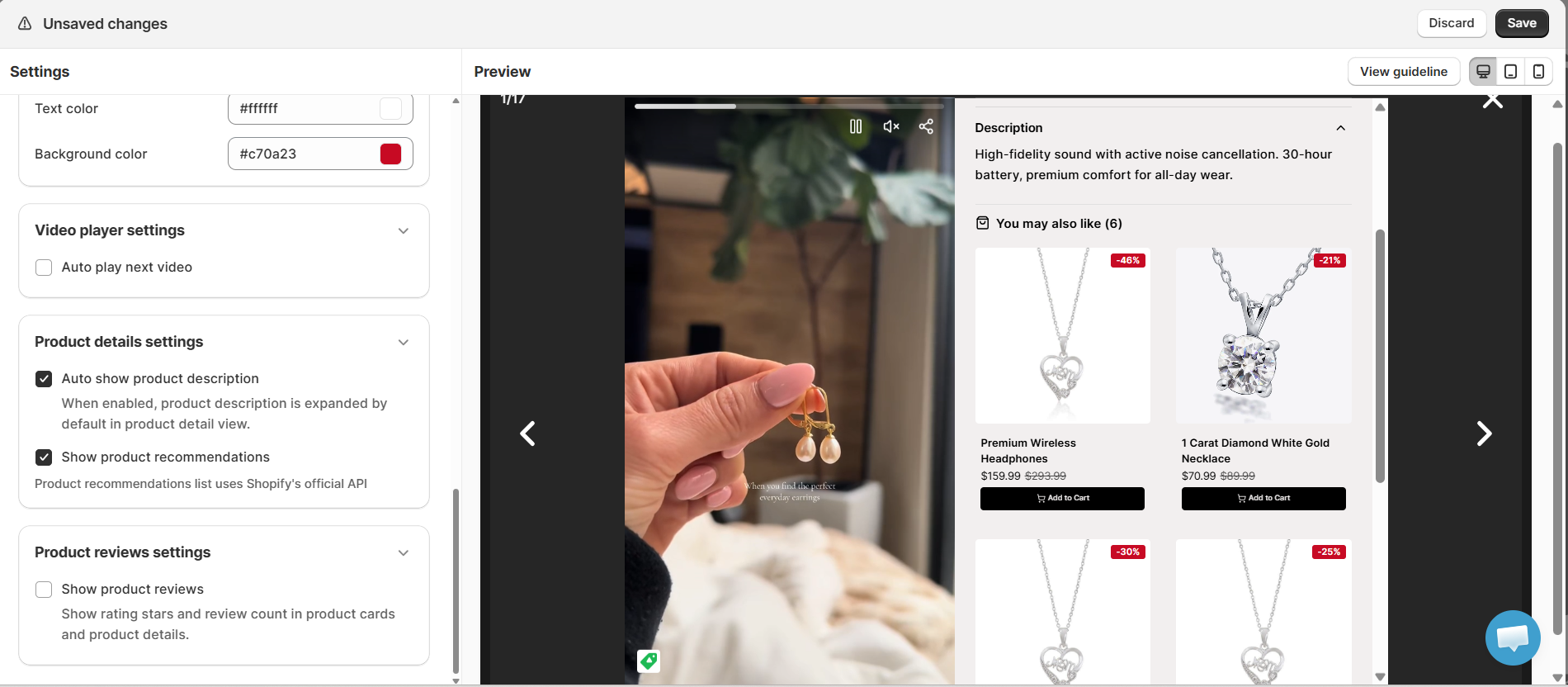
5. Configure product details
Under Product details settings:
-
Auto show product description – Expand the product description by default.
-
Show product recommendations – Available on higher plans (Scale tier and above).
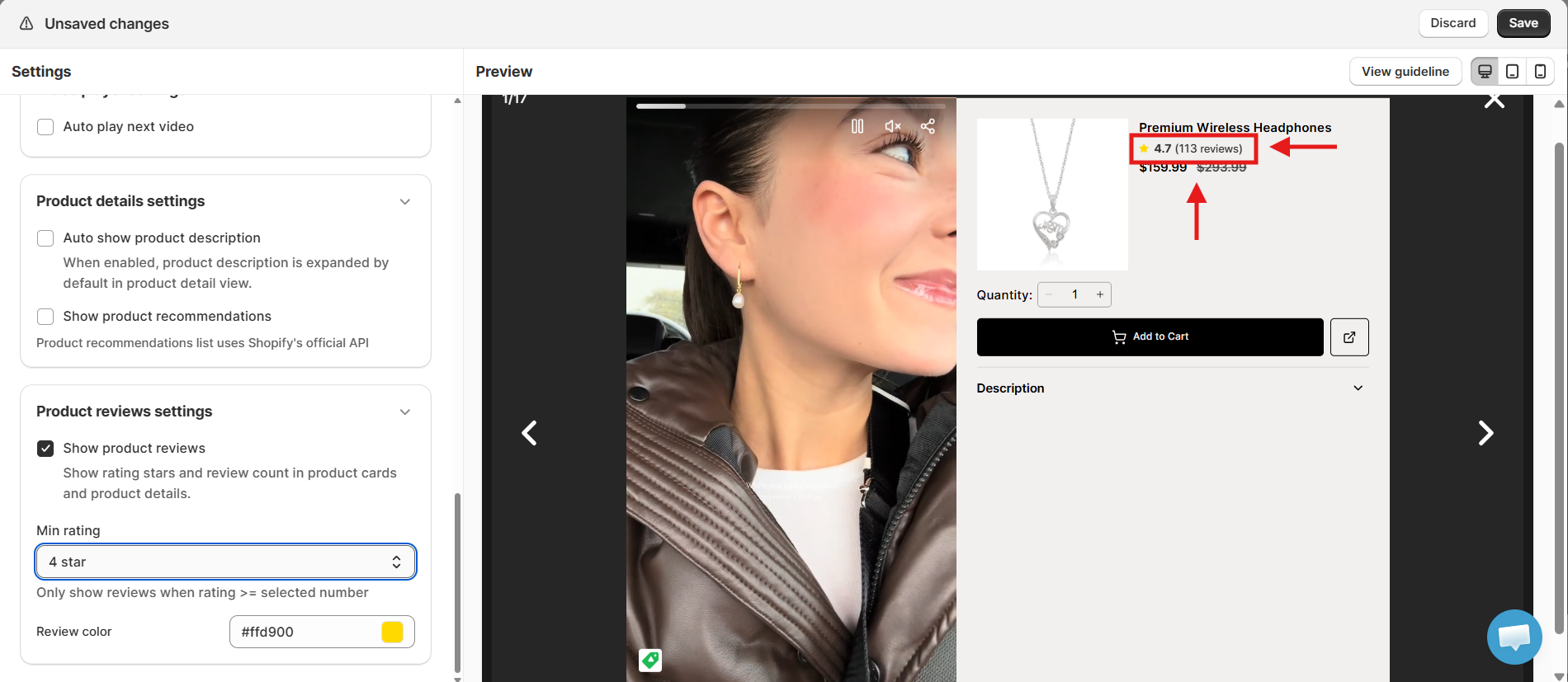
6. Enable product reviews
Under Product reviews settings:
-
Toggle Show product reviews to display star ratings and review counts.
-
Set a Min rating threshold — only reviews at or above this rating will be shown.
-
Customize the Review color.
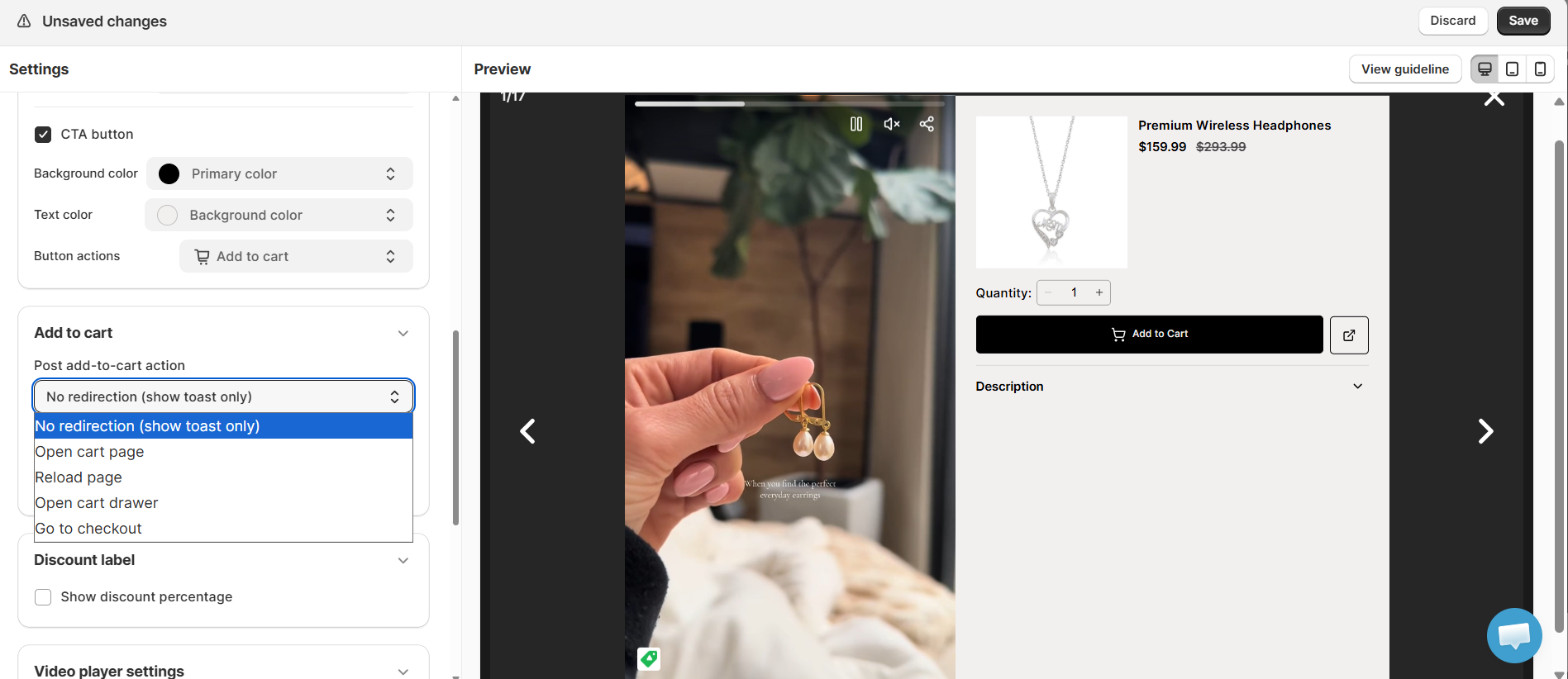
7. Set the post-purchase action
Under Post add-to-cart action, choose what happens after a customer adds a product to cart from the video (e.g., no redirection, just a toast notification).
Best Practices
1. Match your brand
Use your store's brand colors in both the widget and player settings so the shopping experience feels native to your storefront, not like a third-party overlay.
2. Keep product cards simple on mobile
Since most video engagement happens on mobile, favor cleaner card styles (Minimal or Simple) and smaller Floating Reel sizes for a less intrusive experience.
3. Use discount labels strategically
Discount badges draw the eye — reserve them for products with genuine, meaningful discounts to keep them effective.
4. Preview across devices before publishing
Always check the Desktop, Tablet, and Mobile previews for each widget and the player, since spacing and sizing can look different across breakpoints.
5. Pair widget type with content style
-
Grid and Carousel work well for product-focused browsing.
-
Story suits quick, discovery-driven content.
-
Highlight is ideal for showcasing a hero video or bestseller.
-
Floating Reels is best for persistent, always-visible engagement across the site.
What to do if your customizations don't appear?
If changes to a widget or the player don't show up on your storefront, check the following:
-
You clicked Save after making changes.
-
The relevant widget is placed correctly on your theme (via app block or app embed, depending on widget type).
-
For Floating Reels specifically, the ReelPik Floating Reels app embed is enabled under Online Store → Themes → App embeds.
-
Your browser cache isn't showing an outdated preview — try a hard refresh or incognito window.
-
Any feature under a paid tier (e.g., product recommendations) is available on your current plan.
If the issue persists, reach out to our support team with a preview link (and store password, if applicable) so we can investigate.
Important Notes
-
Widget-level settings (Radius, Spacing, Product card, etc.) only affect how videos and products are displayed — they don't change your video content or product links.
-
Player settings apply globally across all widgets, since every widget opens the same video player.
-
Some Player features (like product recommendations) require an upgraded plan.
-
Always preview on Desktop, Tablet, and Mobile before publishing changes.
We value your feedback — it helps us continuously improve ReelPik and provide you with a better experience.
🖥️ Demo store: Check out here with password: 1
👉 Chat with us: Share your feedback directly with our team.
👉 Email us: hi@reelpik.com
👉 Explore more apps: Discover more Fordeer apps.
👉 Join our community: Join ForDeer Community to get the latest updates, tips, and special deals.
🕐 Working hours: 8:30 AM – 5:00 PM (UTC+7), Monday–Friday.
We typically reply to live chats within minutes and emails within a few hours.
Need help? Feel free to reach out anytime via live chat or email!