

Overview
Previously, the Add to Cart button was only available inside the video Player after shoppers opened a video.
Now, you can display the Add to Cart button directly on your video widgets, making it easier for shoppers to add products to their cart without opening the video first.
Step 1: Open widget customization
From your ReelPik dashboard:
-
Go to Customization.
-
Select the widget you want to customize, such as Carousel.
-
Click Customize.
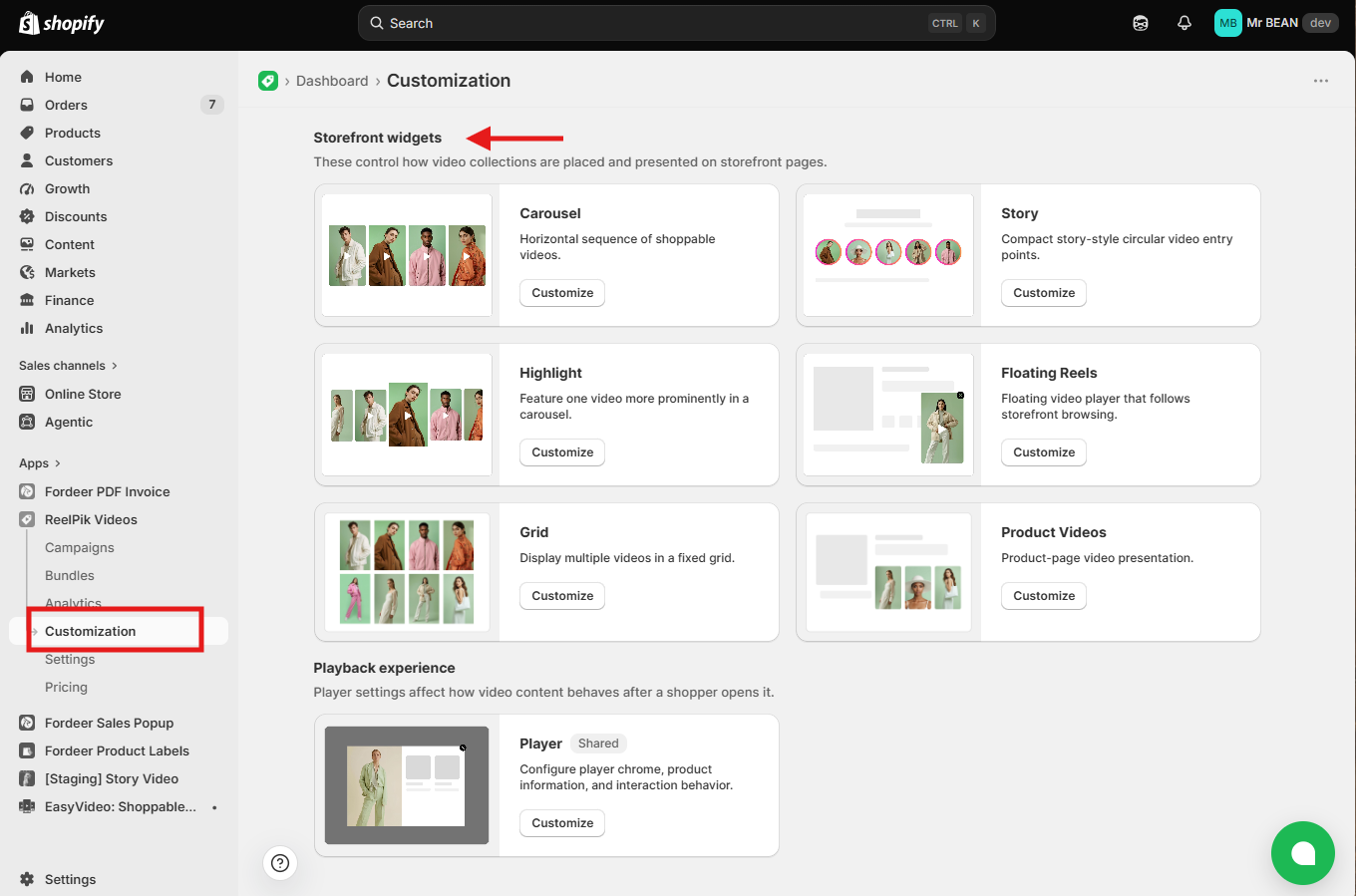
Step 2: Select Add to Cart
-
In the customization panel, find and expand Product card.
-
Select Add to Cart as your Product card style.
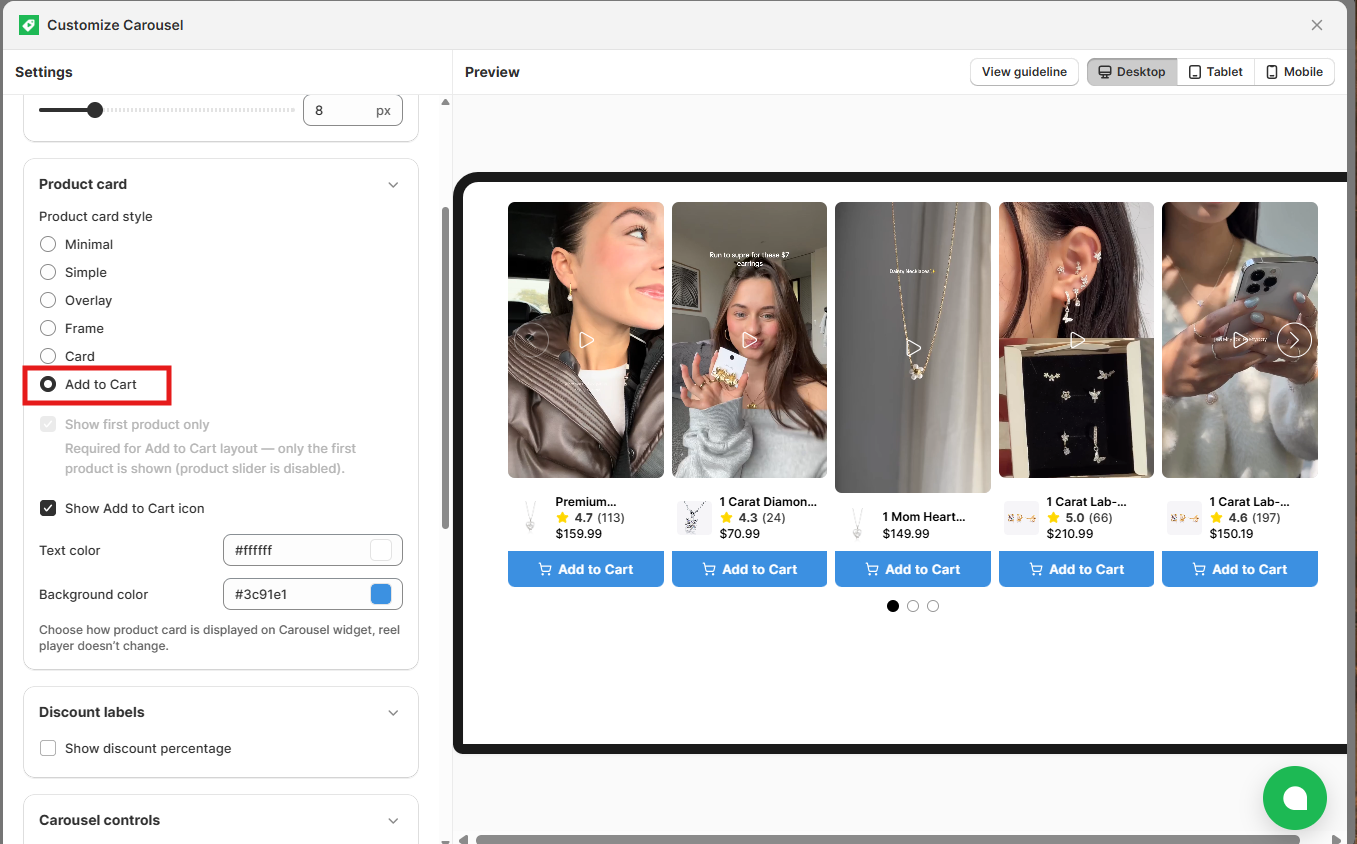
Note: Shoppers can add products to their cart directly from the widget without opening the video Player.
Step 3: Customize the button
You can customize the appearance of the Add to Cart button, including:
-
Show Add to Cart icon
-
Text color
-
Background color
Use the Desktop, Tablet, and Mobile options to preview how the button looks on different devices.
Step 4: Save your changes
Once you're happy with the setup, click Save to publish the changes to your storefront.
Tip: Make sure your videos are connected to the correct products so the Add to Cart button can be displayed.
We value your feedback — it helps us continuously improve our apps and provide you with a better experience.
🖥️ Demo store: Check out here with password: 1
👉 Chat with us: Share your feedback directly with our team.
👉 Email us: hi@reelpik.com
👉 Explore more apps: Discover more Fordeer apps.
👉 Join our community: Join ForDeer Community to get the latest updates, tips, and special deals.
🕐 Working hours: 8:30 AM – 5:00 PM (UTC+7), Monday–Friday.
We typically reply to live chats within minutes and emails within a few hours.
Need help? Feel free to reach out anytime via live chat or email!