
Overview
When a shopper opens a video, the ReelPik player appears as a full-screen layer on top of your store. Sometimes other elements on your storefront, such as a live chat button, a sticky header, a cookie consent banner or a popup from another app, show up on top of the player and block the video or the product details.
The Z-index setting controls the stacking order of the player. A higher value places the player above more elements on the page.
-
Default value: 1000
-
Where to find it: Customization > Player > Advanced settings
-
Applies to: The Player is a shared setting, so the Z-index you set applies to the video player of all your widgets (Carousel, Stories, Highlight, Floating Reels, Grid and Instagram Feed).
How to change the player Z-index
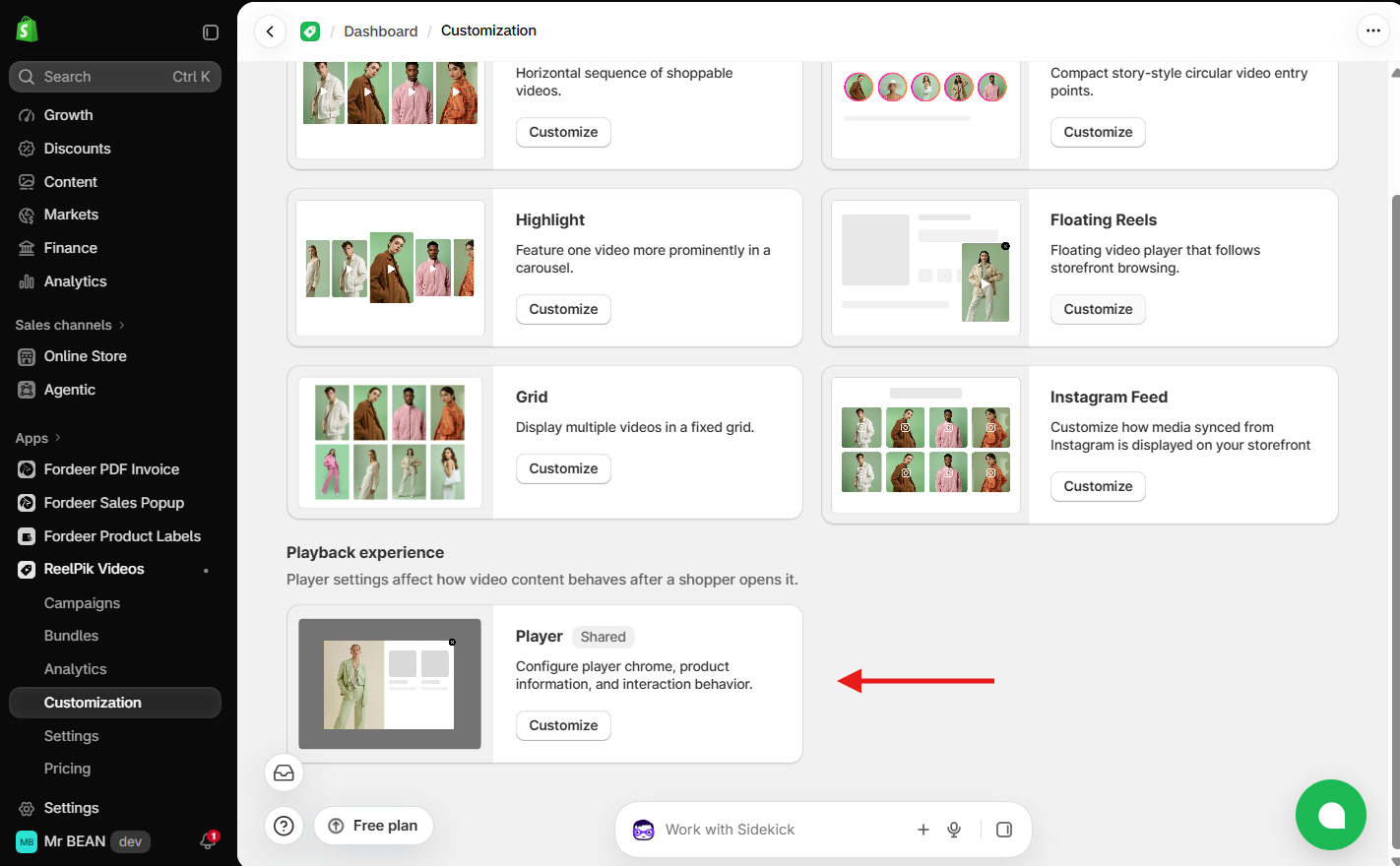
Step 1: Open the Player settings
From your Shopify admin, go to Apps > ReelPik Videos > Customization. Scroll down to Playback experience, find the Player card and click Customize.
Step 2: Go to Advanced settings
In the Settings panel on the left, scroll to the bottom and expand Advanced settings.
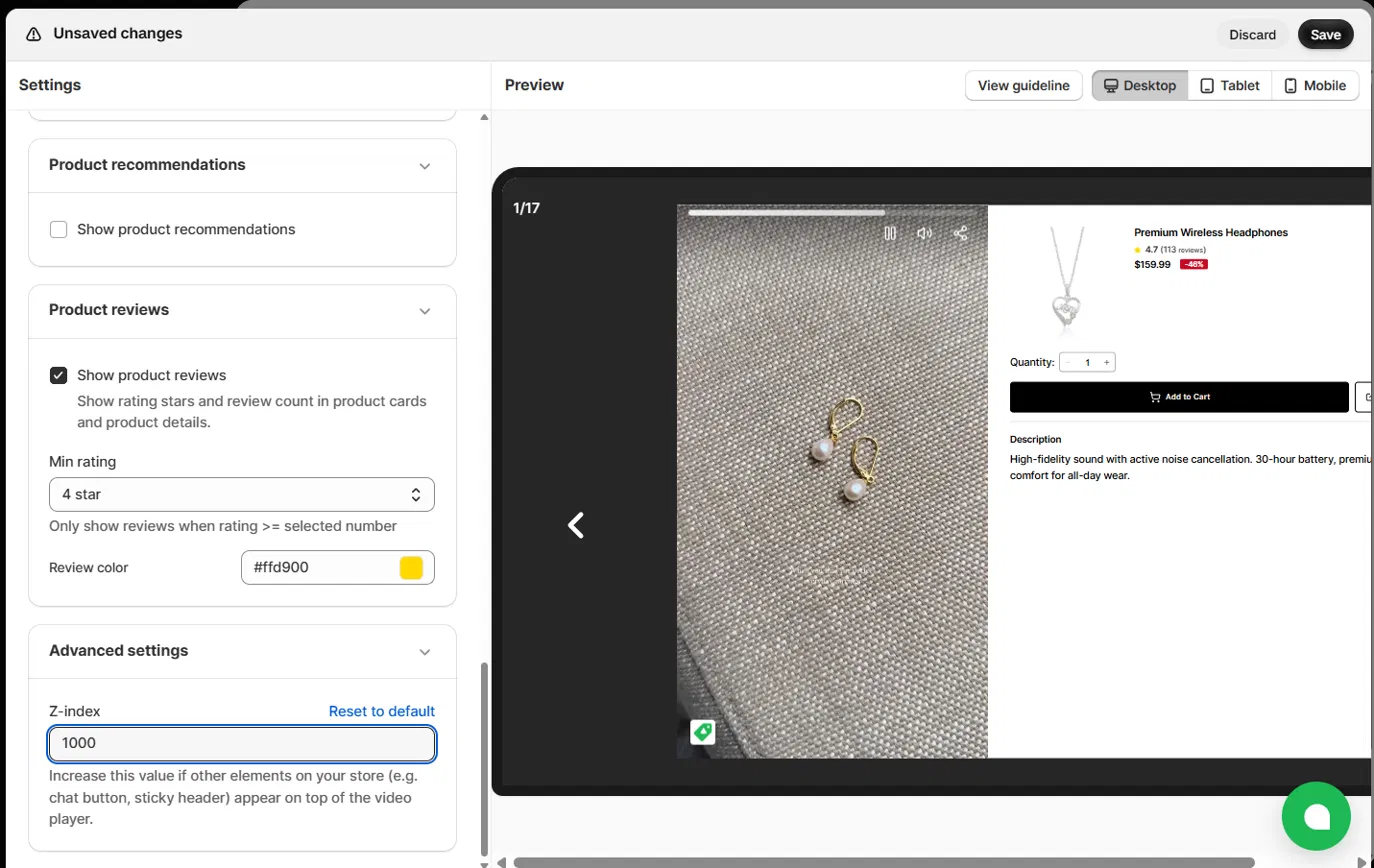
Step 3: Enter a new Z-index value
In the Z-index field, enter a value higher than the element that is covering your player. Use the table below as a starting point.
| Situation | Suggested value |
|---|---|
| Default, no overlap issues | 1000 |
| Sticky header or announcement bar covers the player | 9999 |
| Live chat button, cookie banner or another app's popup covers the player | 99999 |
| Element still on top after trying the values above | 2147483647 (the maximum value) |
Step 4: Save and check your storefront
Click Save at the top of the page. Then open your online store, click a video and check that the player now appears above the other elements.
How to check the z-index of other elements on your store
Not sure which value to enter? You can check the z-index of the element covering the player using your browser's developer tools. The steps below use Google Chrome; Edge, Firefox and Safari work in a similar way.
-
Open your online store and click a video so the ReelPik player is showing.
-
Right-click the element that covers the player (for example, the chat button, sticky header or cookie banner) and select Inspect. The Elements panel opens with that element highlighted.
-
In the Styles tab on the right, type
z-indexin the Filter box to find its value.- If no z-index appears, click the parent element one level up in the Elements panel and check again. The z-index is often set on an outer wrapper with
position: fixed.
- If no z-index appears, click the parent element one level up in the Elements panel and check again. The z-index is often set on an outer wrapper with
-
Note the highest z-index you find. This is the value the ReelPik player needs to beat.
-
To check the player's current value, right-click the video player and select Inspect, then look for the element with the class
rp-reel-player-wrapper. Its z-index comes from the--rp-player-z-indexvalue, which matches the number in your Advanced settings. -
Go back to Customization > Player > Advanced settings and enter a value higher than the one you noted, for example add 1 to it. Click Save.
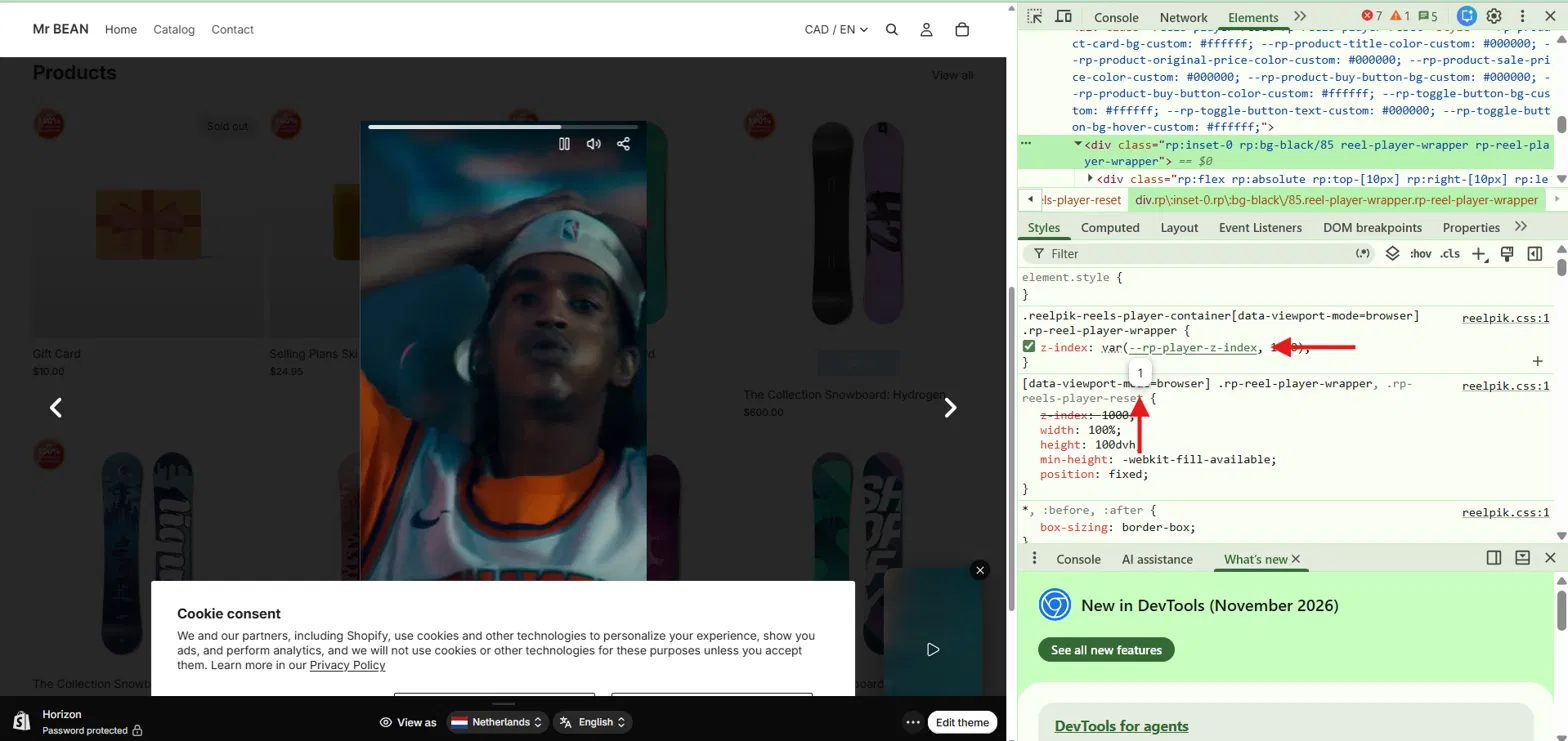
Tip: You can test a value before saving it. In the Styles tab, double-click the player's z-index value and type a new number. The change only shows on your screen and resets when you reload the page.
Tips
-
Increase the value step by step. A very high Z-index can cover elements you still want shoppers to see, such as a required cookie consent banner.
-
If you don't know which element is overlapping, right-click it on your storefront and choose Inspect. Check its
z-indexvalue in the browser's developer tools, then set the ReelPik player a little higher. -
Some themes and apps use
position: fixedwith their own very high z-index. If the player is still covered after you set the maximum value, contact our support team and we'll check your theme for you.
Related articles
We value your feedback — it helps us continuously improve our apps and provide you with a better experience.
🖥️ Demo store: Check out here with password: 1
👉 Install ReelPik: Get ReelPik on the Shopify App Store — free plan available.
👉 Chat with us: Share your feedback directly with our team.
👉 Email us: hi@fordeercommerce.io
👉 Explore more apps: Discover more ForDeer apps.
🕐 Working hours: 8:30 AM – 5:00 PM (UTC+7), Monday–Friday. We typically reply to live chats within minutes and emails within a few hours.
Need help? Feel free to reach out anytime via live chat or email!