

Overview
Product page videos let you show the right shoppable videos on each product page of your Shopify store. Instead of building a separate campaign for every product, you manage all product-level videos in one place: which videos belong to which product, how they are displayed, and whether they are live.
With Product page videos, you can:
-
Add or remove products and videos at any time
-
Choose a widget type for each product: Highlight, Carousel, Grid or Floating Reel
-
Publish or unpublish videos per product
Shoppers see videos that match the product they are viewing, moving naturally from watching → discovering → shopping.
How to set up product page videos
Step 1: Set up Product page videos
-
From your Shopify admin, open ReelPik > Product page videos.
-
Click Import from active campaigns or Add products.
-
ReelPik automatically syncs every product that already has videos attached and adds them to the product list.
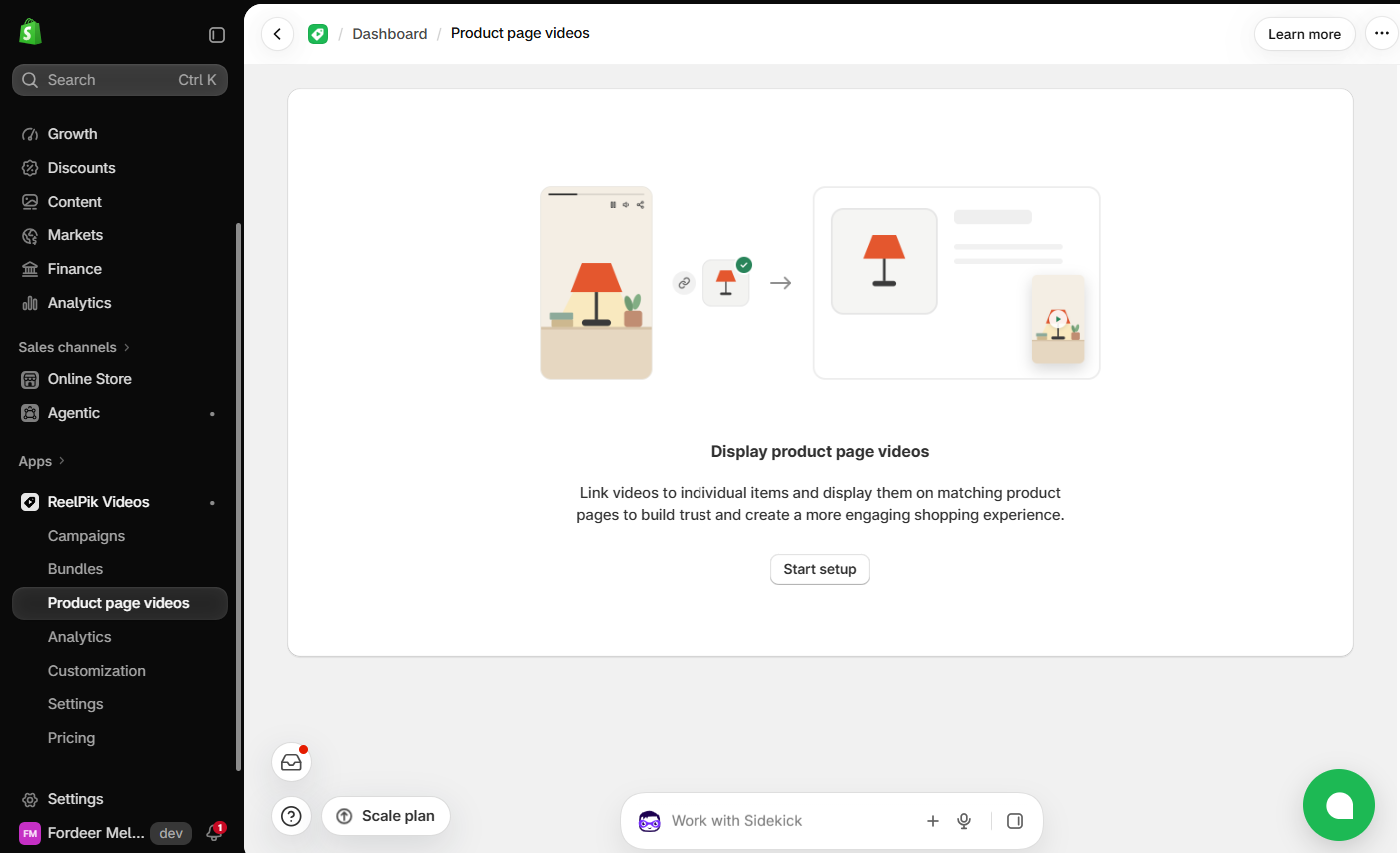
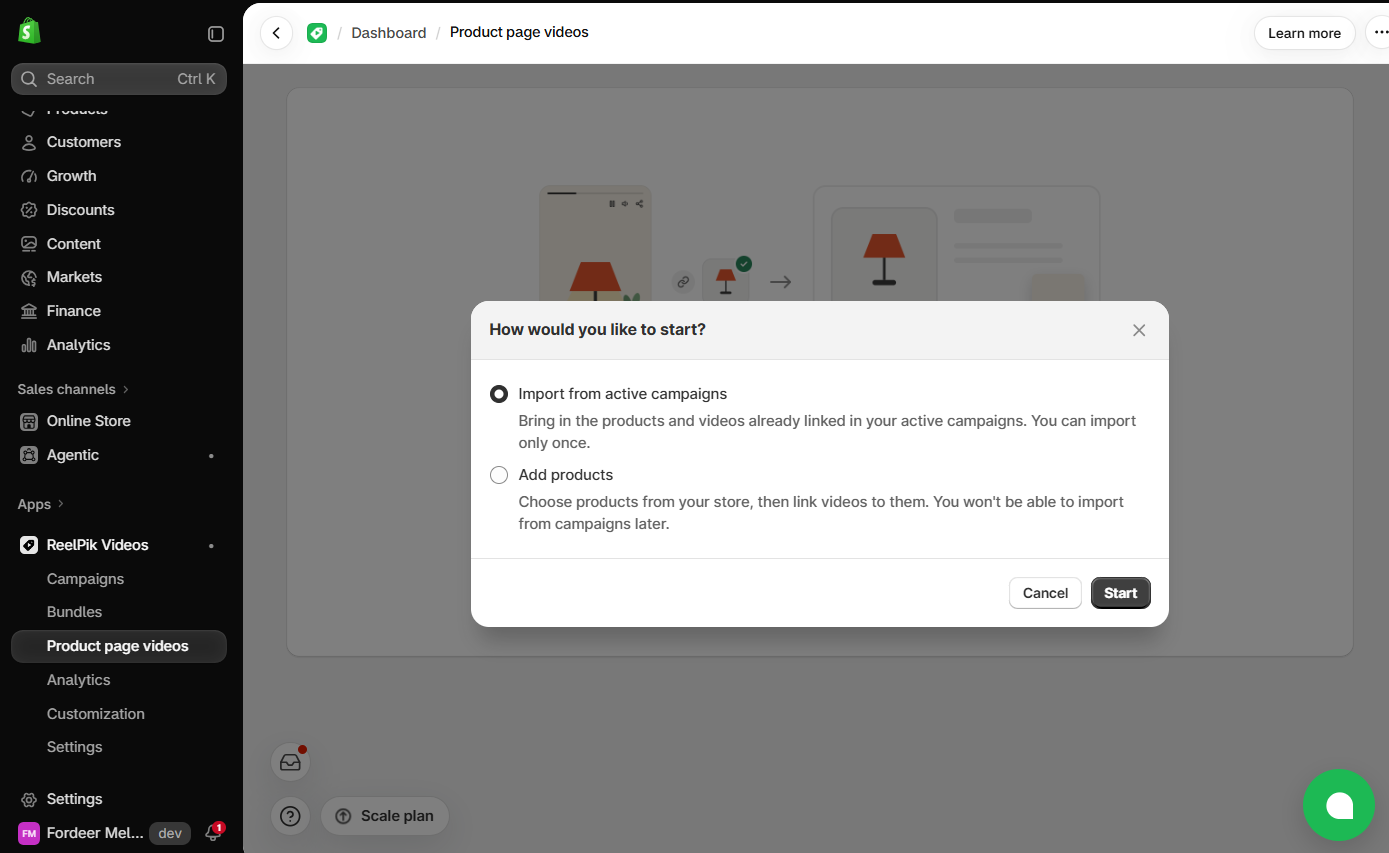
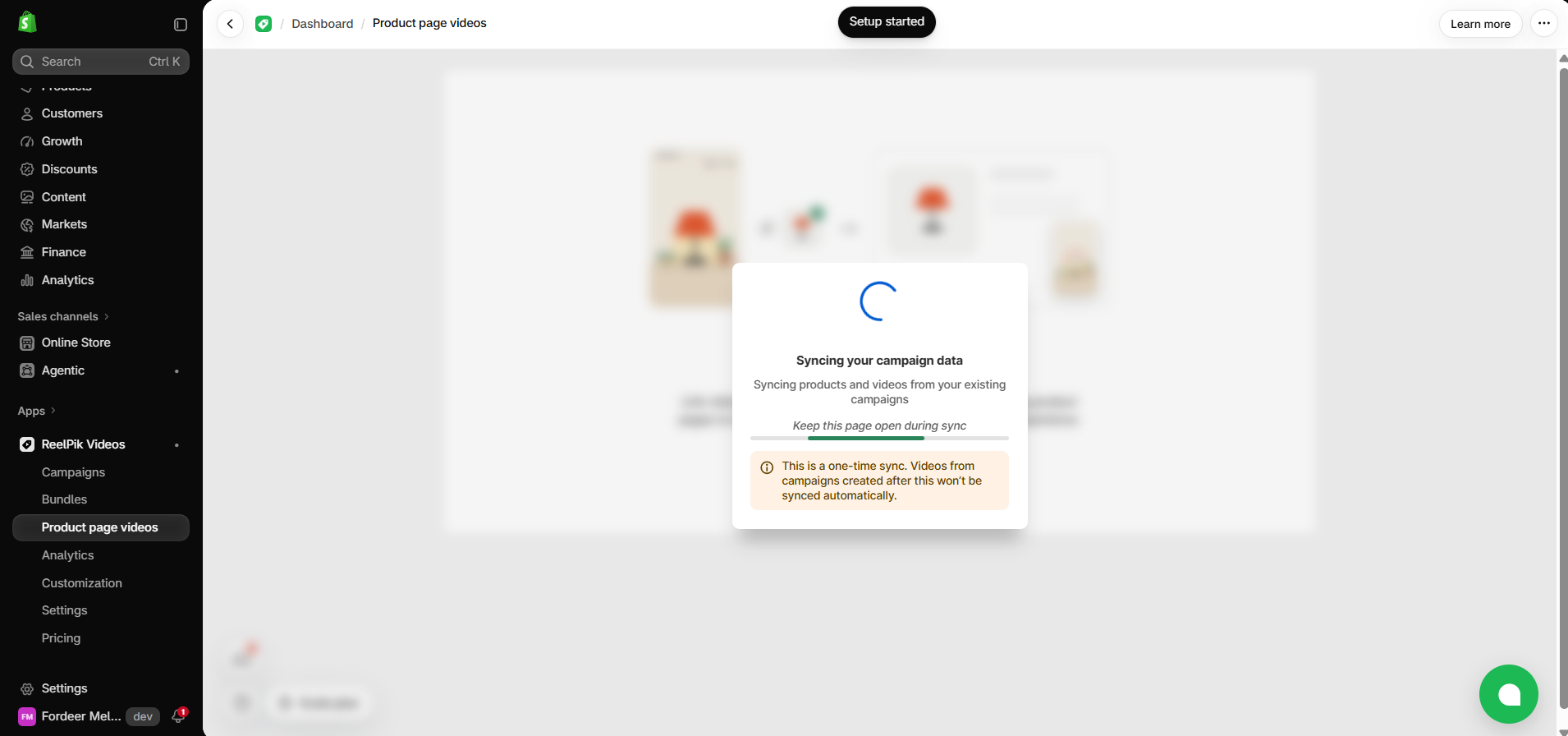
Note: The automatic sync runs only once, when you click Set up. Products or videos you link afterwards are not synced automatically — add them manually with Add product (Step 3) or Edit videos (Step 4).
Step 2: Activate the widgets on your theme
At the top of the page, you'll see two theme status cards. Each widget type needs one of them to be Active before it can appear on your storefront.
| Card | Needed for | How to activate |
|---|---|---|
| Product reel embed (app embed) - Enable Product Reel Embed in the theme editor. | Floating Reel | Click Embed, turn on the ReelPik app embed in the theme editor, then click Save |
| Product video block(s) (app block) - Add Product Page Videos in the theme editor. | Carousel, Highlight, Grid | Click Add block, place the ReelPik block on your product page template, then click Save |
After saving in the theme editor, return to ReelPik and click Refresh theme status to update the status to Active.
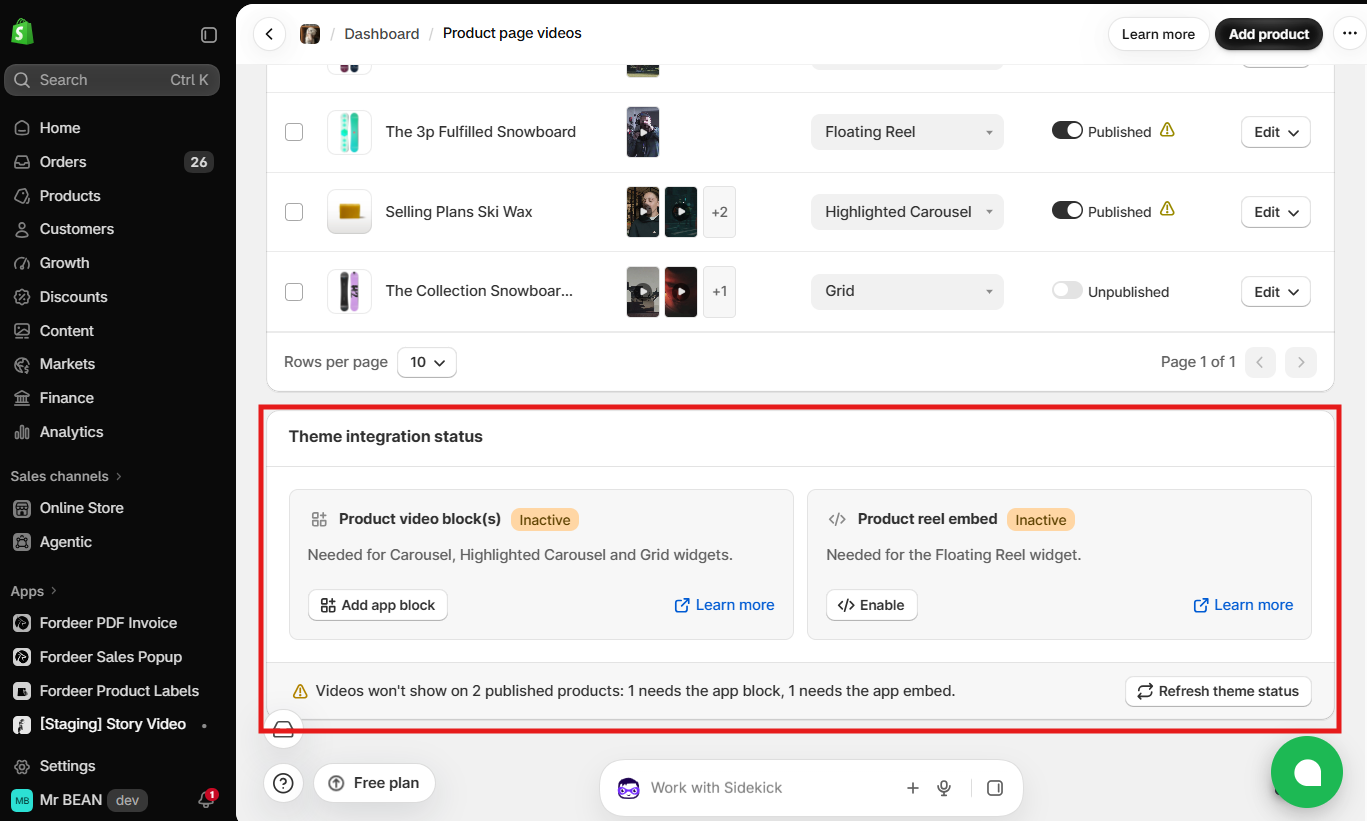
Note: If a product uses Floating Reel, make sure the app embed is active. If it uses Carousel, Highlight or Grid, make sure the app block is added to the product page template.
Step 3: Add more products
-
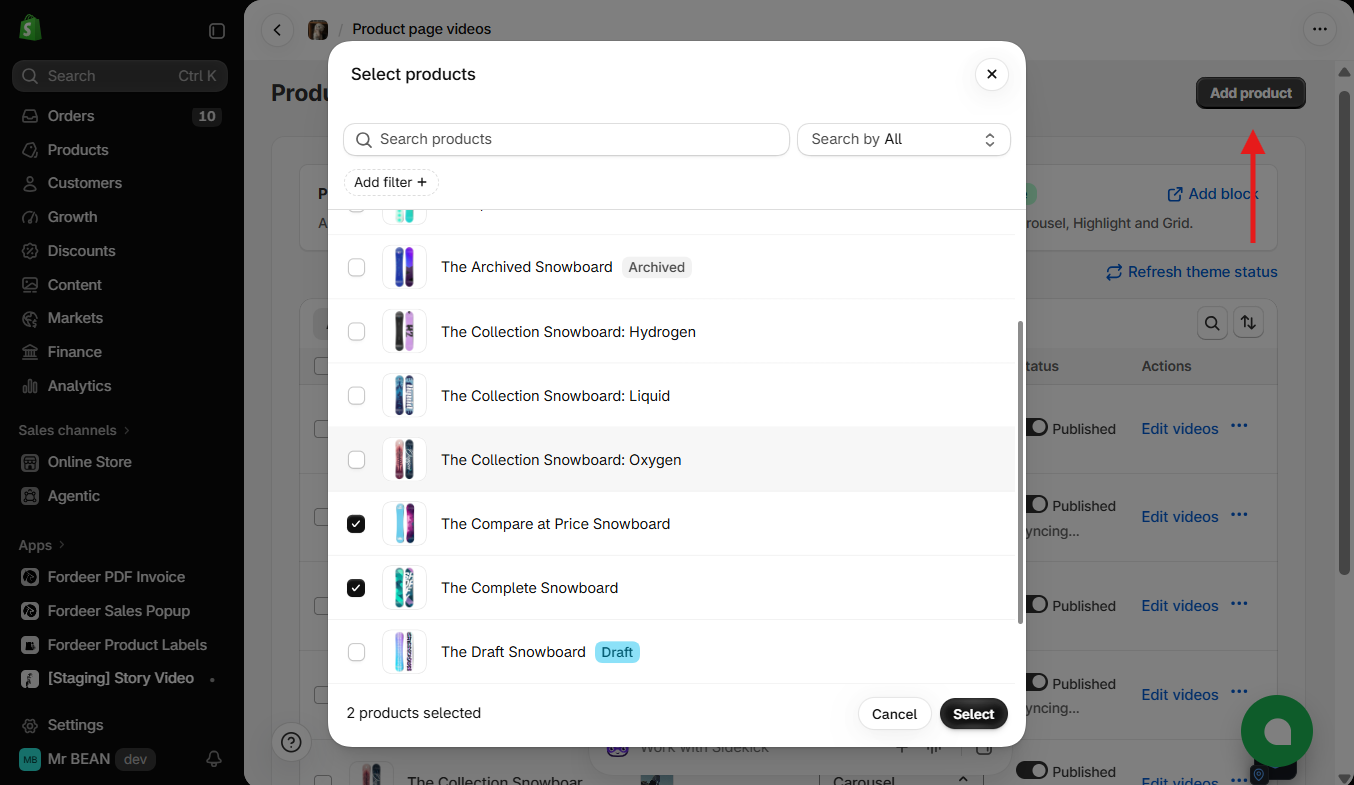
Click Add product in the top-right corner.
-
In Select products, search by product name or use Search by and Add filter to narrow down the list.
-
Tick the products you want and click Select.
Step 4: Link videos to a product
-
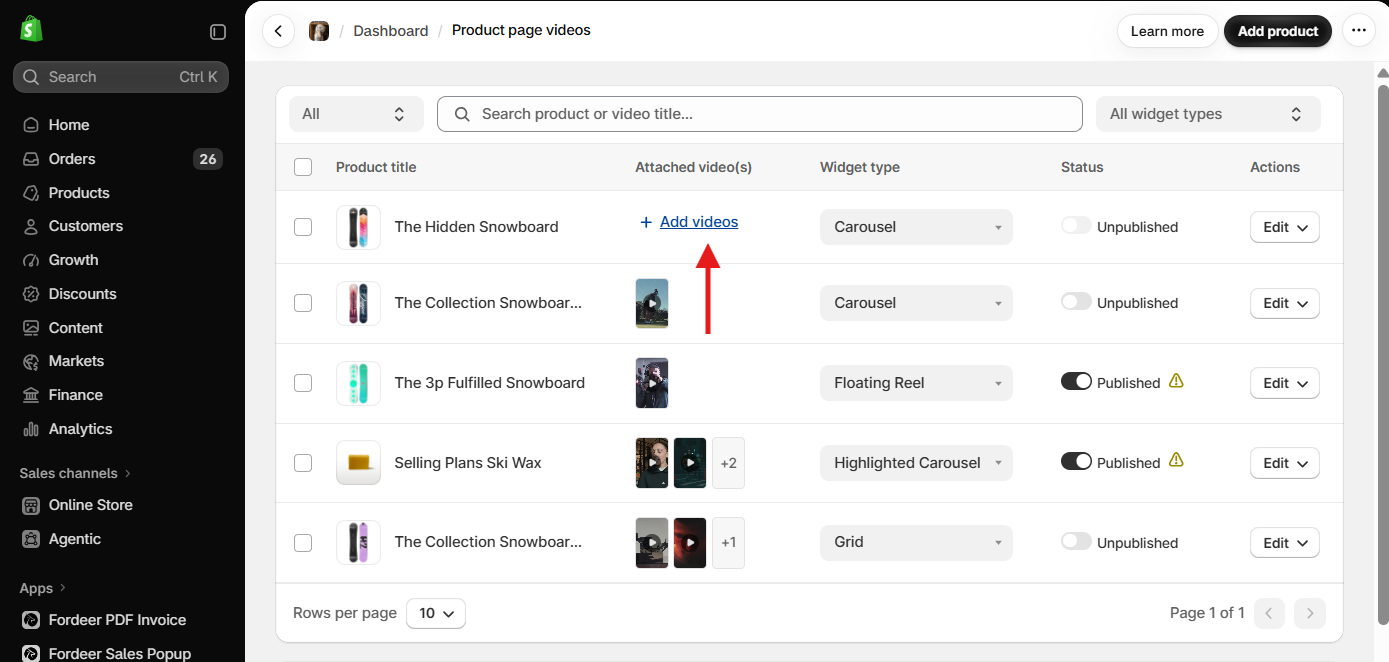
Click Add videos.
-
Choose videos from any source:
-
Instagram – videos from your connected Instagram account
-
TikTok – videos from your connected TikTok account (click Add from TikTok to import more)
-
Device – upload videos from your computer
-
Shopify Files – videos already stored in your Shopify Files
-
-
Tick the videos you want.
-
Click Add selected.
Step 5: Edit videos for a product
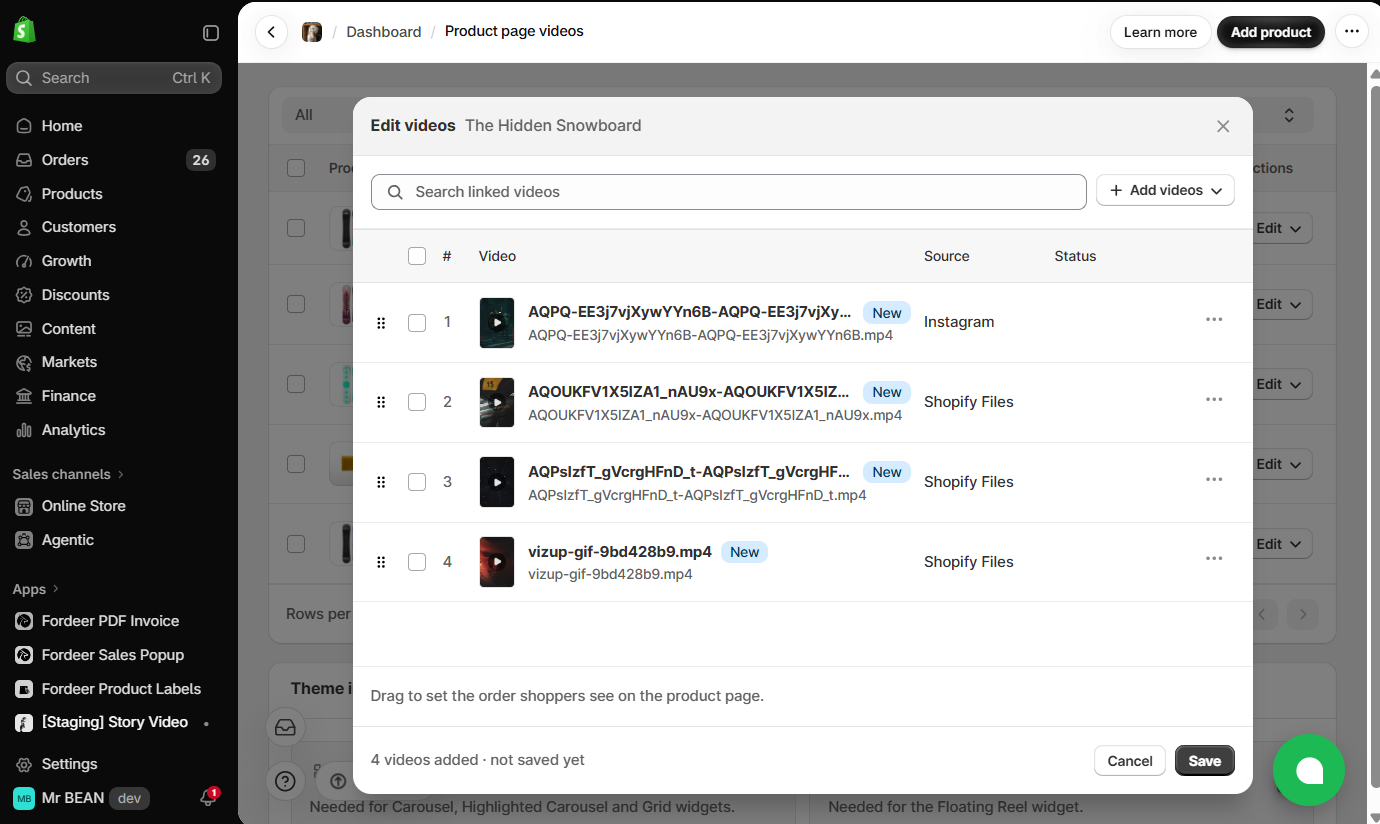
- Click Edit videos next to a product to open the video list for that product. Here you can:
-
Search linked videos by name
-
Edit a video's title, description or upload date (click ellipsis and Edit details)
-
Reorder videos by dragging the handle (⠿) on the left – the first video is shown first on the product page
-
Remove videos you no longer want to show on this product
- Click Save to apply your changes.
Important: Title, description and upload date are shared across ReelPik. Editing them affects every campaign and product page that uses the same video.
Step 6: Choose a widget type
Use the Widget type dropdown on each product row to choose how its videos are displayed:
-
Highlight – a compact, eye-catching row of video bubbles
-
Carousel – a horizontal, swipeable video carousel
-
Grid – multiple videos in a grid layout
-
Floating Reel – a floating video player in the corner of the product page
Tip: Highlight and Floating Reel take up little space and work well near the Add to cart button. Carousel and Grid are better when a product has many videos, such as tutorials or UGC.
Step 7: Publish your widgets
Turn the Status toggle on to publish a product's videos, or off to hide them from the storefront.
While ReelPik updates your storefront, the status shows Syncing…. Once syncing is complete, the videos appear on the product page.
Note: If your videos don't appear after publishing, check that the matching app embed or app block is Active (Step 2) and click Refresh theme status.
Related articles
We value your feedback — it helps us continuously improve our apps and provide you with a better experience.
🖥️ Demo store: Check out here with password: 1
👉 Install ReelPik: Get ReelPik on the Shopify App Store — free plan available.
👉 Chat with us: Share your feedback directly with our team.
👉 Email us: hi@fordeercommerce.io
👉 Explore more apps: Discover more ForDeer apps.
🕐 Working hours: 8:30 AM – 5:00 PM (UTC+7), Monday–Friday. We typically reply to live chats within minutes and emails within a few hours.
Need help? Feel free to reach out anytime via live chat or email!