

Overview
When you add videos to ReelPik, whether you upload them from your device or import them from Instagram or TikTok, they are processed in the background. You don't need to wait on the page. You can keep linking products, editing your campaign or moving to other pages while the video processes.
ReelPik tracks every import in Notifications. It tells you when a video is ready, or why it failed and how to fix it.
This article covers:
-
How background import works
-
How to check video processing status
-
Common reasons a video import fails and how to fix them
Step 1: Add your videos
-
From the ReelPik app, open a Campaign (or Product page videos).
-
Click Add videos and choose your source: upload from your device or import from social.
-
The new video appears in your video list with a Processing badge.
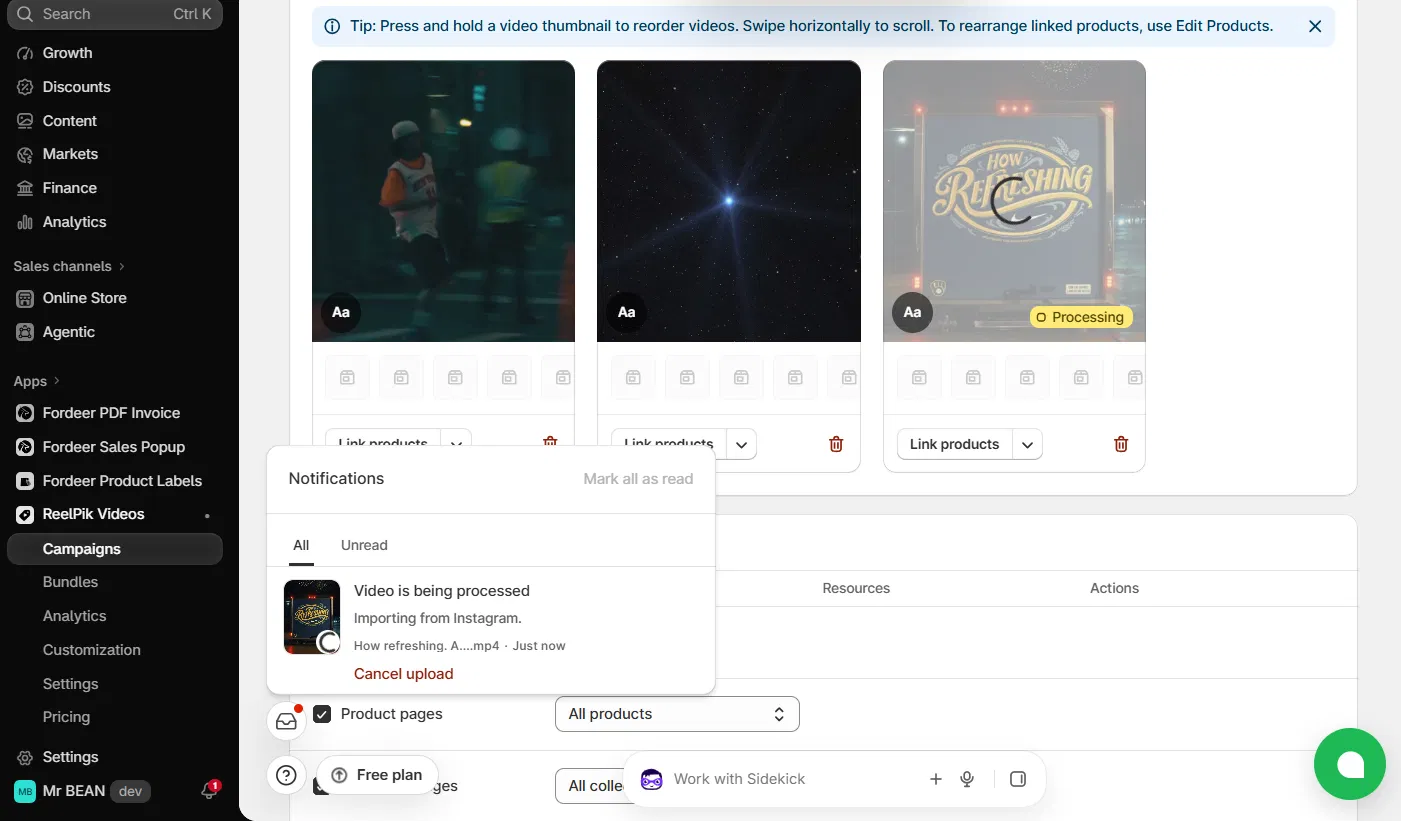
💡 You don't have to wait. While a video is processing, you can still click Link products, reorder videos, edit campaign settings or leave the page. The import continues in the background.
Step 2: Track processing status in Notifications
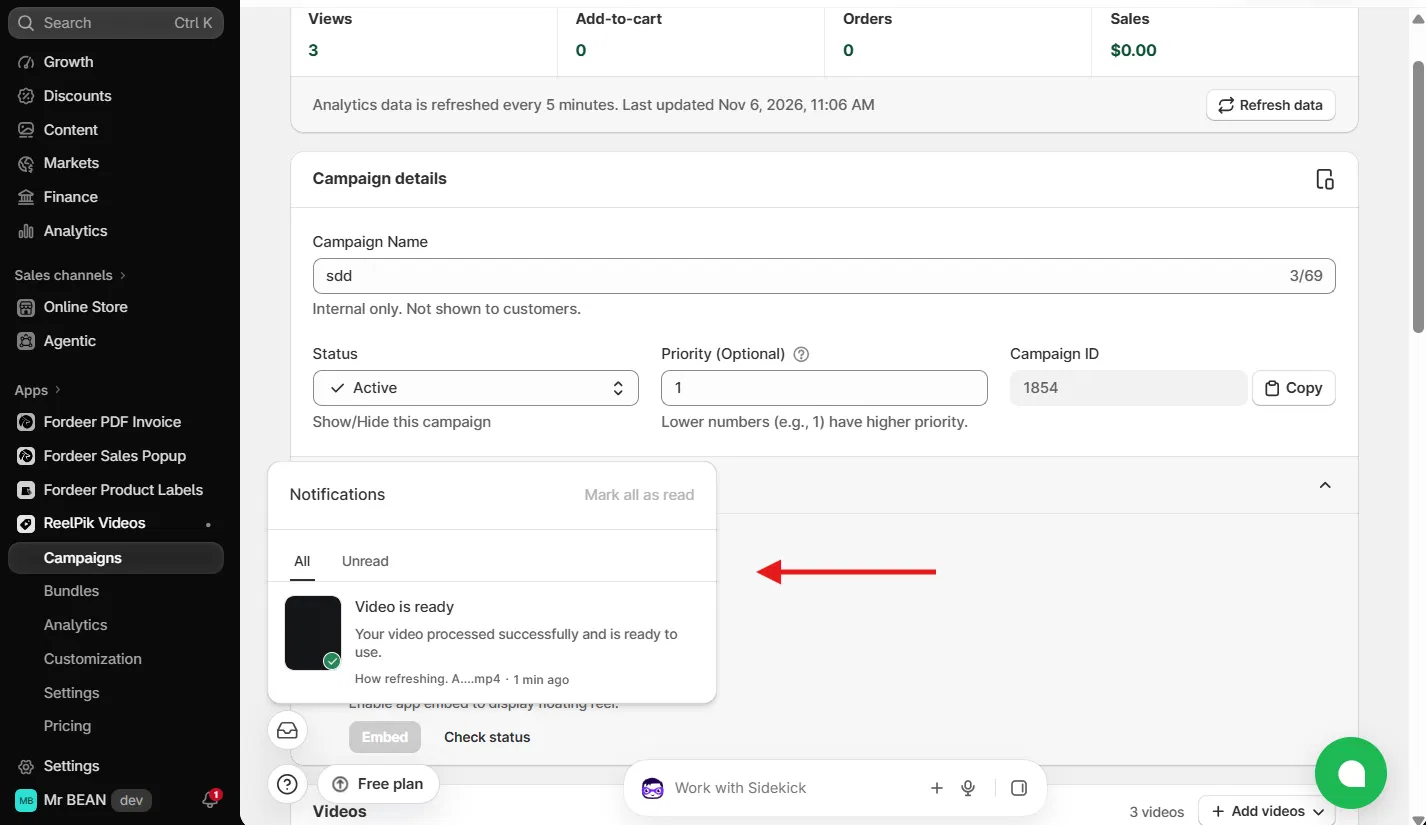
Click the Notifications icon (the inbox icon at the bottom left of the app) to see the status of each video. Use the All and Unread tabs to filter, and Mark all as read to clear them.
Each video shows one of three statuses:
| Status | What it means | What you can do |
|---|---|---|
| Video is being processed | The video is still importing or uploading (for example, Importing from Instagram). | Continue working. Click Cancel upload if you added the wrong video. |
| Video is ready | The video processed successfully and is ready to use. | Nothing to do. The video goes live in your campaign once the campaign is active. |
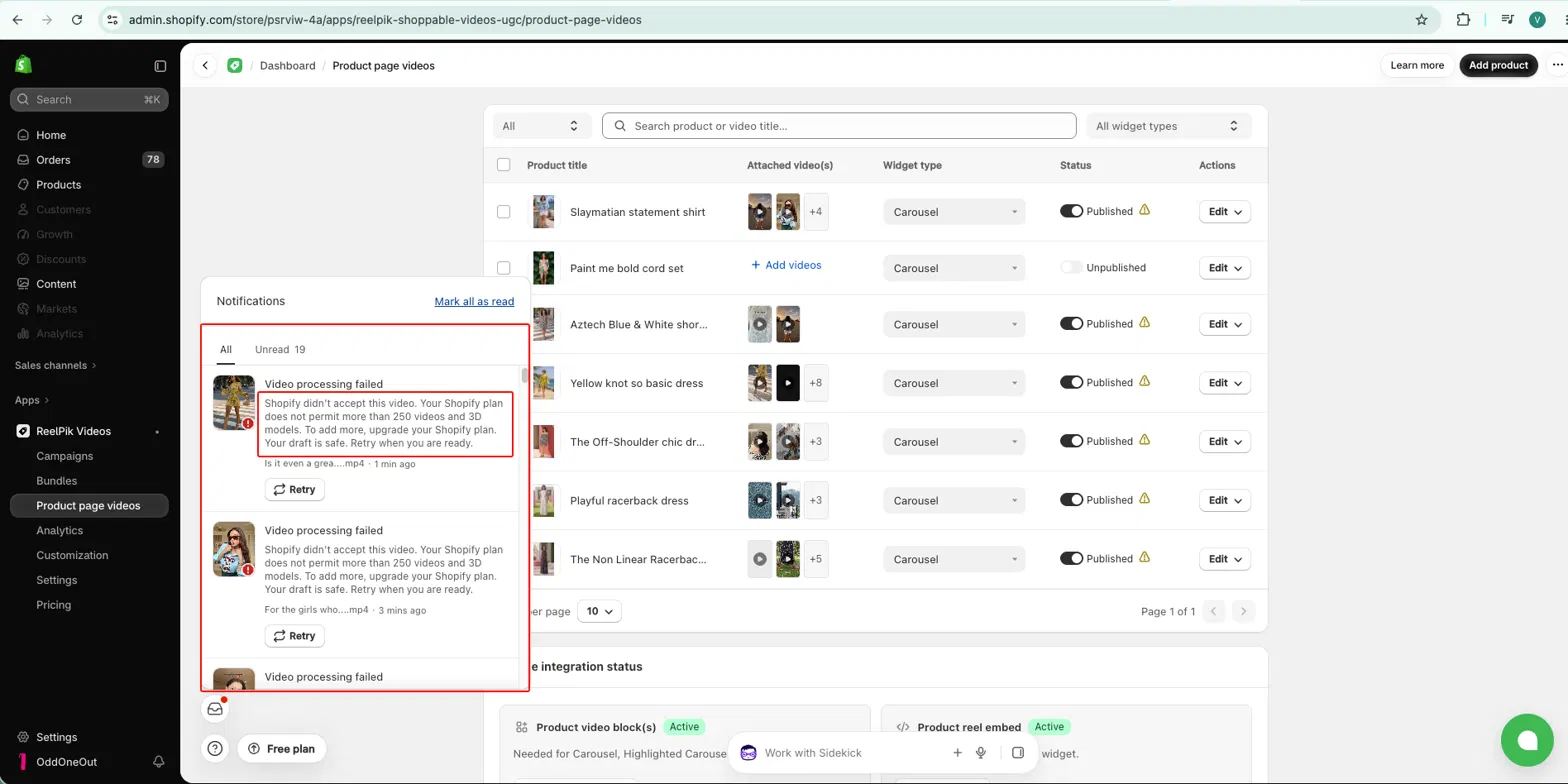
| Video processing failed | The video couldn't be processed. The notification shows the exact reason. | Read the reason, fix the issue, then click Retry. |
Failed videos are also marked with a red error icon on their thumbnail.
Step 3: Fix a failed import
Open the failed notification and read the message under Video processing failed. It tells you exactly what went wrong. Below are the most common reasons.
1. Your Shopify plan's file limit has been reached
The notification reads: Shopify didn't accept this video. Your Shopify plan does not permit more than 250 videos and 3D models. To add more, upgrade your Shopify plan.
ReelPik stores videos in your Shopify Files, so each video counts toward the video and 3D model limit of your Shopify plan.
How to fix:
-
Delete unused videos or 3D models in Shopify admin > Content > Files, or
-
Upgrade your Shopify plan to increase the limit.
Then click Retry.
2. The video file isn't supported
The file format, size or duration doesn't meet the requirements.
How to fix: Convert the video to a supported format (for example, MP4), reduce the file size or trim the video, then upload it again.
3. The source video is unavailable
When you import from social platforms, the post may be private or deleted, or your account may have been disconnected.
How to fix: Make sure the post is public and still exists, reconnect your account if needed, then click Retry.
4. The connection was interrupted
A temporary network or server issue stopped the import.
How to fix: Click Retry. If it keeps failing, contact our support team.
✅ Your work is safe. When an import fails, your draft (campaign settings, linked products and other videos) is not lost. Fix the issue and click Retry when you're ready.
Related articles
We value your feedback — it helps us continuously improve our apps and provide you with a better experience.
🖥️ Demo store: Check out here with password: 1
👉 Install ReelPik: Get ReelPik on the Shopify App Store — free plan available.
👉 Chat with us: Share your feedback directly with our team.
👉 Email us: hi@fordeercommerce.io
👉 Explore more apps: Discover more ForDeer apps.
🕐 Working hours: 8:30 AM – 5:00 PM (UTC+7), Monday–Friday. We typically reply to live chats within minutes and emails within a few hours.
Need help? Feel free to reach out anytime via live chat or email!