

Overview
Want a ReelPik widget (for example a Story or Carousel) on just one Shopify page, such as About us or a brand page? This guide explains why a widget can end up on every page, and how to show it only on the page you want.
Why the widget shows on every page
In Shopify, all Pages (the ones under Online Store → Pages) use the same page template by default. When you add a ReelPik app block to a page in the theme editor, the block is added to every page that uses the same template.
Note: Collection targeting in ReelPik only applies to collection pages (URLs with
/collections/). A Shopify Page (URL with/pages/) is not a collection, so choosing a collection will not limit the widget to that page. Use Specific pages instead, as shown below.
How to show the widget on a specific page
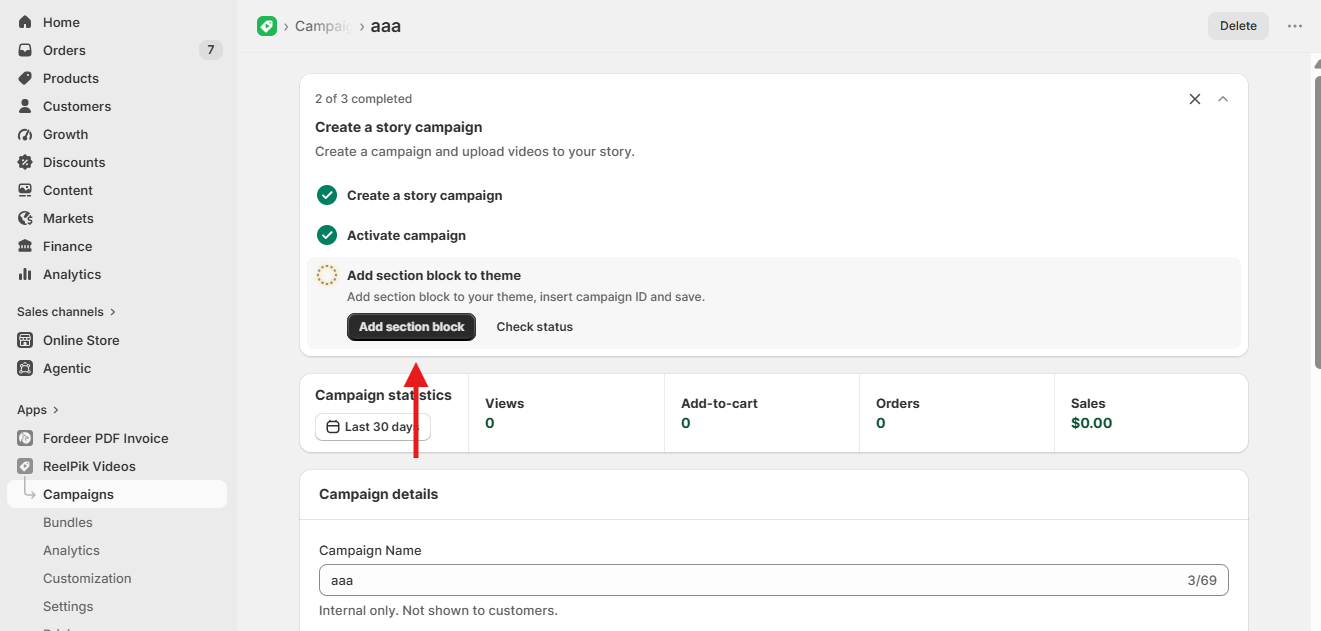
Step 1: Add the ReelPik app block to the page
-
From your Shopify admin, go to Online Store → Themes and click Customize.
-
In the selector at the top, choose Pages and open the page where you want the widget (for example About us).
-
Click Add block (or Add section) and choose the ReelPik block, for example ReelPik Story.
-
Paste your Campaign ID into the block settings.
-
Click Save.
Step 2: Set “Specific pages” in Display targeting
-
Go to ReelPik Videos → Campaigns and open the campaign you added to the block.
-
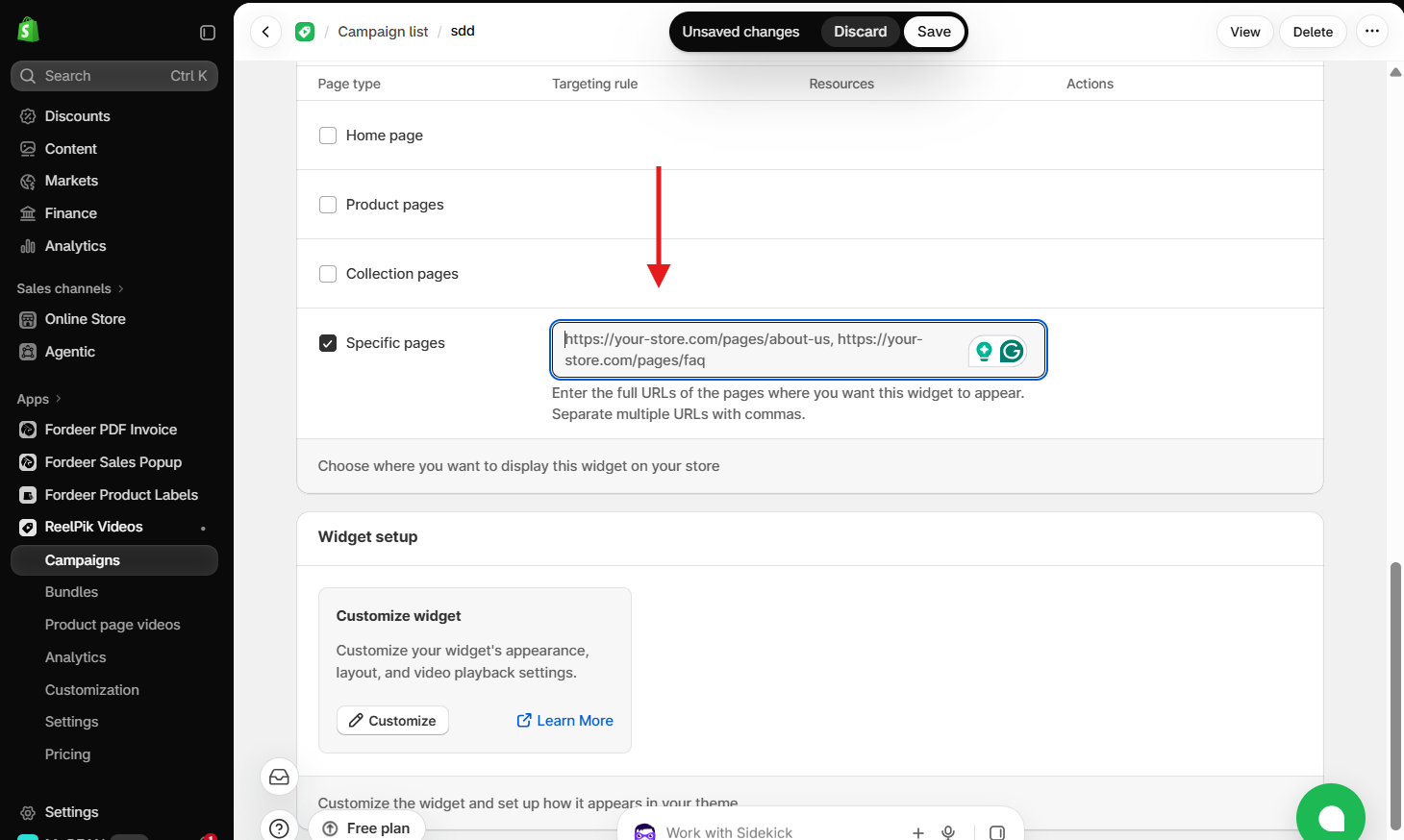
Scroll to Display targeting.
-
Tick Specific pages and add the page URL where the widget should appear.
-
Untick any page types you don't need (for example Home page or Collection pages).
-
Click Save.
Step 3: Check your store
Open the page on your storefront — the widget should appear. Then open another page to confirm the widget doesn't show there. Need it on more pages? Select those pages in Specific pages too — no need to open the theme editor again.
We value your feedback — it helps us continuously improve ReelPik and provide you with a better experience.
🖥️ Demo store: Check out here with password: 1
👉 Install ReelPik: Get ReelPik on the Shopify App Store — free plan available.
👉 Chat with us: Share your feedback directly with our team.
👉 Email us: hi@fordeercommerce.io
👉 Explore more apps: Discover more ForDeer apps.
🕐 Working hours: 8:30 AM – 5:00 PM (UTC+7), Monday–Friday.
We typically reply to live chats within minutes and emails within a few hours.
Need help? Feel free to reach out anytime via live chat or email!