

Overview
ReelPik has two ways to show videos on your product pages: Product Videos (the original feature) and Product Page Videos (the new feature). They may look similar on your store, but they are set up differently and choose videos in different ways.
Important: Product Videos is being replaced by Product Page Videos and will no longer be supported soon. If you're setting up product page videos for the first time, we recommend using Product Page Videos.
Quick comparison
| Product Videos | Product Page Videos | |
|---|---|---|
| Status | Old feature, will be removed soon | New feature, recommended ✅ |
| Plan | Free on all plans | Paid feature (from Scale) |
| Theme block to add | ReelPik Product Videos section | Product Page Videos app block (Carousel, Highlight, Grid) and/or Product Reel Embed app embed (Floating Reel) ... with ReelPik logo. |
| Where you manage it | Inside your campaigns (by tagging products to videos) | ReelPik → Product page videos page |
| How videos are chosen | Automatically shows every video tagged to the product from your campaigns | You pick exactly which videos show on each product, and in what order |
| Display | Carousel only, 4 videos at a time | Highlight, Carousel, Grid or Floating Reel, chosen per product |
| Publish per product | ❌ No | ✅ Yes, with a status toggle on each product |
How Product Videos (old) choose videos
The ReelPik Product Videos section shows all videos tagged to the product the shopper is viewing. For a video to appear:
-
The video must be in a campaign.
-
The product must be linked (tagged) to that video.
Example: If 5 videos in your campaigns are tagged to Product A, all 5 show on Product A's page. You can't hide one of them on that page without removing the product tag from the video.
How Product Page Videos (new) choose videos
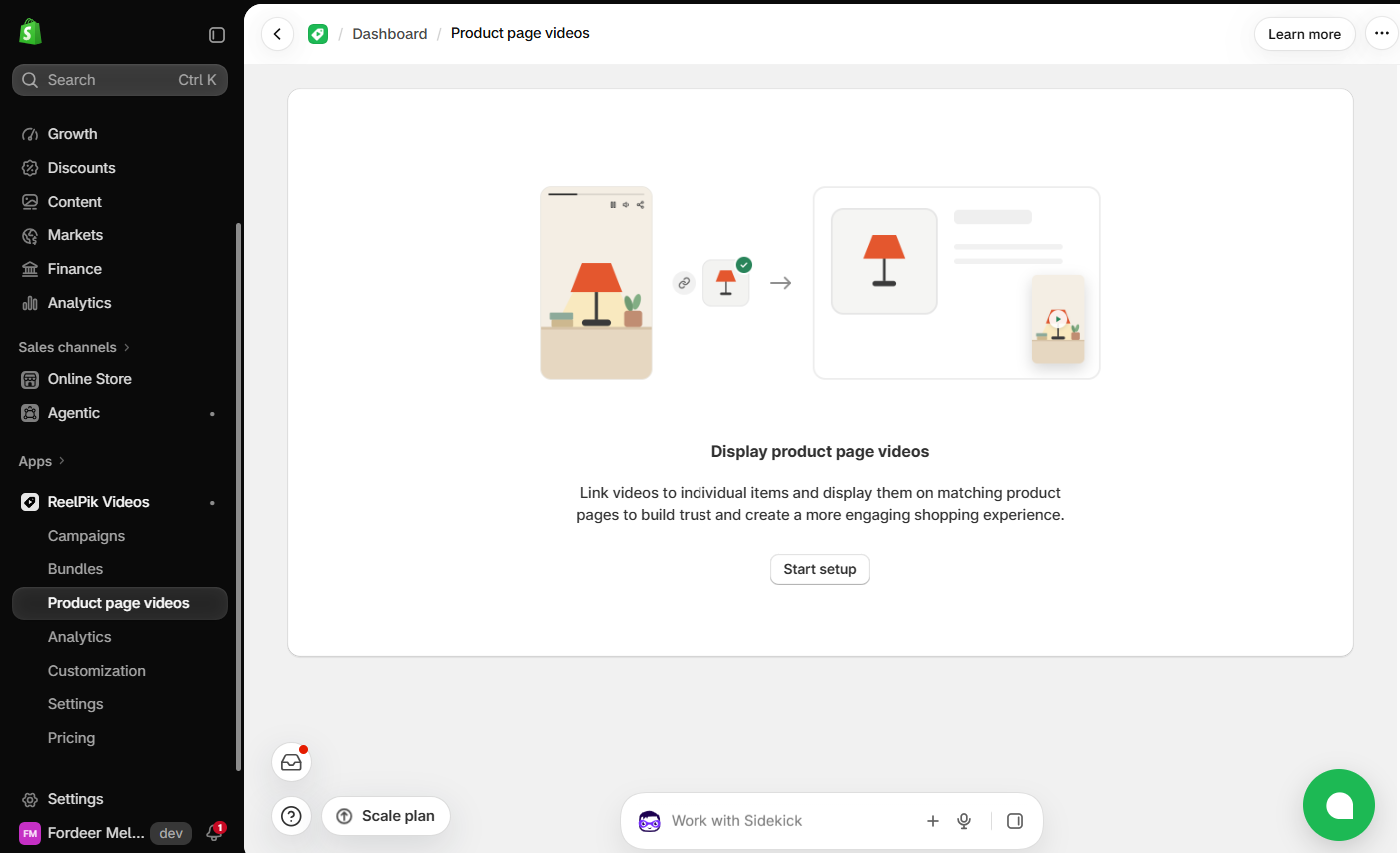
With Product Page Videos, you manage videos product by product in one place:
-
Go to ReelPik → Product page videos.
-
Click Import from active campaigns to bring in products that already have tagged videos, or click Add product.
-
Click Edit videos next to a product to add, remove or reorder its videos. The first video is shown first.
-
Choose a Widget type for the product (Highlight, Carousel, Grid or Floating Reel).
-
Turn the Status toggle on to publish.
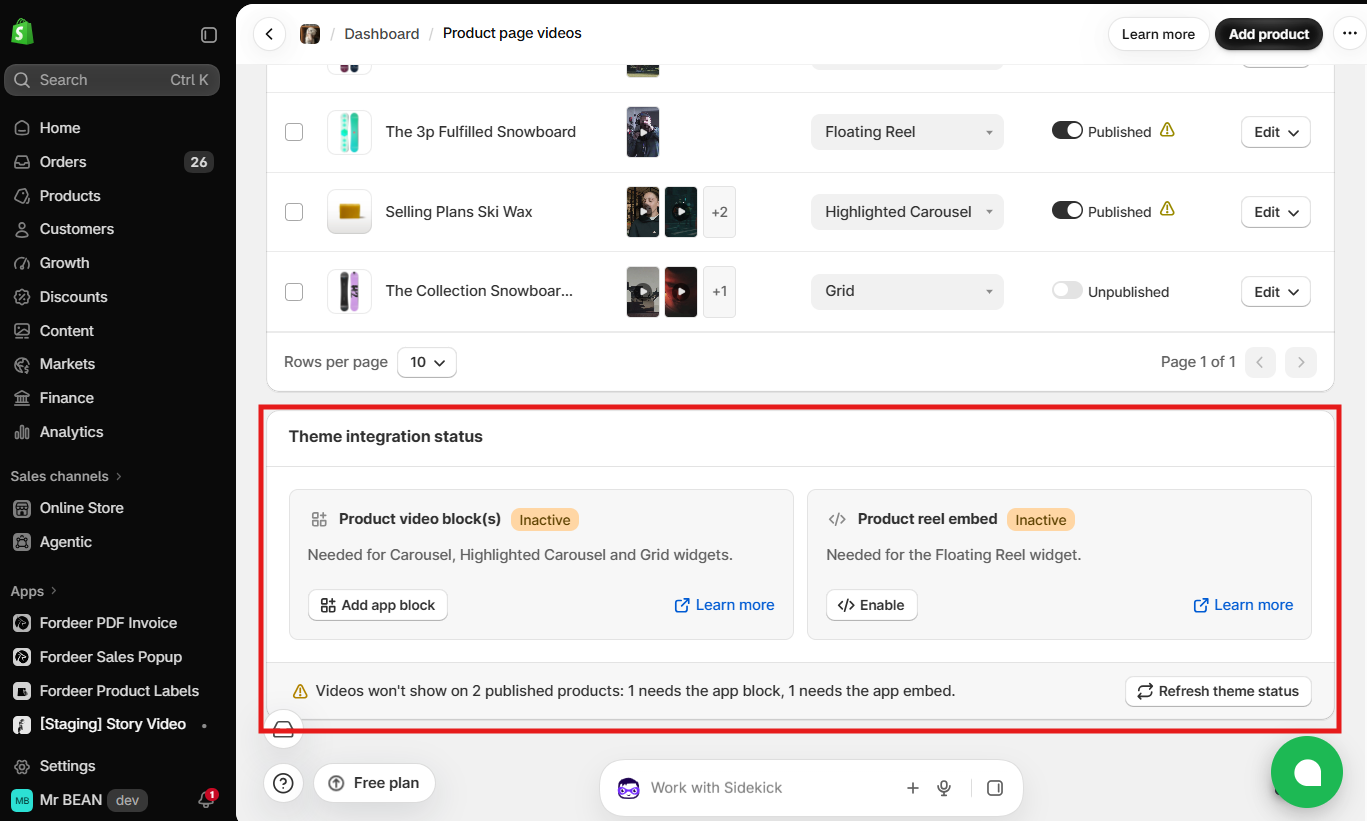
Then add the matching block to your theme:
-
Carousel, Highlight or Grid: add the Product Page Videos app block to your product page template.
-
Floating Reel: turn on the Product Reel Embed app embed.
Back in ReelPik, click Refresh theme status to check that the status shows Active.
For the full setup, see How to set up product page videos in ReelPik.
Moving from Product Videos to Product Page Videos
-
Set up Product Page Videos and click Import from active campaigns so your existing product–video links are copied over.
-
Check each product's videos and widget type, then publish.
-
In the theme editor, add the Product Page Videos block to your product page template.
-
Remove the old ReelPik Product Videos section from the same template, so shoppers don't see the videos twice.
-
Click Save.
Tip: Don't keep both blocks on the same product page template. Use one or the other.
We value your feedback — it helps us continuously improve ReelPik and provide you with a better experience.
🖥️ Demo store: Check out here with password: 1
👉 Install ReelPik: Get ReelPik on the Shopify App Store — free plan available.
👉 Chat with us: Share your feedback directly with our team.
👉 Email us: hi@fordeercommerce.io
👉 Explore more apps: Discover more ForDeer apps.
🕐 Working hours: 8:30 AM – 5:00 PM (UTC+7), Monday–Friday.
We typically reply to live chats within minutes and emails within a few hours.
Need help? Feel free to reach out anytime via live chat or email!